A Menu QR code opens a mobile page with your menu. Add one or more PDFs or images, plus anything else guests need, such as opening hours, a phone number or your social profiles.
Steps
- In your dashboard, click Create QR code.
- Choose Menu. To find a type faster, describe what you need in the search box or pick a category such as Popular or Restaurants.
- Upload your menu as PDFs or images.
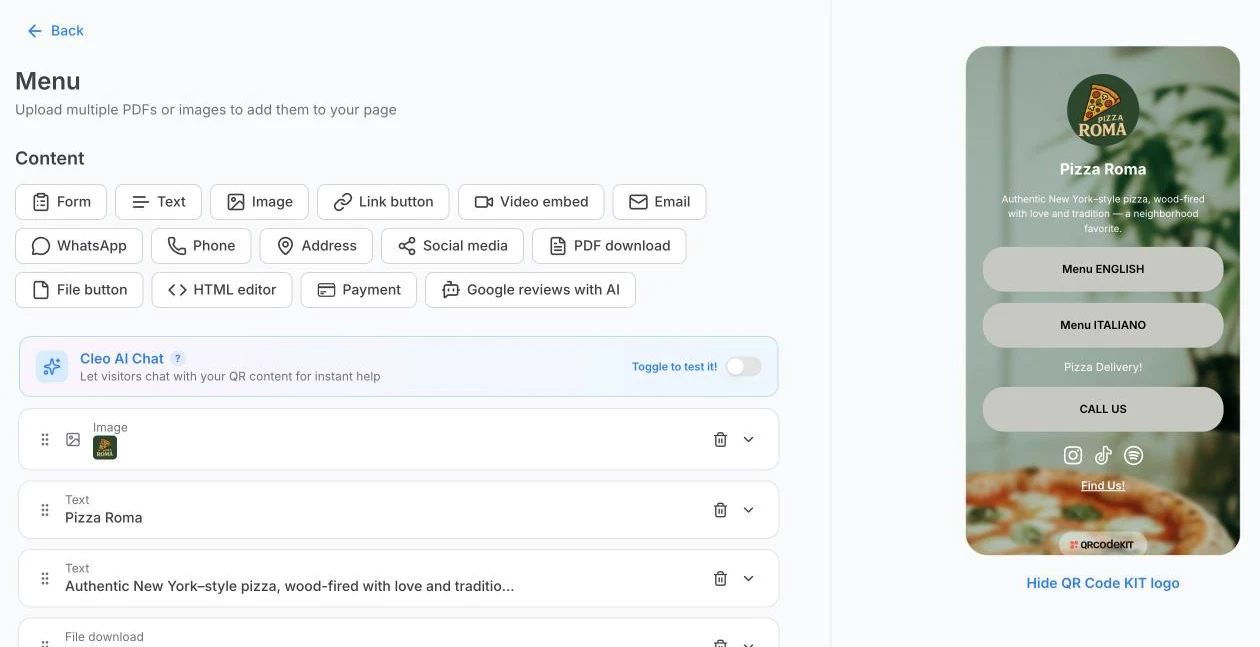
- Under Content, edit the blocks of the page and add more with the buttons above them. Drag a block to move it.
- Under Page style, pick a theme or one of Your templates.
- Click Next: Design. Your QR code is created and saved at this point.
- Choose a style, and add a logo or frame if you like. Changes on this step save automatically.
- Click Download QR Code and pick PNG, PDF, SVG or EPS. To download it later, click Or finish without downloading.
Good to know
- Add Cleo AI Chat to answer guests’ questions about your menu.
- Save the look of the page as a page template to reuse it on other menus.
- You can change the content at any time with the pencil icon in your dashboard. The printed QR code keeps working.
- Not sure this is the right type? See all QR code types.