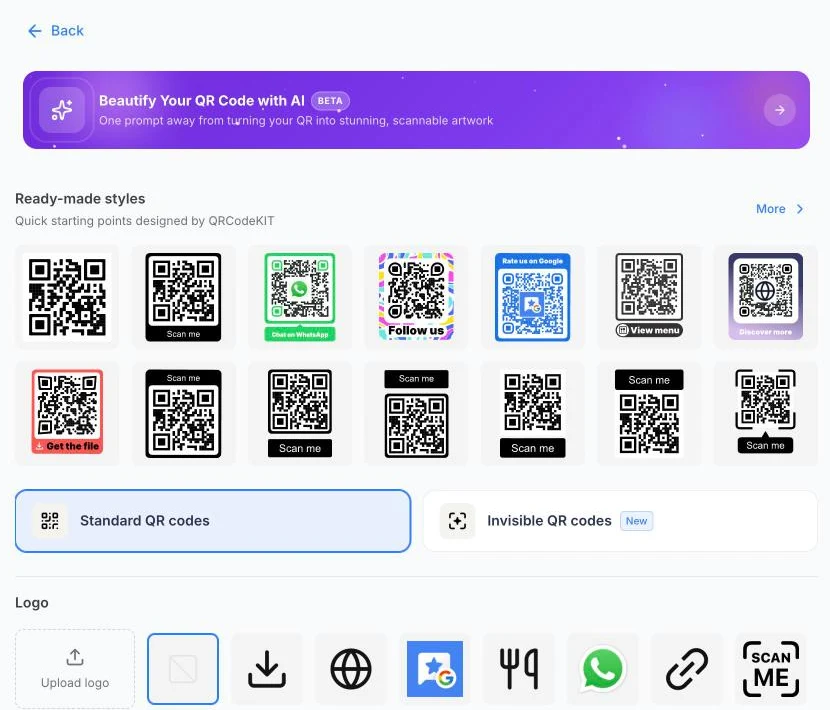
You design a QR code on the Design step: start from a ready-made style or build your own with a logo, a frame and your colors. Changes save automatically.
Steps
- In your dashboard, click the QR icon on the QR code’s row (next to the pencil). It also opens after Next: Design when you create a QR code.
- Pick one of the Ready-made styles, or start from Standard QR codes or Invisible QR codes.
- Upload your own logo or pick one of the built-in logos.
- Adjust the Frame, Body, Eye frames and Eye balls.
- Download the QR code if you need it now. See how to download a QR code.
Good to know
- Turn on Use high error correction when your logo is large. It helps phones read the code.
- Under the preview, a check confirms that the QR code is readable under ISO/IEC 18004, the QR code standard.
- To reuse this look, click Save as design template. See how to save a QR code design.
- For artwork-style codes, try Beautify Your QR Code with AI at the top of the Design step. See how to create an artistic QR code.
- Changing the design never changes the content or the short URL.
- Logo uploads and saved designs come with the Starter plan and above. See the differences between basic and advanced QR design.