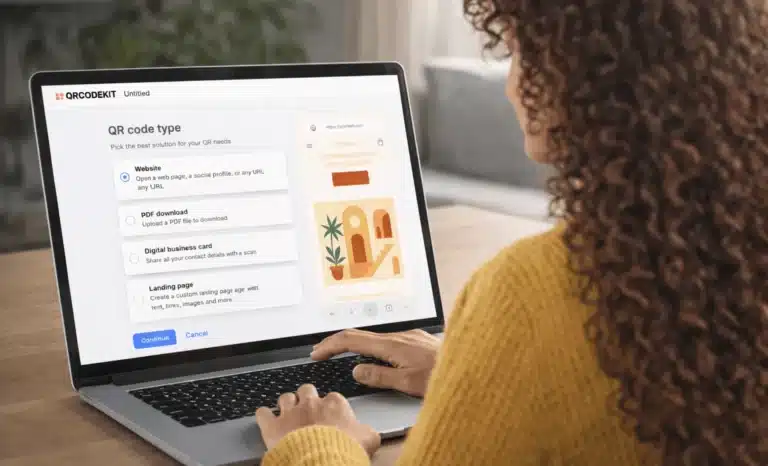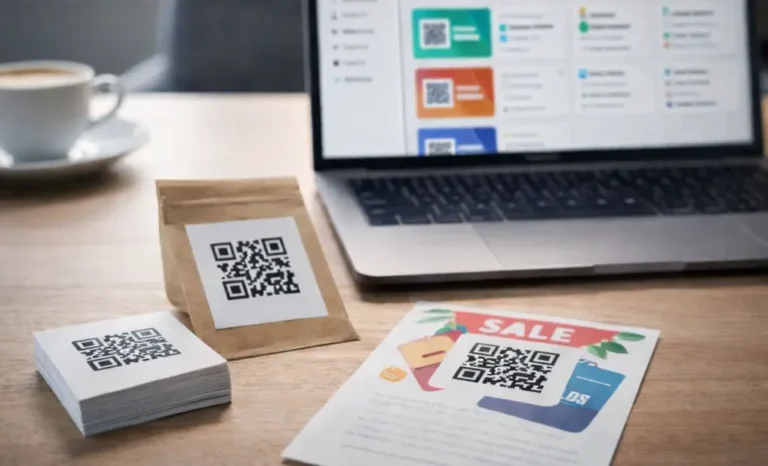
Editing a QR code after it has already been printed sounds impossible. Once a physical QR code is on product packaging, business cards, or printed materials, it feels permanent. But with QRCodeKIT, editing a QR code after printing is not only possible, it’s the entire point of how dynamic QR codes work.
This article explains, in practical terms, how QRCodeKIT lets you edit a QR code after printing, what actually changes behind the scenes, and what stays exactly the same. The goal is to help you understand how editable QR codes work in real workflows, without technical jargon or assumptions.
Why editing a QR code after printing matters
Printing a QR code is often the final step in a process. Menus go to print. Product labels are approved. Business cards are ordered in bulk. At that point, changing anything usually means costly reprints, delays, and wasted materials.
The need to edit a QR code after printing typically shows up later, when something changes:
- A destination URL needs updating
- A seasonal menu changes
- A promotional offer expires
- Contact details are updated
- A landing page is replaced
- UTM parameters need to be added for tracking
If the printed QR code is static, none of this is possible. You must create a new code and reprint everything. That’s where the difference between static codes and dynamic QR codes becomes very real.
What happens when a QR code is printed
A printed QR code is just a QR code image made of black and white points. Those points encode information. What matters is what information is encoded at print time.
With a static QR code, the destination URL is baked directly into the code itself. The physical code and the destination are permanently linked. Once printed, the code’s destination cannot change.
With dynamic QR codes created in QRCodeKIT, the printed QR code does not contain the final destination URL. Instead, it contains a short link managed by the platform. This link acts as a connector between the physical code and the current destination.
That separation is what makes editing a QR code after printing possible.
How QRCodeKIT makes QR codes editable after printing
When you create editable QR codes in QRCodeKIT, the QR code always points to a URL connected to your account. That URL then redirects users to the current destination you’ve configured.
From the user’s perspective, nothing special happens. They scan the printed QR code and are sent directly to the intended content.
From your perspective, the QR code is flexible.
If you edit the destination inside QRCodeKIT, the same printed QR code will now send users somewhere else. No new QR code image is generated. No reprint is needed. The physical QR code stays exactly the same.
This is how you can edit a QR code after printing using just a few clicks.
Editing the content behind an existing QR code
Editing a QR code after printing doesn’t just mean swapping one URL for another.
If your QR code points to a landing page, menu, digital business card, file, or similar QR code type, you can change everything inside that experience:
- Text and images
- Buttons and links
- Files and media
- Sections and layout
- Contact details and destinations
You’re not limited to small tweaks. You can completely replace what users see after scanning, while keeping the same printed QR code in place.
Changing the QR code type after printing
This is where QRCodeKIT goes further than many people expect.
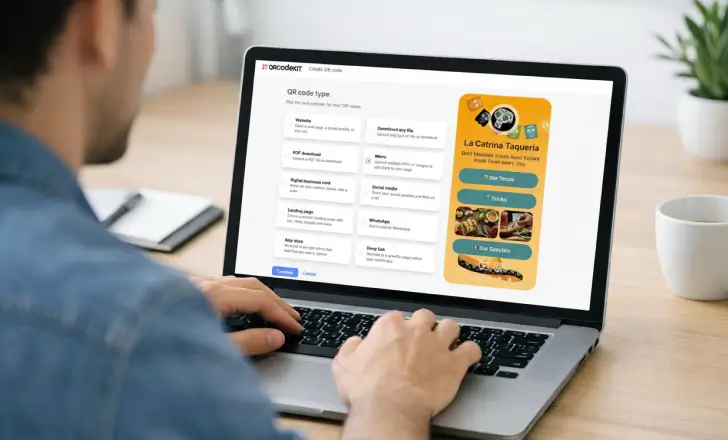
Editing a QR code after printing is not limited to the original QR code type. If your use case changes, you can reconfigure the QR code to point to a different type altogether.
For example, a QR code that originally opened a website can later open a landing page. A landing page QR can be replaced with a menu, a file download, or a digital business card. You can even remove the existing setup and choose a different QR code type from scratch.
The printed QR code stays the same. What changes is how QRCodeKIT handles the destination behind it.
In practical terms, this means you can reuse the same printed QR code even when the original purpose no longer applies.
Starting over without reprinting
Sometimes editing means more than updating content. It means starting again.
With QRCodeKIT, you can remove the current destination, select a new QR code type, and rebuild everything from zero. From the outside, it still looks like the same QR code. From the inside, it’s a completely new setup.
This is especially useful for long-lived printed materials such as product packaging, posters, signage, or business cards that need to stay relevant over time.
What you can edit without changing the printed QR code
Once a QR code has been printed, certain things are fixed and others remain editable. Understanding this helps avoid confusion.
You can edit:
- The destination URL
- The QR code type
- The linked landing page, menu, or file
- Contact details or other content
- Promotional offers
- UTM parameters for marketing campaigns
- The redirect target for the same QR code
You cannot edit:
- The visual design of the printed QR code
- The QR code image itself
- The physical appearance on printed materials
In short, QRCodeKIT lets you edit everything behind the QR code, not the printed ink on paper.
Editing a QR code after printing step by step
Inside QRCodeKIT, editing a QR code after printing is intentionally simple.
- You select the existing QR code you want to update.
- You click the edit icon next to its destination.
- You update the content, or choose a new QR code type.
- You save the changes.
That’s it. The same QR code continues to work, but now reflects the new configuration.
There’s no need to create a new QR code, no need to reprint materials, and no risk of broken scans. Existing QR code scans immediately reflect the update.
A practical example: seasonal menus and printed materials
A common use case is a seasonal menu printed with a QR code.
The restaurant prints table cards with a QR code pointing to the menu. A month later, prices change and new dishes are added. Later, the menu is replaced with a promotional landing page.
With QRCodeKIT, the restaurant can first edit the menu content, and later switch the QR code to a different type entirely, all while keeping the same printed QR code on the tables.
No reprints. No confusion for guests.
The same logic applies to product packaging, promotional flyers, business cards, and product labels that must stay up to date over time.
Scan tracking and destination updates
Another advantage of editing a QR code after printing is that scan tracking continues uninterrupted.
Because the same QR code is reused, all scans remain associated with the same code. You don’t lose data when you update content or change the destination. This makes it easier to understand how users interact with your printed QR code over time.
You can also add UTM parameters later, without changing the physical QR code.

Built in error correction and scan reliability
QRCodeKIT QR codes include built in error correction, which helps ensure that printed QR codes remain scannable even if they experience minor damage, wear, or imperfect printing.
This reinforces the idea that the printed QR code is meant to last, while the content behind it can evolve.
Static QR codes vs editable QR codes in real life
The difference between static codes and editable dynamic QR codes usually becomes clear only after printing.
Static QR code
- Destination URL is fixed
- Editing requires a new code
- Reprints are unavoidable
- Data continuity is lost
Dynamic QR codes in QRCodeKIT
- Destination can be edited or replaced
- QR code type can change
- Same printed QR code stays in use
- No costly reprints
- Data remains connected
This is why editing a QR code after printing is such a practical advantage in real-world workflows.
When editing after printing is a smart move
Editing a QR code after printing makes sense when:
You use QR codes on product packaging
You print large quantities of materials
Your content changes over time
Your use case evolves
You want to avoid reprinting costs
In these scenarios, creating editable QR codes from the start is a practical decision, not a technical one.
Exploring editable QR codes further
Editing a QR code after printing is not about changing paper or ink. It’s about keeping control over what the QR code does, even as needs change.
QRCodeKIT is designed so that the printed QR code stays stable, while everything behind it can be edited, replaced, or rebuilt when necessary.