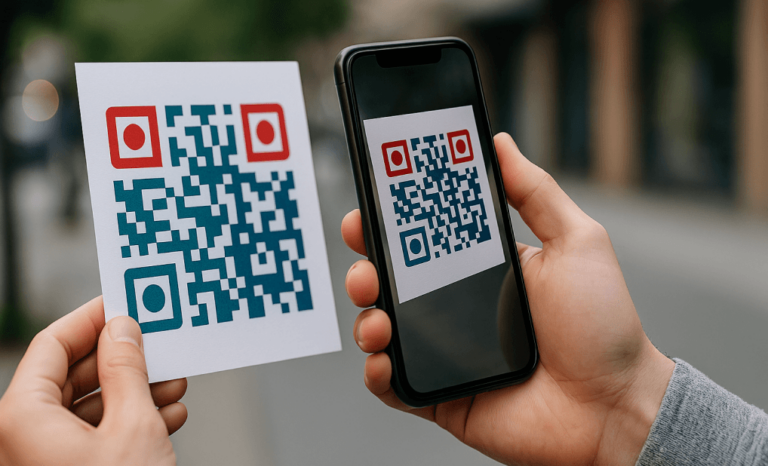
Notion is where a lot of work actually happens. Meeting notes, project hubs, internal wikis, public portfolios, product catalogs. At some point, you want to connect that workspace to something physical or external, and a QR code is the easiest bridge. This guide walks through how to add a QR code in Notion in the three ways that actually come up in practice, plus what to think about before you generate the code in the first place.
What you’ll learn about adding a QR code in Notion
You’ll learn how to add a QR code in Notion as an embedded image inside a page, as a page icon or cover when you want a more visual placement, and as a property inside a database when each record needs its own scannable link. The methods are simple. The interesting part is which one fits your situation, and why choosing a dynamic QR code from the start saves a lot of rework later.
A QR code in Notion is useful in more situations than people expect. You might want to print a code on a flyer that points to a public Notion portfolio. You might want every asset in your office to scan to its maintenance log inside a Notion database. You might want guests at an event to scan into a welcome page with wifi credentials, agenda, and contact info. In every case, the QR connects something offline to a Notion page that is already doing the work.
Why use a QR code in a Notion workspace
Notion is dynamic by nature. Pages get renamed, restructured, moved between teamspaces, made public, made private. That movement is the whole point of using Notion in the first place. The risk is that anything pointing to a Notion URL from the outside world breaks the moment you reorganize.
A QR code that lives on a printed business card, a wall sign, or a product label cannot be reprinted every time you tidy up your workspace. That’s why the choice of QR code matters more than the placement. A dynamic QR code from a service like QRCodeKIT lets you change the destination URL behind the code without changing the code itself. If your Notion page URL changes next month, you update it once in your QR dashboard and every printed code keeps working. We’ll come back to this in detail. For now, just know that the question of which QR code to use is more important than where you put it.
Method 1: embed a QR code image inside a Notion page
The most common case. You want a QR code visible inside a page, either as part of a welcome doc, a printable template, a knowledge base entry, or an internal sign-off page.
Here’s the process:
- Generate your QR code using a QR code generator. Point it to whatever destination you need, whether that’s a URL, a wifi network, a vCard, or a file.
- Download the QR code as a PNG or SVG. SVG is preferable because it stays sharp at any size, which matters if anyone prints the Notion page.
- Open your Notion page where you want the code to appear.
- Type /image and select the image block, or simply drag the file from your desktop into the page.
- Upload the QR code file. Notion will resize it inside the page block.
- Click the image and use the alignment controls to center it, or place it in a column next to instructions for the reader.
A small detail that catches people out: the size at which Notion displays the image is not the size at which it prints. If you’re building a Notion template that will be exported to PDF or printed, keep the original image resolution high. Low-resolution QR codes blur when scaled up and become unreadable at scan distance.
You can also add a caption underneath the image with a short instruction like “Scan to view the live menu” or “Scan for wifi access.” A code without context gets ignored. A code with one sentence of framing gets used.
Method 2: use a QR code as a Notion page icon or cover
Sometimes you want the QR code to be the visual identity of the page. This is less common but useful in specific situations: a public Notion page that acts as a landing page, a printable kiosk page, an event check-in doc, or any page where the QR is the main call to action.
To use a QR code as a page icon:
- Save your QR code as a square PNG with transparent or white background.
- At the top of your Notion page, click “Add icon.”
- Click on the icon that appears, then select “Upload” in the popup.
- Upload your QR code file.
The icon will be small, around 40 pixels, so this works best for visual recognition rather than actual scanning. People will associate the page with a QR aesthetic, but they won’t realistically scan it from the icon itself.
For a page cover, the logic is similar but the result is more functional:
- Click “Add cover” at the top of your page.
- Choose “Change cover,” then “Upload.”
- Upload an image where the QR code is positioned thoughtfully. A cover is wide and short, so don’t just upload a square QR. Build a 1500 by 600 pixel image in any design tool, place the QR code on one side with white space around it, and add a short instruction next to it.
This approach turns the top of your Notion page into something closer to a poster. It works well for public Notion pages shared on social media or used as a digital flyer.

Method 3: add a QR code inside a Notion database
This is where Notion users start doing genuinely useful things. A database row can represent almost anything: an asset, an event attendee, a product, a client, a piece of equipment, a printed brochure. If each row points to a unique URL, each row can have its own QR code.
There are two ways to handle this:
The first is to store the QR code image directly in a Files & media property. You generate a QR code for each row’s destination, upload it to the column, and now anyone viewing the database can download or print the code for that specific record. This is useful when you have a small or stable set of records, like ten meeting rooms in an office, each with its own QR pointing to a booking page.
The second is to store the destination URL in a URL property and generate codes in bulk. Most teams doing inventory tracking, event management, or product catalogs use this approach. You export the URL column, run those URLs through a QR generator that supports batch creation, and import the resulting images back into the Files property. QRCodeKIT supports bulk creation for this kind of workflow, which matters when you’re managing hundreds or thousands of records.
A practical example. A small business uses Notion to maintain an inventory of equipment. Each piece of equipment is a row in a database, with properties for serial number, location, maintenance history, and a linked sub-page with full documentation. They generate a QR code for each item pointing to its Notion sub-page, print the codes on stickers, and attach them to the physical equipment. When a technician needs to log maintenance, they scan the sticker, land in Notion, and update the record. No app, no login walls beyond the standard Notion access, no friction.
Why dynamic QR codes are the right choice for Notion
Notion pages move. That’s not a bug. It’s how the tool works. You promote a sub-page to a top-level page, you change a workspace name, you restructure a teamspace, and every URL in that branch updates.
A static QR code encodes the destination URL directly. Once printed, it cannot be changed. If the Notion page it points to is renamed or moved, the code stops working. Every printed copy becomes garbage.
A dynamic QR code encodes a short redirect URL that lives on a QR platform. The platform forwards the scan to whatever destination you’ve set. You can change that destination at any time without touching the printed code. This is the entire reason dynamic QR codes exist and it’s why every code you generate for a Notion workspace should be dynamic from day one.
QRCodeKIT has been working with dynamic QR codes since 2009. The relevant point here is not the brand, it’s the principle: never print a static QR code that points to a Notion URL. The architecture of Notion guarantees that URL will change. Plan for it.
Practical use cases for QR codes in Notion
Once you stop thinking of QR codes as a novelty and start thinking of them as a connector between physical and digital, the use cases multiply quickly.
- Linking a printed business card to a Notion portfolio page that you keep updated with current projects, contact info, and writing samples.
- Connecting an office asset, like a printer or coffee machine, to a Notion documentation page with manuals, troubleshooting steps, and a contact for support.
- Sharing a public Notion page from a physical location, such as a popup shop with a QR pointing to a Notion page with product info and a contact form.
- Embedding wifi credentials in a Notion welcome page that guests scan when they arrive at an office or short-term rental.
- Adding QR codes to printed event materials that point to a Notion agenda, kept live and updated throughout the event.
- Putting a QR code on the back of a product or packaging that points to a Notion-hosted FAQ or care instructions page.
The common thread is that the Notion page does the work of staying current, and the QR is just the doorway from the physical world.
Common mistakes to avoid
A few things go wrong often enough to mention.
Using a static QR code for anything that points to Notion. We’ve covered this. Don’t do it. The URL will change.
Low-resolution images. People generate a QR code at 200 pixels wide, embed it in a Notion page, then someone prints the page at A4 size and the code becomes a blurry square that no phone can read. Always start with a high-resolution PNG or, better, an SVG.
No context next to the code. A QR code alone is a question mark. A QR code with one line of text explaining what happens when you scan it is an invitation. Always add a caption, a label, or a call to action.
Pointing the QR to a Notion page that isn’t actually public. If you share a QR code for an external audience and the underlying page requires Notion login, no one will get in. Make sure the page is set to “Share to web” before generating the code.
Forgetting to test the scan. Pull out your phone, scan the code from the screen, and confirm the destination loads correctly. Do this before printing anything.
How do you make sure your QR code in Notion keeps working long term?
Use a dynamic QR code from the start, document where each code is printed or placed so you can audit them later, and treat the destination URL like any other piece of important infrastructure. If you change the Notion page structure, update the QR destination in your dashboard the same day. The whole advantage of dynamic codes is that this update takes thirty seconds and protects every printed copy.

Can you generate QR codes in bulk for a Notion database?
Yes, and this is the standard approach for any database with more than a handful of rows. Export the URL column from your Notion database, use a bulk QR generation feature in a platform like QRCodeKIT, and import the resulting images back into a Files property in the database. This is how teams handle asset tracking, event check-in, product catalogs, and any other use case where each record needs its own scannable code without manually generating hundreds of QRs by hand.
All images and visual content in this article were created using RealityMAX.