Landing page QR codes are one of the most flexible ways to connect the physical and digital worlds. They let you place a single QR code on printed materials and send people to a mobile-friendly page that you fully control.
Understanding how landing page QR codes work inside QRCodeKIT matters because the real value is not just in generating a QR code image, but in what happens after someone scans it.
In this article, we will walk through how this QR code type behaves in QRCodeKIT, how it is created step by step using the actual interface, and why this approach is useful for real marketing and communication scenarios.
What this QR code does in QRCodeKIT
A landing page QR code in QRCodeKIT is a dynamic QR code that points to a hosted landing page you build inside the platform. When someone scans the code with their mobile phone camera or a QR code reader, they are directed to that page instead of a single static URL.
Unlike static QR codes, where the encoded data is fixed forever, this setup separates the QR code image from the destination content. The QR code itself stays the same, while the landing page content can be edited, expanded, or reorganized over time.
Inside QRCodeKIT, this means you are not just creating a new QR code, but setting up a small, modular web page designed for mobile devices, quick access, and clear user actions.
How it works step by step in QRCodeKIT
The following steps are based strictly on what is visible in the QRCodeKIT interface shown in the screenshots.
Step 1: Start a new QR code
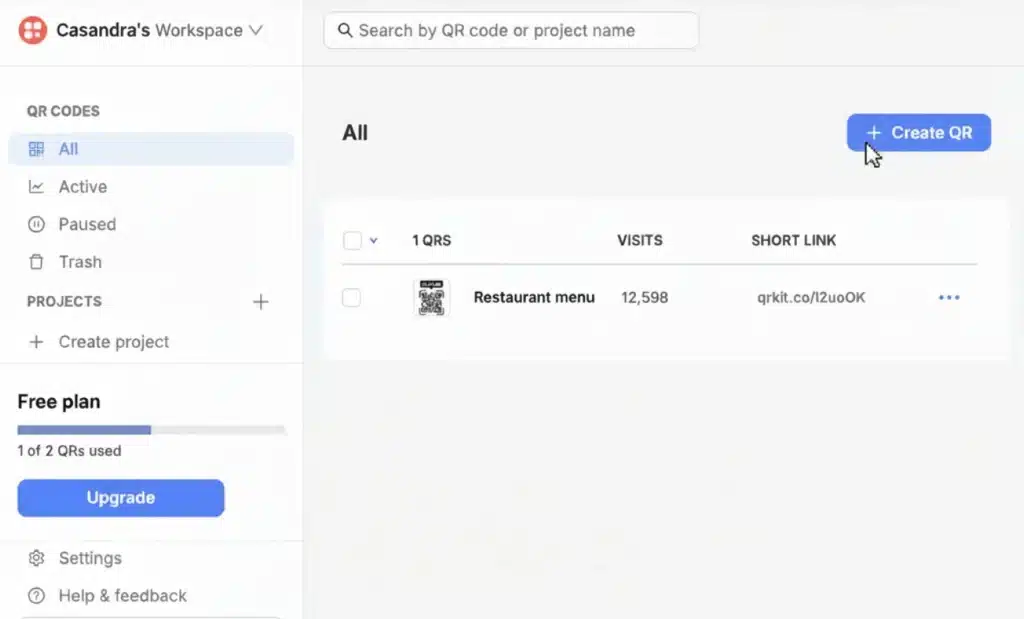
From the main dashboard, you begin by clicking the Create QR button. This is the entry point for any QR code creation inside QRCodeKIT, whether you are working with marketing materials, business cards, or product packaging.
At this stage, you are not choosing a design yet. You are defining what type of QR code you want to create.
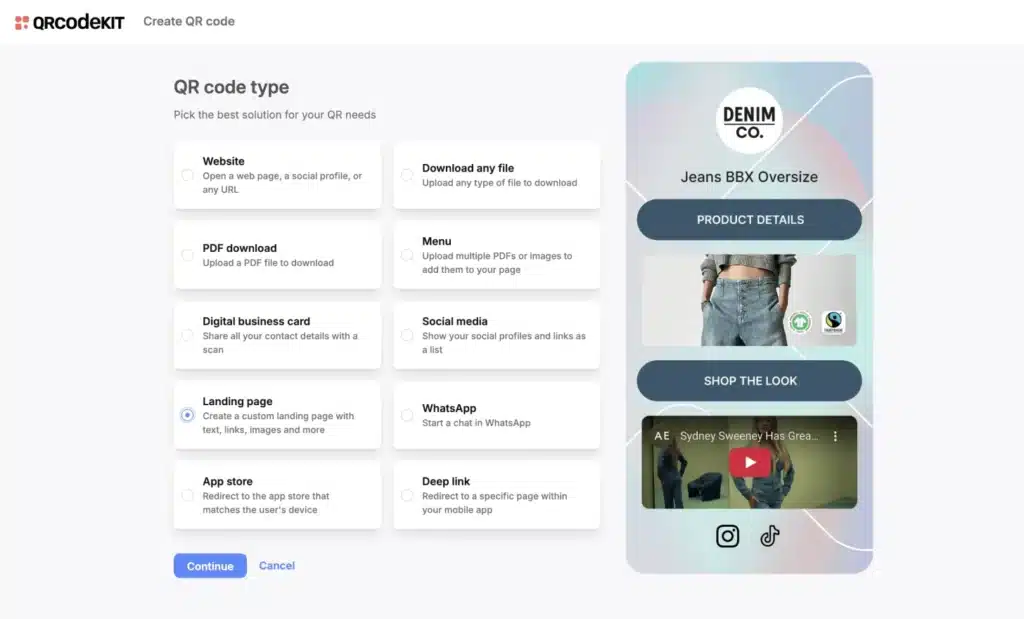
Step 2: Choose “Landing page” as the QR code type
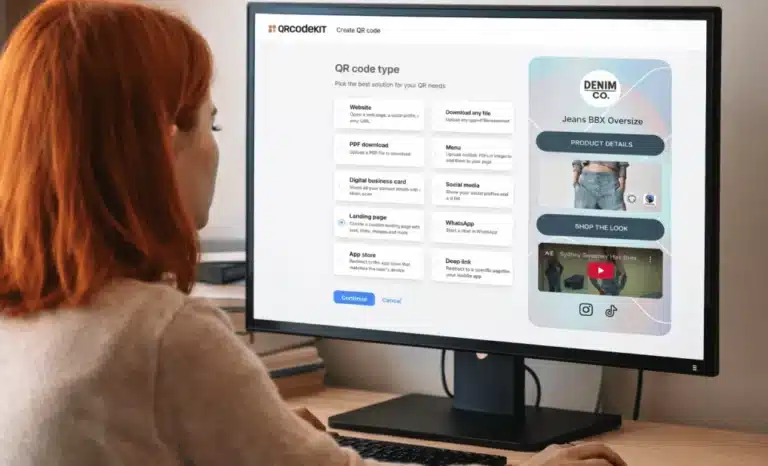
In the QR code type selection screen, you will see several options such as Website, File download, Digital business card, and others.
Here, you select Landing page.
This choice tells QRCodeKIT that the QR code should open a custom page built inside the platform, rather than redirecting users to an external web page or app store.
A live preview appears on the right side of the screen, showing how a sample landing page looks on a mobile device.
Step 3: Build the landing page with blocks
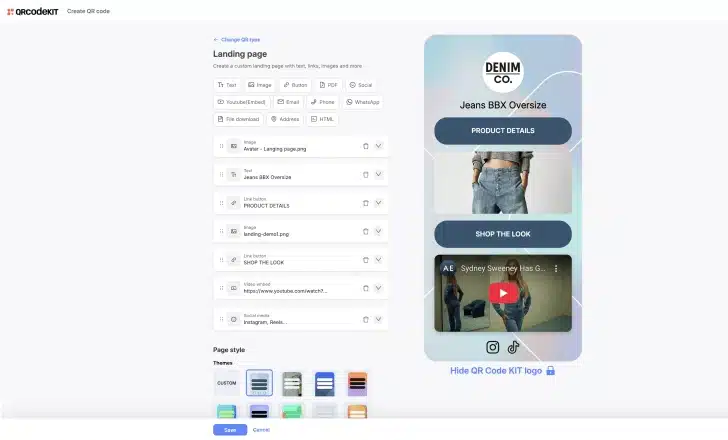
Once you continue, you enter the landing page editor. This is a drag and drop editor made of content blocks. Based on the interface, you can add and reorder elements such as:
- Text blocks for titles or descriptions
- Images
- Link buttons
- Embedded videos (for example, from YouTube)
- Social media links
- Contact elements like email or phone
Each block appears as a separate row in the editor, and you can rearrange them to control the flow of the page. On the right side, you always see a real-time mobile preview, so you understand exactly how the page will look when someone scans the QR code.
This setup makes it easy to direct users to product details, event registrations, online portfolios, or any other digital destination without writing code.
Step 4: Customize the page style
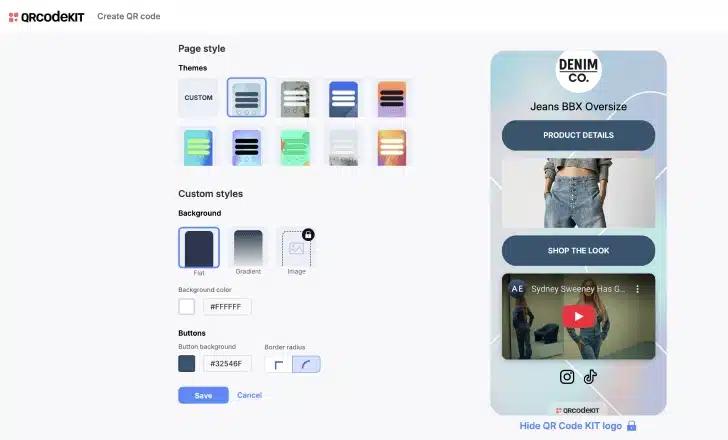
Below the content blocks, QRCodeKIT lets you adjust the page style. From what is visible, you can choose from predefined themes or switch to custom styles.
You can change elements such as:
- Background type (flat color, gradient, or image)
- Brand colors
- Button appearance and border radius
This is where landing page QR codes become custom QR experiences rather than generic QR destinations. The visual consistency helps users trust the page they land on, especially in marketing campaigns or on product packaging.
Step 5: Generate and customize the QR code design
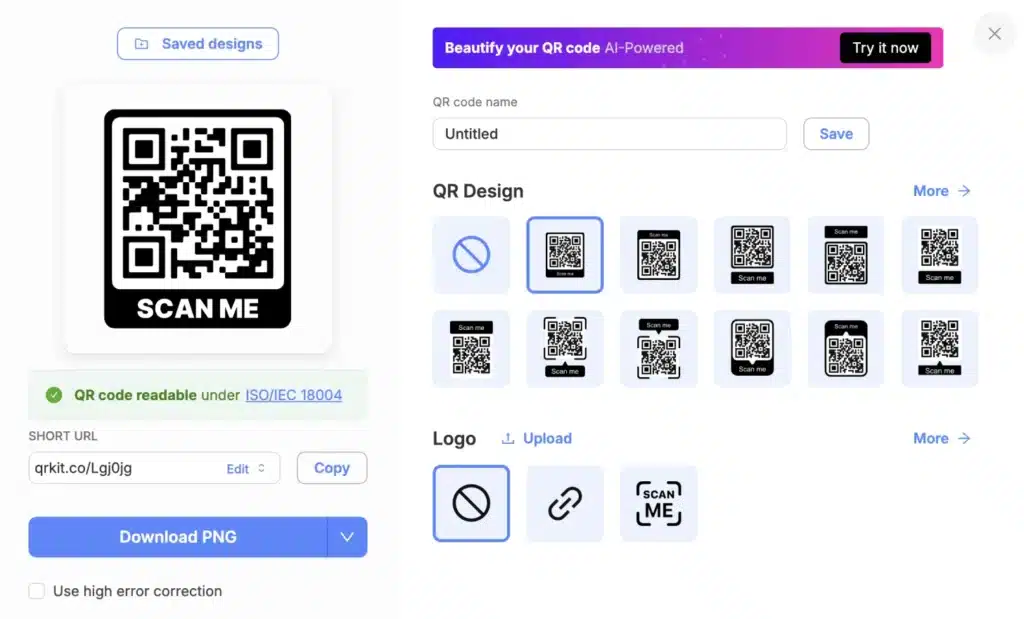
After setting up the landing page, you move to the QR design screen. Here you see the generated QR code image along with design presets.
QRCodeKIT allows you to:
- Choose different QR code styles
- Add or remove a logo in the center
- Ensure the QR code remains readable under ISO/IEC 18004 standards
The platform clearly indicates when the QR code is readable, which is important for error correction and scanning reliability across different devices and camera apps.
At this point, the QR code is already active and linked to your landing page.
Step 6: Save and download the QR code image
Finally, you can name the QR code, save it, and download it as a PNG file. This is the file you will use in printed materials, posters, packaging, or digital assets.
The key detail here is that the QR code image does not change, even if you later edit the landing page content.
Why this approach works well for real use cases
Landing page QR codes are especially useful when you need flexibility after printing. For example, in marketing campaigns, event details often change, new links need to be added, or content needs to be refreshed.
Because QRCodeKIT uses dynamic QR codes, you can update the landing page without reprinting the QR code. This reduces errors, avoids outdated information, and keeps user engagement consistent across physical and digital touchpoints.
This approach also works well for:
- Product packaging with evolving product details
- Business cards that need updated contact info
- Store information and promotions
- Contactless interactions in physical locations
In all cases, the QR code acts as a stable entry point, while the landing page handles the changing information.
Common mistakes or misunderstandings
One common misunderstanding is assuming that a landing page QR code is the same as a simple website QR code. In practice, they behave very differently.
A website QR code usually redirects to a single external URL. A landing page QR code, on the other hand, gives you control over structure, content blocks, and presentation, all optimized for mobile scanning.
Another frequent mistake is overloading the landing page with too many elements. Since users scan QR codes for instant access, clarity matters more than completeness. Short sections, clear buttons, and direct actions tend to work better than long pages filled with text.
Understanding landing page QR codes in practice
Landing page QR codes in QRCodeKIT are designed to make QR code usage more adaptable and practical. By separating the QR code image from the destination content, QRCodeKIT allows you to manage digital engagement without touching the printed code again.
Once you understand how landing page QR codes work inside the platform, they become a reliable digital tool for connecting physical materials to living, editable content. If you want to explore how different QR code types behave or learn more about QR code creation workflows, QRCodeKIT provides a clear environment to do exactly that.