Your LinkedIn banner is prime real estate. It sits at the top of your profile, behind your profile photo, and it’s one of the first things anyone notices when they land on your home page. Most people leave it as a stock landscape or a generic gradient. That’s a missed opportunity, especially when LinkedIn has been the default platform for professional networking since it launched in 2003 and now hosts more than one billion members worldwide.
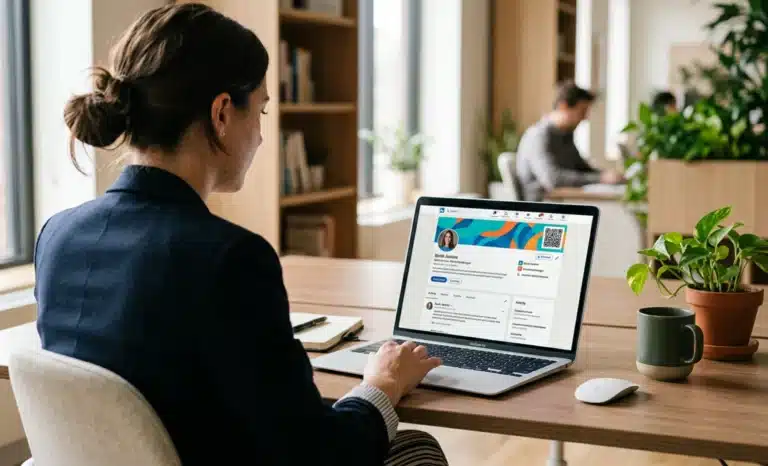
A QR code on your LinkedIn banner turns that passive space into something useful. It bridges the moment when someone sees you in person and the moment they decide to follow up. At a conference, a sales call, a panel, or a coffee meeting, anyone can pull out their phone, tap scan, and land exactly where you want them to. No typing your name into the search bar. No misspelled LinkedIn URLs. No friction.
This guide walks through why it works, what to link the code to, how to design the banner properly, how to upload it through the LinkedIn app or desktop editor, and how to keep it relevant as your professional focus evolves.
Why put a QR code on your LinkedIn banner?
Because LinkedIn is where people verify you exist. When you hand someone a business card, mention your company at an event, or appear on a webinar, the next thing they do is check your LinkedIn profile. A QR code on your LinkedIn banner shortens that path to a single tap. They scan, they land, they connect.
It also works the other way around. When someone is already on your profile, scrolling on their laptop while their phone sits next to them, a scannable QR code in the banner gives them a fast way to save your contact details, book a call, or open whatever destination you’ve chosen. The banner becomes an active surface, not decoration. It also doubles as a visible trust signal. A clean, branded code suggests you’re tech savvy, intentional about your personal brand, and serious about networking.
For freelancers and consultants, this matters because first impressions on LinkedIn often decide whether a conversation happens at all. For sales reps and recruiters, it shortens the gap between interest and action. For founders, it routes attention directly to the company page or a product demo. For event organizers, speakers, and panelists, it turns every appearance into a connection opportunity.
What should your LinkedIn QR code link to?
The destination is the whole point. A scannable QR code is only as useful as where it sends people. Think about who scans it and what you want them to do next.
Common destinations that work well:
- Your personal LinkedIn profile URL, useful when the banner appears outside LinkedIn on slides, printed materials, or email signatures
- A company page, for founders and team members who want scanners to learn about the business first
- A portfolio or case study site, for designers, writers, developers, and other creatives
- A calendar booking link, for consultants, coaches, and sales professionals who want scans to convert into meetings
- A lead magnet or newsletter signup, for anyone building an audience around a specific topic
- A curated landing page that lets the viewer choose between several options
The principle is simple. Pick the destination that matches what you want from new connections right now. If you’re job hunting, send people to a portfolio. If you’re booking demos, send them to your calendar. If you’re growing a newsletter, send them to the signup page. Stop guessing what your target audience wants and decide what you want them to do.
How does a LinkedIn QR code work in practice?
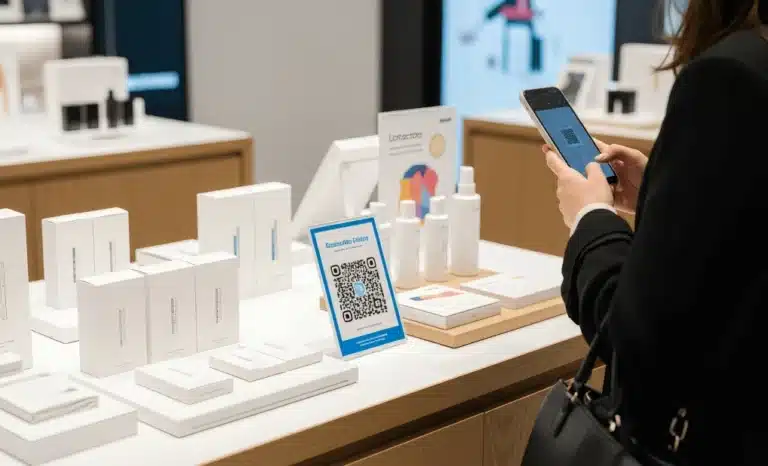
Someone opens their phone camera, points it at your banner on a laptop screen or a printed slide, and a notification appears with the destination link. They tap it, and the page opens in their mobile browser. No app required. No download. No camera access permissions to configure beyond what the phone already has. The whole process takes under three seconds.
Most modern phones handle this natively. iPhones have supported QR scanning in the default camera app since iOS 11, released in 2017, and Android phones have offered native QR scanning through Google Lens and the camera app since around the same time. Older devices or specific setups may need third party apps, but those cases are rare now. You can assume any professional audience on iOS or Android can scan without thinking about it.
LinkedIn itself also offers a personal LinkedIn QR code inside the LinkedIn app. You can find it by tapping the QR code icon next to the search bar. That code links to your profile and works well for in person handoffs, but it lives inside the app, not on your banner. The two serve different purposes, and putting your own QR code on the banner gives you control over the destination that the LinkedIn QR code makes impossible.
How do you generate QR codes for a LinkedIn banner?
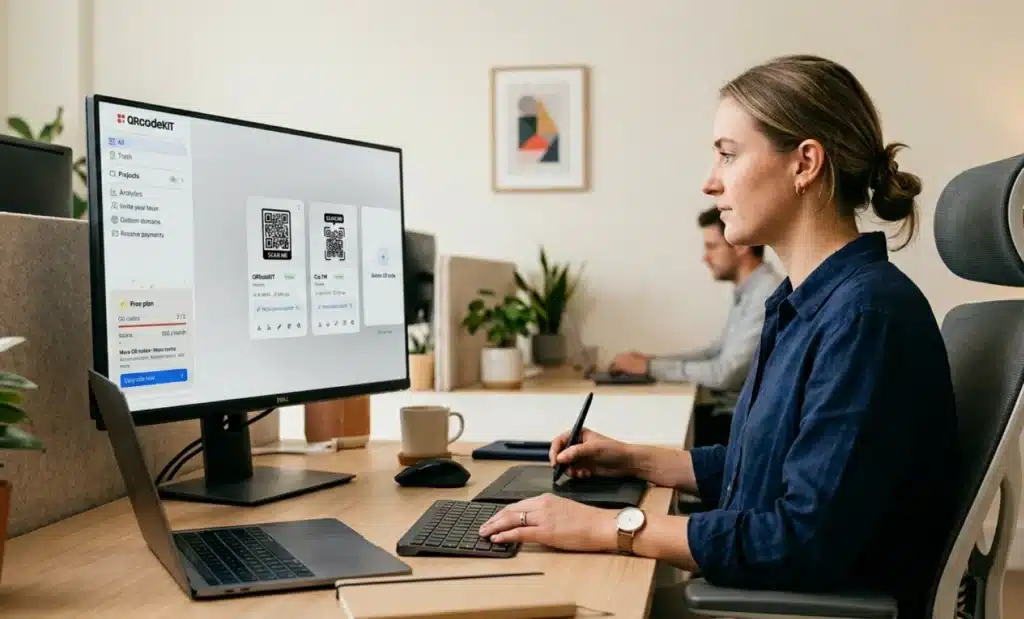
You use a QR code generator that creates dynamic QR codes. Static codes lock the destination URL into the image itself, which means changing where the code points requires generating a new code, redesigning the banner, and re-uploading it. Every time. Dynamic QR codes work differently. The code points to a short URL managed by the platform, and the actual destination sits behind that URL. You can change the destination at any time without touching the banner.
That distinction matters more than it sounds. A LinkedIn banner is something most people upload once and forget about. With dynamic QR codes, you set it up once and update the destination as your priorities change. The same code can lead to your calendar this month, a product launch next month, and a hiring page after that. Platforms like QRCodeKIT, which has been working on dynamic QR code technology since 2009, support this kind of update flow along with customizable QR codes that match your brand colors and logo, plus analytics that show how many people actually used the code.
Banner design tips for a scannable QR code
LinkedIn banners are 1584 by 396 pixels, with an aspect ratio of 4 to 1. That’s a wide, short rectangle, and the QR code needs to fit inside it without competing with everything else on the profile. A few rules make the difference between a code that scans cleanly and one that gets ignored.
- Size the code to roughly 15 to 20 percent of the banner’s height. That works out to about 60 to 80 pixels tall on the 396 pixel canvas. Smaller than that and phone cameras struggle to read it from any distance. Larger and it dominates the banner.
- Place it on the far right. Your profile photo sits over the left side of the banner on most device viewports, especially on mobile, where LinkedIn crops the banner more aggressively. The right third stays visible across screens.
- Use a clean background behind the code. A solid color, a soft gradient, or a minimally textured area. Busy photos with detail behind the code kill scannability because phone cameras need contrast to find the pattern.
- Keep contrast strong. Dark code on a light background scans best. Inverted color schemes can work with dynamic QR platforms that handle them correctly, but stick with the standard look if you’re unsure.
- Use error correction level H if your platform allows it. This is the highest level of built in redundancy in the QR specification and lets the code stay readable even if part of it is partially obscured or includes a small logo in the center.
- Add a short call to action. Something like “Scan to connect” or “Scan to book a call” next to the code tells viewers what will happen. Without that, many people see the QR code icon and skip it.
- Leave quiet space around the code. Borders of empty background prevent neighboring graphics from interfering with the scan. The QR specification recommends a quiet zone of at least four modules on each side.
How do you add the QR code to your LinkedIn banner?
The process is straightforward once you’ve decided on the destination and the design.
- Generate the QR code in a platform that supports dynamic QR codes. Set the destination URL, customize the colors if you want them to match your branding, add your logo to the center if the platform allows it, and download the image as a PNG with transparent background.
- Open your banner design in a tool like Canva, Figma, or Photoshop. Set the canvas to 1584 by 396 pixels.
- Place the QR code on the right side of the banner, sized to about 15 to 20 percent of the banner’s height. Add a short CTA like “Scan to connect” next to or under the code.
- Export the final banner as a JPG or PNG. LinkedIn accepts both, with a maximum file size of 8 MB.
- On LinkedIn, go to your profile, click the pencil icon on the existing banner, and upload the new file from your photo gallery or files. Adjust the framing if needed and save.
- Test the result. Open your profile on a laptop and scan the code with your phone from a normal viewing distance of about 30 to 50 centimeters. If it reads cleanly, you’re done.
Use cases by professional role
The destination and message change depending on what you do. A few examples to make the choice easier:
- Sales professionals, link to a calendar booking page so scans become discovery calls
- Recruiters, link to open roles or a hiring landing page where candidates can apply
- Freelancers and consultants, link to a portfolio, case studies, or a service overview
- Founders, link to the company page or a product demo
- Coaches and creators, link to a newsletter signup, a free resource, or a community
- Speakers and panelists, link to a curated page with slides, recordings, and contact details
- Account executives, link to a personalized demo page for the prospects they meet at networking events
The point is to match the scan with the next logical step in your funnel. Don’t send conference attendees to a generic homepage when you could send them to a booking link or a tailored landing page.
Common mistakes to avoid
These come up often and are easy to fix:
- Making the code too small to scan from a normal viewing distance
- Placing the code over a busy section of a photo, killing contrast
- Forgetting the call to action, so viewers don’t realize the code does anything useful
- Using a static QR code that breaks the moment you want to change the destination
- Positioning the code on the left side of the banner where the profile photo overlaps it on mobile devices
- Choosing a destination that doesn’t match the context, like a personal Instagram for a B2B audience
- Skipping alt text when uploading the banner, which hurts accessibility and SEO signals
- Never updating the destination, so the code points to outdated landing pages months later
How can I update the QR code on my LinkedIn banner later?
If you used a dynamic QR code, you log into the platform where you created it, edit the destination URL, and save. The code on your banner stays the same and starts pointing to the new page immediately. If you used a static QR code, you need to generate a new one, rebuild the banner, and re-upload it to LinkedIn. This is the main reason dynamic QR codes are the practical choice for any QR code on your LinkedIn banner that you plan to keep for more than a few weeks.
Can I track how many people scan my LinkedIn banner QR code?
Yes, but only with a dynamic QR code. Dynamic QR platforms log every scan and show analytics like total scans, scan dates, device types, browser, and rough location based on IP. That tells you whether the banner is actually working, whether your LinkedIn connections are engaging with it, and whether you need to rethink the destination or the design. Static codes give you nothing.
Does the QR code on my LinkedIn banner work on mobile?
It depends on who is viewing. Anyone looking at your profile on a laptop can scan the banner with their phone. Anyone looking at it on a phone won’t be able to scan their own screen, but the banner still works as a visible trust signal and design choice. Most networking scans happen when one person shows their profile on a laptop or projector and someone else scans with a phone. LinkedIn does crop the banner more on mobile, which reinforces the need to keep the code on the right side where it stays visible.
What’s the best size for a QR code on a LinkedIn banner?
About 15 to 20 percent of the banner’s height, which translates to roughly 60 to 80 pixels tall on a 1584 by 396 banner. That’s large enough for phone cameras to read from a normal viewing distance of 30 to 50 centimeters and small enough to leave room for your name, tagline, logo, or other banner elements. If your code includes a center logo, lean toward the higher end of that range so the data modules stay readable.
Can I use my personal LinkedIn QR code on my banner?
Technically yes, by screenshotting it from the LinkedIn app and placing the image on your banner, but it’s not recommended. The personal LinkedIn QR code inside the LinkedIn app only links to your LinkedIn profile, you can’t change the destination, you can’t track scans, and you can’t customize the look. Generating your own unique QR code through a dedicated QR code generator gives you control over the destination, the branding, the analytics, and the ability to update everything later.
All images and visual content in this article were created using RealityMAX.