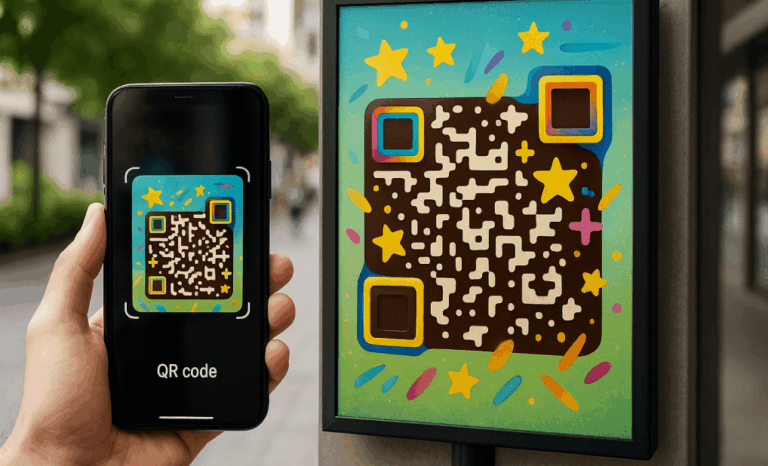
A QR code on a slide turns a passive audience into an active one. People look up, scan, and walk away with the deck, the recording, the signup form, or whatever else you want them to keep. For hybrid presentations especially, where some people are in the room and others are watching from home, a QR code on the right slide closes the gap between the live moment and the takeaway.
This guide walks through how to add a QR code in PowerPoint using three reliable methods, how to size and place it so people in the back row can still scan, and why the type of QR code you choose matters more than most presenters realize.
Why add a QR code to a PowerPoint presentation?
A QR code on a PowerPoint slide gives the audience instant access to anything that lives online without making them type a URL or wait for an email. They point their phone, scan, and the resource opens in their browser. For hybrid presentations that mix in-person and virtual participants, this matters even more. Everyone gets the same link, the same materials, and the same chance to engage, regardless of where they are watching from.
The classic uses are sharing the slide deck, linking to supplementary documents, opening a live poll, or routing people to a signup form. Done well, the QR code feels like a natural part of the slide rather than a bolted-on extra.
What methods can you use to add a QR code in PowerPoint?
There are three reliable methods to add a QR code in PowerPoint. The right one depends on whether your IT policy allows add-ins, whether the code already exists, and how much control you want over what happens after the slide is finalized.
The three methods are: using a Microsoft add-in inside PowerPoint, generating the code in a third-party QR code generator and inserting the image, or copy-pasting a QR code image that already exists. All three produce a scannable code on the slide. They differ in convenience and in whether you end up with a static or a dynamic QR code.
Method 1: Using a PowerPoint add-in like QR for Office
PowerPoint supports add-ins that generate QR codes directly inside the application, which is the fastest route when you are starting from scratch.
- Open your PowerPoint presentation and go to the slide where you want the code.
- Click Insert in the top menu, then choose Get Add-ins (or Add-ins on some versions).
- Search for an add-in such as QR for Office and click Add to install it.
- Open the add-in from the Insert menu once installed.
- Paste the URL you want the code to point to, click generate QR code, and the add-in places the image directly on the slide.
- Resize and position the code on the slide.
The trade-off is that most built-in add-ins create static QR codes. They work, but you cannot change the destination later, and you will not see how many times the code was scanned.
Method 2: Using a third-party QR code generator
When your IT policy blocks add-ins, or when you want a dynamic QR code with analytics and editable destinations, the cleanest path is to create the code outside PowerPoint and insert it as an image.
- Open a QR code generator in your browser, such as QRCodeKIT.
- Choose the type of QR code you need (website, file download, landing page, and so on).
- Add your URL or content and click generate.
- Customize the design if you want to add logos or match your PowerPoint theme.
- Download the QR code image as a PNG or SVG.
- Back in PowerPoint, click Insert, then Pictures, and choose the image file from your computer.
- Resize the code and place it on the slide.
This is the method most marketing and sales teams settle on, because it gives you the freedom to use a dynamic QR code generator and update what the code points to after the slides are finalized.

Method 3: Copy-pasting an existing QR code image
If a QR code already exists for the campaign or asset you are presenting, you do not need to generate a new one. Save the image from wherever it lives, then drag it onto the slide or use Insert and Pictures to place it. You can also copy the image directly and paste it into PowerPoint with Ctrl+V or Cmd+V.
This is useful when the same QR code appears across multiple materials, a printed flyer, a landing page, an email signature, and you want consistency.
Why use a dynamic QR code in your slide deck?
Slide decks get reused. The same presentation travels from a regional conference to a customer workshop to an internal training, and the link you put on slide twelve might need to change three times along the way. A dynamic QR code lets you update the destination without editing the file or redistributing it.
Static QR codes lock you to one destination forever. If the URL behind a static code stops working, the code is dead and the slide is broken. A dynamic QR code also gives you analytics, so you can see how many people scanned and when, which is useful feedback for refining the next version of the deck.
For presentations that get reused across events, audiences, and dates, dynamic is the right foundation. It is also the only sensible choice when several presenters share the same deck and someone needs to update a single link without touching every copy of the file.
How big should a QR code be on a PowerPoint slide?
A QR code on a slide should be at least 3 cm x 3 cm to scan reliably from a few meters away. For larger rooms, scale it up. A useful rule is roughly one inch per foot of scan distance, so a code meant to be scanned from twenty feet back should be about twenty inches on the projected screen.
When you resize the QR code in PowerPoint, hold Shift while dragging the corner to keep the proportions square. A stretched code will not scan.
Where should you place the QR code on a slide?
Placement matters as much as size. Put the QR code somewhere uncluttered, with a light background and strong contrast between the dark modules of the code and the surface behind it. Avoid placing the code over photos, gradients, or busy patterns. Cameras need clean edges to read the code quickly.
A common pattern is to anchor the code in a bottom corner with a short text prompt next to it. Something like “Scan for the slides” or “Scan to join the poll” tells the audience what to expect and gives them a reason to lift their phone. Without that prompt, many people will not bother.
If you are presenting in a venue with theater seating, raise the code higher on the slide so the heads in front of the back rows do not block the view.
What can you link a QR code to in a presentation?
The most useful links are the ones that match the moment in the presentation. A code on the title slide can lead to the full deck for download. A code on a research slide can open the underlying report or paper. A code near the end can point to a feedback form, a signup form, or the presenter’s contact details.
Other common destinations include supplementary videos, live polls, additional resources hosted on the company site, and landing pages tied to a specific campaign mentioned during the talk. The point is to give the audience something they can take with them, not just look at.
What are the best use cases for QR codes in PowerPoint?
QR codes earn their place on a slide when they save the audience time or extend the conversation past the room.
- Hybrid presentations where virtual participants need fast access to materials without waiting on a chat link.
- Conferences where attendees want the deck but do not want to type a URL from the back of the hall.
- Internal training sessions linking to documentation, knowledge base articles, or follow-up surveys.
- Classroom presentations linking to additional resources, readings, or assignments.
- Sales meetings where a single scan opens a product page, a pricing PDF, or a calendar booking link.

What are common mistakes to avoid?
Most QR code failures in PowerPoint come down to the same handful of issues, and all of them are easy to fix before you present.
- Sizing the code too small for the room, so people in the back cannot scan it.
- Placing the code on a busy background or a dark gradient that kills contrast.
- Using a static QR code that breaks the moment the destination URL changes.
- Skipping the test scan from the actual projected slide before going live.
- Forgetting the short text prompt that tells the audience what scanning will give them.
Always test the QR code by scanning it from the actual slide on the screen or projector you will present on. A code that scans fine on your laptop can fail at fifteen feet because of glare, resolution, or contrast that only shows up at scale.
How do you make a QR code work in Google Slides?
The same logic applies. Create the QR code with a generator, download the image file, then click Insert, Image, Upload from computer in Google Slides. Place it where you want it, resize it while holding Shift, and add a short text prompt next to it. If the code is dynamic, you can keep editing the destination after the slides are finalized.
Can you add a logo to a QR code in PowerPoint?
You usually add the logo at the generator step, not inside PowerPoint. Most QR code generators, including QRCodeKIT, let you place a logo in the center of the code and choose a frame or color palette that matches your presentation theme. Download the customized image and insert it into the slide as you would any other image. Keep the logo small enough that the code still scans cleanly, then test before presenting.
Do QR codes work in PDF exports of PowerPoint?
Yes. When you export a PowerPoint presentation to PDF, the QR code image is preserved at full quality and remains scannable from the PDF itself. This is useful for sharing the deck after the event, especially when paired with a dynamic QR code, because the destination can keep evolving long after the file has been distributed.
How do you track who scanned the QR code?
Static codes give you no visibility. Dynamic QR codes record each scan and surface engagement data in the platform you created the code with. You can see how many times the code was scanned, when, and from where, which is valuable feedback for understanding what parts of a presentation drew the most interest and which calls to action actually worked.
All images and visual content in this article were created using RealityMAX.