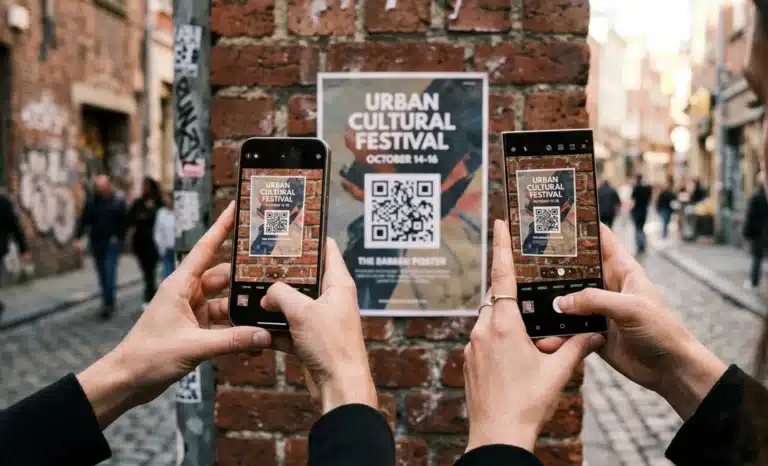
A scan looks like a single action. Point the camera, tap the notification, land on a page. From the user’s side, it feels uniform across every phone in the room. From the business side, it isn’t. The operating system handling that scan makes dozens of small decisions before the destination ever loads, and those decisions shape whether a campaign performs the way it was designed to.
This QR code mobile OS breakdown walks through how iOS and Android handle QR code scanning natively in 2026, where the two systems behave identically, where they diverge, and what that means for any business deploying QR codes across a mixed audience. The fundamentals of QR code scanning are shared. The user experience is not always the same.
Why does the operating system matter for QR code campaigns?
Most marketing teams design QR campaigns assuming a single experience. One destination, one preview, one tap to open. In practice, the journey from camera to landing page passes through OS-level logic that decides how the URL is previewed, which browser opens it, whether a system action is triggered instead, and what warnings appear if anything looks off.
These differences are small in isolation. At scale they compound. A campaign that converts well on iOS may underperform on Android because of how a default browser handles a redirect, or because a manufacturer’s camera app routes scans through a proprietary preview screen first. Understanding the OS layer is how teams stop treating QR codes as a single channel and start treating them as two related ones.
Mobile devices are not interchangeable in this context. A scan from an iPhone, a Pixel, a Samsung, and a Xiaomi can produce four different journeys to the same destination. For businesses running campaigns across many countries, where Android dominates in some markets and iOS in others, the operating system layer becomes a real variable to plan around.
What is a QR code and how is it different from a traditional barcode?
A quick response code, the original name of the QR code, was developed in 1994 by Denso Wave, a subsidiary of Toyota’s auto parts supplier Denso. The original use case was tracking components on the production line. Traditional barcodes, the linear stripes still found on most product packaging, could only store around 20 alphanumeric characters and could only be read in one direction. Denso Wave’s team needed something faster, denser, and readable from various angles.
The standard QR code they designed can store far more data. Depending on the version number and the encoding mode used, a single QR code can hold up to 7,089 numeric characters, 4,296 alphanumeric characters, 2,953 bytes of binary data, or 1,817 Japanese kanji characters. The data area is two dimensional rather than linear, which is what allows that density in a small space.
Today QR codes appear in supply chain logistics, product packaging, restaurant tables, museum exhibits, business cards, payment terminals, and marketing assets across many countries. The shift from a manufacturing tool to a consumer technology accelerated when smartphones gained native scanning. What was once a convenient method for tracking auto parts became the default way to bridge physical objects and digital content.
How does QR code scanning work at the OS level?
Both iOS and Android use the device camera to recognize the visual structure of a QR code. To understand what happens during a simple scan, it helps to know what the camera is actually looking at.
Finder patterns, alignment patterns, and timing patterns
The three large black squares in the corners of the QR are called finder patterns, also known as position markers. They sit in the top left, top right, and bottom left, with the bottom right corner left open. This asymmetry tells the QR scanner how the code is oriented, so users can scan from various angles and still get a reliable read.
Smaller squares called alignment patterns help the scanner correct for distortion when the code is on a curved surface or photographed at an angle. Between the finder patterns, dotted lines called timing patterns run horizontally and vertically. These act as a coordinate grid that helps the reader map the position of every data module inside the code.
Data modules, mask patterns, and format information
The smaller black and white squares filling the rest of the code are the data modules. These store the encoded data as binary data bits, where each module represents a one or a zero. The QR standard supports multiple encoding modes, including numeric, alphanumeric, byte mode for arbitrary binary data, and kanji mode. Byte mode is the most common today because it handles URLs and other text efficiently.
Mask patterns are applied during code generation to balance the distribution of light and dark modules. Without masking, certain data could produce patterns that confuse the scanner, like long runs of black squares or shapes that resemble the finder patterns. Eight standard mask patterns exist, and the encoder picks the one that produces the most readable result.
Format information stores two critical pieces of metadata: which mask pattern was applied, and which error correction level is in use. This information sits near the finder patterns so the scanner can read it before decoding the rest of the data.
The quiet zone and error correction
Around the entire code, a margin of white background known as the quiet zone gives the scanner a clean visual boundary. The standard specifies a minimum quiet zone of four modules wide. Without it, surrounding visual noise can interfere with detection. This is why placing a QR code too close to other graphics or shrinking it below its minimum size causes scan failures.
Error correction is what makes QR codes resilient to damage. The standard defines four error correction levels:
- L (low) recovers up to 7 percent of damaged data
- M (medium) recovers up to 15 percent
- Q (quartile) recovers up to 25 percent
- H (high) recovers up to 30 percent
Higher error correction means more data redundancy, which means fewer characters can be stored at the same version number. This is why a QR code with a logo embedded in the center still works. The standard QR uses Reed Solomon error correction to reconstruct the missing data area from the surrounding modules.
Once the device’s camera resolves the data modules into a string, the operating system takes over. It identifies the type of data encoded, whether that’s a URL, a WiFi credential, a vCard contact, a calendar event, an SMS draft, or a phone number, and decides how to surface the action to the user. This is the layer where iOS and Android start to behave differently.
How does iOS handle QR codes natively?
Since iOS 11, released in September 2017, every iPhone has scanned QR codes through the native camera app without requiring a separate QR reader app or app downloads. The camera detects the code, displays a small notification banner near the top of the screen showing a preview of the destination, and waits for the user to tap before doing anything.
The preview behavior is consistent. For URLs, the banner shows the domain. For WiFi codes, it offers to join the network. For vCards, it offers to add the contact. The user always sees an intent confirmation before any action is taken. This applies to all data types the QR standard supports.
When a URL is tapped, iOS opens it in the user’s default browser. Until iOS 14 this was always Safari, but the option to change the default browser means that in 2026 a scan can open in Chrome, Edge, or any other supported browser depending on the user’s settings. Deep linking rules let certain URLs open directly in an associated app if it’s installed, for example a YouTube link opening in the YouTube app rather than the browser.
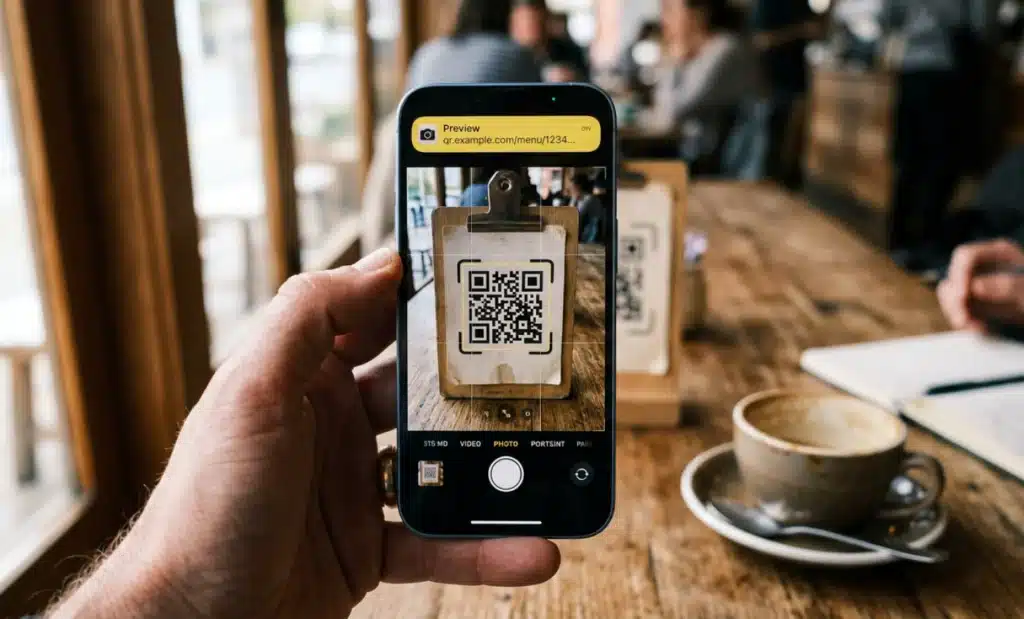
iOS also issues security warnings when a scanned destination looks suspicious. The system checks the URL against known threat lists and surfaces a warning before opening anything that appears unsafe. For payment QR codes and codes containing credit card information, the operating system requires additional confirmation before any action is processed.
How do Android devices handle QR codes natively?
Android is less uniform than iOS. Recent versions of Android include native QR code scanning through Google’s camera app and through Google Lens, but the actual experience for Android users depends heavily on the device manufacturer. Samsung’s camera, Pixel’s camera, Xiaomi’s, OPPO’s, and others all handle scans in slightly different ways.
On a Pixel running stock Android, the camera detects the QR code, displays a preview chip with the destination, and opens the URL in the user’s default browser when tapped. On Samsung devices, the scan often passes through Samsung’s own preview screen, which may include additional context or warnings, and may route the URL through Samsung Internet by default unless the user has changed it. On Xiaomi devices sold in certain markets, the experience involves a different QR scanner module entirely, sometimes with regional defaults that affect which browser opens the link.
Regional variation is one of the most important differences for businesses to understand. An Android user in Europe and an Android user in Southeast Asia may have meaningfully different scan experiences even on similar hardware because of which apps are preinstalled and which manufacturer customizations are active.
For URLs, Android shows a preview before opening. For WiFi codes, the system offers to connect. For payment QR codes in markets where these are common, the native handling is often deeply integrated with regional payment apps, more so than on iOS.
Where do iOS and Android behave the same way?
Despite the differences in implementation, the common ground is substantial. Both operating systems read QR codes natively through the camera app with no app downloads required. Both show a preview of the destination before opening it. Both trigger system level actions for common QR types such as WiFi credentials, vCard contacts, calendar events, SMS, and phone calls. Both display security warnings when a scanned URL appears suspicious. Both support deep linking, so a scanned URL can open in an associated app rather than the browser when available.
For most business QR codes that point to a standard URL, the user experience is functionally equivalent. Scan, preview, tap, land. The single QR code printed on a flyer reaches both platforms reliably as long as the destination behind it is built to render well on any phone.
Where do iOS and Android diverge?
The differences matter at the edges. Default browser behavior is the most visible. On iOS the default is typically Safari unless changed. On Android the default depends on the device, the manufacturer’s preinstalled apps, and the user’s choices. This affects how landing pages render, how cookies are handled, and which analytics signals are captured.
App association rules for deep linking also differ. iOS uses Universal Links, which require a specific configuration on the destination domain to open in an associated app. Android uses App Links with a similar but separately configured mechanism. A campaign that relies on deep linking into a specific app needs both configured correctly or the experience will diverge across platforms.
WiFi QR code handling differs slightly in the credential storage flow. Payment QR codes behave very differently across regions on Android, where local payment apps often intercept the scan, while on iOS the handling is more uniform.
Here’s a summary of what stays the same and what differs:
| Behavior | iOS | Android |
|---|---|---|
| Native scanning from camera app | Yes, since iOS 11 | Yes, on recent versions |
| URL preview before opening | Yes | Yes |
| Default browser for opened URLs | User’s default, usually Safari | Varies by manufacturer and user setting |
| Deep linking mechanism | Universal Links | App Links |
| WiFi, vCard, SMS, calendar handling | Native, uniform | Native, varies slightly by manufacturer |
| Payment QR code handling | Limited native integration | Often deep regional app integration |
| Security warnings for malicious URLs | Yes, via system threat checks | Yes, varies by browser and manufacturer |
| Regional variation in scan experience | Minimal | Significant, especially across markets |
How do iOS and Android protect users from a malicious QR code?
Both operating systems include security layers designed to protect users from a malicious QR code. When a scanned URL matches a known threat database, both iOS and Android display a warning before opening it. The exact wording and visual treatment differ, but the intent is the same: surface the risk before the user commits to the destination.
The most common real world attack is sticker overlay fraud, sometimes called attagging, where a malicious code is physically placed over a legitimate one. A coffee shop’s payment QR gets covered with a sticker that points to a fake checkout page. A parking meter’s QR is replaced with one that scrapes credit card information from end users. Restaurant table tents, real estate signs, and product packaging are all common physical targets.
The sensitive data at risk varies by use case. Payment QR codes can expose credit card information if the destination is a fake checkout page. WiFi QR codes with the wrong encryption type can route traffic through an attacker’s network. Login QR codes can be used in phishing flows that capture session tokens. The variety of data types a QR can encode is also the variety of attack surfaces it presents.
OS-level warnings help here when the destination is already flagged, but they cannot detect a brand new malicious domain that hasn’t been reported yet. This is where preview behavior becomes the user’s strongest defense. Before tapping, the URL preview shows the domain. A user who recognizes that the preview shows an unfamiliar or suspicious domain instead of the expected brand can choose not to proceed. Training users to read the preview is more reliable than relying solely on the operating system’s threat detection. Data integrity at the destination, including HTTPS and proper certificate handling, completes the chain.
What does this mean for businesses deploying QR campaigns?
The practical implications follow naturally. If a campaign needs to perform across a mixed audience of iPhone and Android users, design and test for both. Don’t assume the iOS experience represents the campaign. Open the scan on a Pixel, a Samsung, and an iPhone before printing anything in volume.
Use a trusted custom domain so the URL preview shows something users will recognize. A short code with your brand reads as legitimate. A long random string from an unfamiliar shortener reads as suspicious, and on both operating systems some users will back out at the preview step.
Test the deep linking configuration on both platforms separately. Universal Links and App Links require independent setup, and a campaign that opens in the right app on iOS may default to the browser on Android if the configuration is incomplete.
Pay attention to the physical printing of the QR. Below a certain minimum size the code becomes hard to scan, especially with lower error correction levels. The standard recommends at least 2 by 2 centimeters for close range scans, with the size scaling up for greater scanning distances. Keep the quiet zone clean. Don’t crop the white background or place graphics inside the four module margin.
Why are dynamic QR codes the right foundation for cross-OS campaigns?
Static QR codes encode the destination directly into the pattern. The URL lives inside the data modules themselves. To change the destination, you have to generate a new code with new data modules and reprint every physical asset that carries the existing QR code. This is fine for a one off use case with a known audience, like a single event flyer with no future updates planned.
Dynamic QR codes work differently. They encode a short redirect URL that points to a resolver, and the resolver forwards the user to the current destination. The QR pattern itself never changes, but the destination behind it can be updated at any time. This separation between the printed code and the actual landing page is what makes dynamic QR codes the practical choice for any campaign running at scale or across mixed OS audiences.
The benefits compound in cross-OS scenarios. Analytics show how many scans came from iOS versus Android, which browsers users landed in, and where conversions dropped off. If Android scans are underperforming because Samsung Internet handles a specific redirect oddly, the destination can be updated to route around the problem. If a sticker overlay attack is reported on one of your printed assets, the original destination can be neutralized within minutes. None of this is possible with a standard QR code generated as static.
QRCodeKIT, for example, has been building dynamic QR codes since 2009 and supports this kind of OS-agnostic campaign management natively, including custom domains so the URL preview shows a trusted brand on both iOS and Android. All QR codes generated through the platform are dynamic by default.

Frequently asked questions
Can iPhones and Android phones both scan QR codes natively in 2026?
Yes. Every iPhone since iOS 11 scans QR codes through the native camera app without a separate app. Recent versions of Android include native QR code scanning through the camera app or Google Lens, though the exact experience varies by manufacturer. For most users on both platforms, no QR reader app download is needed.
Why does my QR code open differently on iOS and Android?
The most common reason is default browser behavior. iOS opens scanned URLs in the user’s default browser, usually Safari. Android opens them in whichever browser the manufacturer or user has set as default, which varies widely. Deep linking rules, regional defaults, and manufacturer customizations on Android can also cause the same QR code to behave differently across devices.
What is the safest way to scan a QR code?
Use the native camera app rather than a third party QR reader app, read the URL preview before tapping, and verify that the domain matches what you expect. If the preview shows an unfamiliar domain or the code appears to be a sticker placed over another code, don’t proceed. Both iOS and Android display security warnings for known malicious destinations, but the preview is your strongest defense against new threats.
Why does Android sometimes need a separate scanner app?
On older Android versions or on certain manufacturer builds, native QR scanning may be limited or routed through Google Lens, which not all users have set up. In 2026 most current Android devices scan QR codes natively, but very old devices or devices with stripped down camera apps may still require a separate QR reader app or Google Lens to be enabled.
Do dynamic QR codes work on all phones?
Yes. Dynamic QR codes look identical to a standard QR code from the scanner’s perspective. They contain a short redirect URL that resolves to the current destination. Any phone that can read a QR code image, which includes every iPhone since iOS 11 and every recent Android device, can scan dynamic QR codes without issue.
All images and visual content in this article were created using RealityMAX.