Knowing exactly where your QR code is stored on your phone or tablet saves time, especially when you need to scan QR codes quickly or retrieve a saved QR code image. If you have ever wondered where is my QR code, you are not alone. Many smartphones handle QR codes differently, and the answer changes depending on your camera app, operating system, and the type of QR code you are trying to access. This guide explains where QR codes are saved, how to open them, and how to scan a QR code on any device.
Where is my QR code stored on my phone?
Every mobile device treats QR codes differently. Your QR code image may be in your Photos app, your Files app, inside a payment app, or inside the QR code generator you used. On most mobile devices, the default camera app does not store the QR code anywhere. A QR code only appears on screen while scanning. If you created a QR code with a QR code generator like QRCodeKIT, the image is usually saved inside your downloads folder or your gallery, depending on your settings. When users ask where is my QR code on an android phone, the answer is often the Downloads directory. On iPhone or iPad, QR code images usually appear inside Photos.
How do I find a saved QR code image on Android devices?
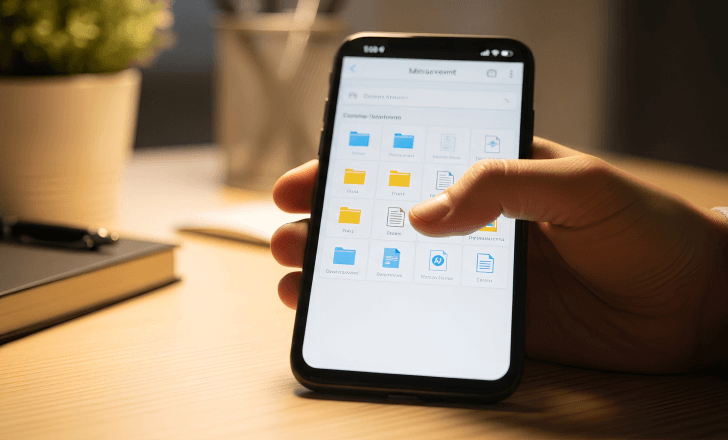
Android devices include Samsung, Google Pixel, Motorola, Xiaomi, Oppo, and more. The steps to find saved QR code images vary, but they follow the same pattern. The easiest method is using the search bar inside your gallery or file manager. Search for the word QR or the name of the app you used to generate the code. On a samsung phone, the My Files app is where most QR code images appear. Tap the settings icon on your home screen, open the Storage section, and check Downloads or Images. If you still cannot find it, your QR code generator may have saved the file in a dedicated folder.
Where is my QR code on iPhone or iPad?
If you created a QR code on an iPhone, the image is usually in your Photos app. Apple does not hide QR code files in the system. If you downloaded a QR code from a website, it also appears inside Photos. If you used a QR code generator, the QR code image may show in the Recents album. If you asked yourself where is my QR code after scanning something with your iPhone, remember that iOS does not save QR codes automatically. The camera app simply detects the code and displays a notification. Only codes you intentionally save or screenshot appear on the device.
How can I scan a QR code if I cannot find it?
If you cannot locate the QR code image, you can still scan it directly from your gallery. Most modern smartphones allow you to scan QR codes directly from photos. On Android, long press the image inside your Photos or Gallery app and choose the option that says Scan or Use Google Lens. Google Lens is built into many smartphones and works as a reliable QR scanner. On iOS, simply open the Photos app, tap the QR code image, and iOS automatically detects the code and shows a link. This feature works on many smartphones without needing an extra QR scanner app.
Why does my QR code not appear on the lock screen?
Many smartphones display a shortcut on the lock screen labeled QR or Scan. This shortcut does not store any data or images. It only opens the QR code scanner. If you cannot find your QR code there, that is normal. Android devices and iPhones do not automatically save QR codes after scanning them. If you need quick access, save the QR code image to your home screen. You can create a shortcut with the share button inside your gallery and keep the file one tap away.
What if my phone does not automatically scan QR codes?
Older phones or some Android devices do not automatically detect QR codes. In that case, open your Settings app, go to the Camera section, and enable the option that says Scan QR codes or Automatically detect barcodes. If the option does not exist, you may need to install a QR scanner app from the Google Play Store. Choose a simple QR code reader that works with your phone’s camera. Once installed, you can simply point the phone at the code and scan the QR code instantly.
What is the easiest way to scan a QR code on any device?
The fastest method is using your camera app. You simply open your camera, point it at the QR code, and wait for the link to appear. Many smartphones also support scanning from the control center. On iPhone, swipe down from the top right and tap the Scan Code icon. On Android, swipe down from the top and look for a shortcut called Scan QR or QR. If you do not see it, add it using the edit button. These shortcuts make scanning QR codes super easy.
Can I scan a QR code inside a browser or payment app?
Many apps now include built in QR scanners. Payment apps, banking apps, authentication apps, and shopping apps allow you to scan a QR code from inside the app. For example, if you need to make a payment, open the payment app and tap the scan icon at the bottom right. If you cannot find your QR code inside the app, check the menu or the settings icon. Some apps save your personal QR code inside a dedicated profile tab.
How do QR code types affect where they are saved?
There are many QR code types, and each one behaves differently. A dynamic QR code created in QRCodeKIT allows you to update the content anytime without generating a new QR code. When users ask where is my QR code after editing, the QR code itself does not change. The destination link updates automatically. For static QR codes that you download as an image, the file remains wherever you saved it. QR code types do not change how your phone stores the image, but they affect how you manage content later.
How do I find a QR code inside a messaging app or email?
When someone sends you a QR code inside a message, open the image in full screen and long press it. Most smartphones automatically detect the code. You can also screenshot it and save it to your gallery for easier access. If you are wondering where is my QR code after receiving a message, check your Downloads folder or the Photos app under Recents. Messaging apps typically save incoming images automatically unless the auto save feature is turned off.
Why do some QR codes disappear from my phone?
If you downloaded a QR code but cannot find it, your phone may have automatic cleanup tools that remove old files. On Android, the settings menu sometimes includes Storage Manager, which deletes unused downloads. If you rely on a QR code for product details, website access, or authentication, save it to a dedicated album to keep it secure. On iPhone, if you deleted a QR code image accidentally, check the Recently Deleted folder in Photos.
How can I generate a new QR code if I lost the original?
If you used a QR code generator like QRCodeKIT, you do not need to worry. Your dynamic QR code remains accessible inside your dashboard. Simply log in, open your project, and download the QR code again. You can generate a new QR code image with the same link. If you created a static QR code, you need to regenerate it by entering the link again. QR code generators store dynamic codes online, which makes them easy to recover on any device.
What should I do if my QR code still does not appear?
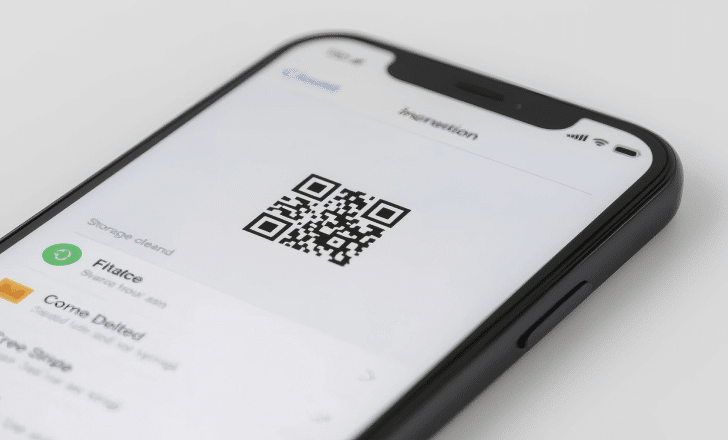
If you still ask yourself where is my QR code after following the steps, try searching your device for file types. On Android, use the search bar and type PNG or JPG. On iPhone, check both Albums and the Files app. Sometimes a QR code image is saved in a different folder depending on the app you used. If your device is older or does not support automatic detection, use Google Lens or install a QR scanner app from the Google Play Store. These scanners detect QR codes in seconds and work with almost any image.
Why is it important to know where your QR code is saved?
Having quick access to your QR code makes your daily tasks easier. You can connect to WiFi, share a password, open websites, check product details, or verify information instantly. Many smartphones now rely on QR codes for tickets, menus, authentication, and payments. Keeping your QR code in a place you can find ensures smoother navigation and a better user experience.
How can QRCodeKIT help you keep your codes organized?
QRCodeKIT lets you store, manage, and update your dynamic QR codes in one place. You can access them from any device, track scans, update links, and generate new images anytime. You can also customize your QR code and download multiple formats. If you ever lose a file, QRCodeKIT keeps your data safe inside your dashboard so you never have to wonder where is my QR code again.