How to add a QR code on a Shopify product page
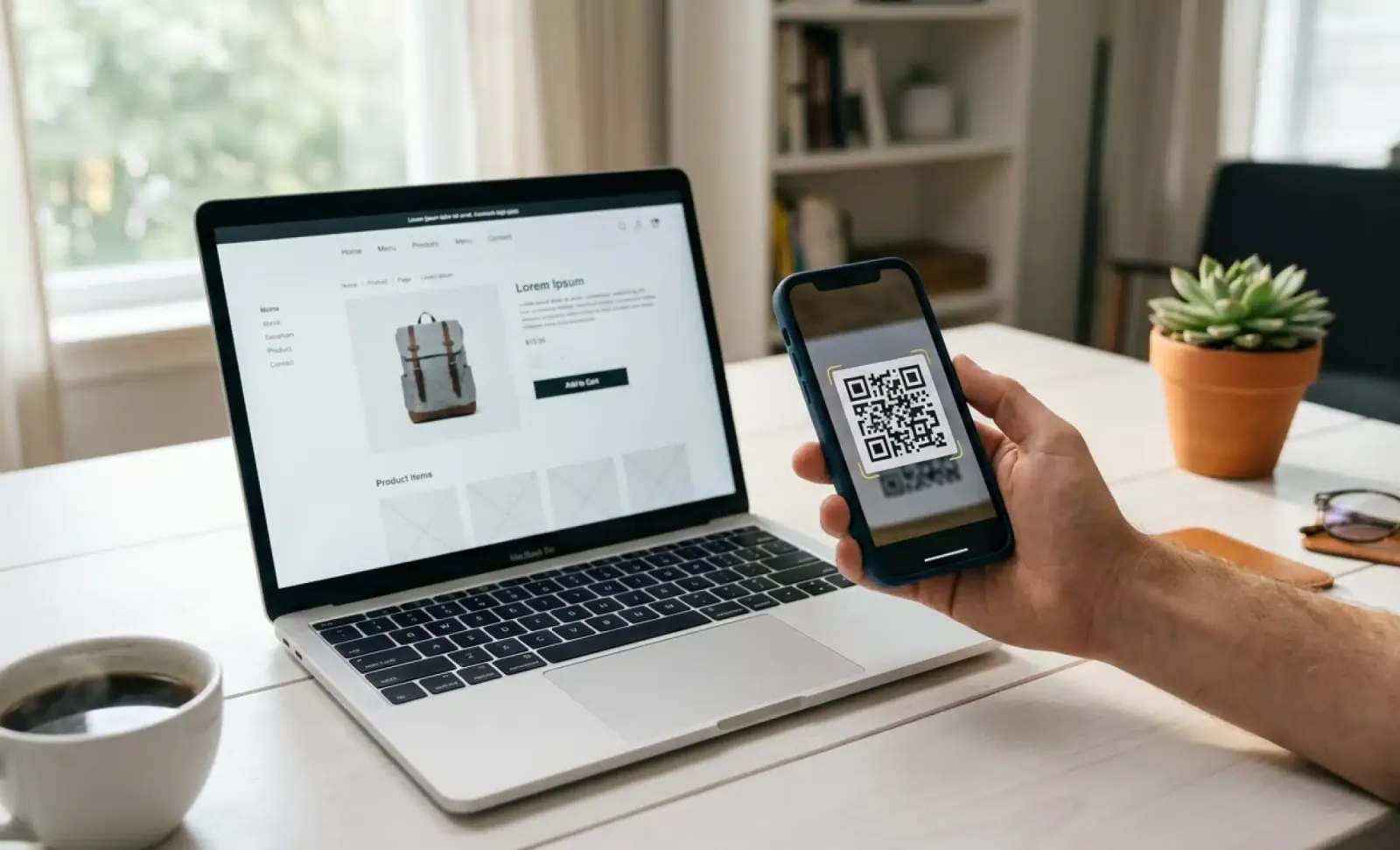
If you run a Shopify store and want to put a QR code on a product page, this guide walks you through the realistic options. You will see how to embed a code inside a product description, add it as a product image, or place it through theme code, plus when each method actually makes sense. You will also learn why a dynamic QR code is almost always the right call for ecommerce, and which use cases tend to convert best on a product page.
Why product pages are a smart place for QR codes
A Shopify product page is already doing a lot of work. It carries the photos, the copy, the price, the reviews, and the buy button. Adding a QR code might sound redundant on a screen that is already digital. The reasoning changes once you remember that product pages do not only live online.
Customers reach product pages from printed catalogs, in-store signage, packaging inserts, trade show flyers, and even unboxing videos. A QR code on the product page itself becomes a bridge between the physical and digital worlds. It lets a shopper save the link, share it, or jump from a printed touchpoint to richer content without typing anything.
There is also a second reason. Shopify merchants increasingly use product pages as small content hubs that link to videos, sizing guides, care instructions, and warranty pages. A QR code embedded in that ecosystem becomes a portable shortcut your customers can carry with them into the physical world.
How to add a QR code on a Shopify product page: the three real methods
There are three practical ways Shopify store owners add QR codes to product pages. Each one suits a different goal.
Method 1: Embed the QR code inside the product description
This is the most common approach because it requires no code and works on any Shopify theme.
- Generate the QR code in your QR code generator of choice. Save the resulting image as a PNG or SVG file.
- In your Shopify admin, open Products and select the product you want to edit.
- In the description editor, place your cursor where the QR code should appear.
- Click the insert image button in the rich text editor.
- Upload the QR code file and confirm it displays at a readable size.
- Save the product.
This method works well for QR codes that link to extra resources tied to that specific product, such as a fitting video or a downloadable guide. Keep the image at a resolution that still scans cleanly when displayed at roughly 200 by 200 pixels or larger. Compressed thumbnails often fail at scan time.
Method 2: Add the QR code as a product image
Treating the QR code as a product image makes it part of the product gallery. Customers see it alongside the main photos.
- Save the QR code file at high resolution. PNG with a transparent or white background usually works best.
- In Shopify admin, open the product and scroll to the Media section.
- Upload the QR code image as an additional product photo.
- Drag it to the position you want in the gallery, usually after the main hero shots.
- Add a clear alt text such as “QR code linking to product care guide.”
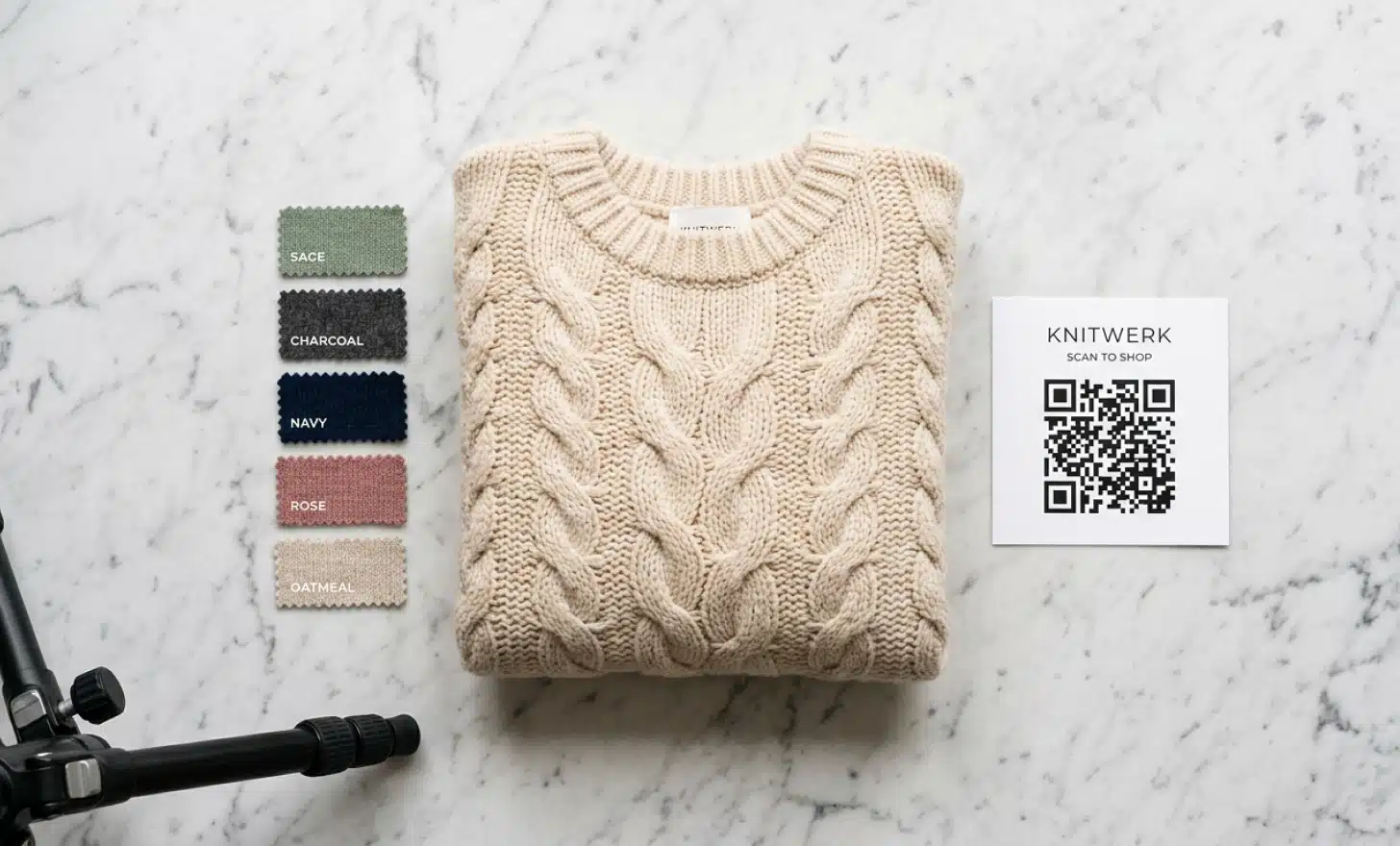
Use this approach when the QR code itself is part of the value proposition. Examples include a code that unlocks a digital warranty, a code that opens an augmented reality preview, or a code customers will scan to register the product after purchase. The gallery placement signals that the QR code matters as much as the visual product.
Method 3: Insert the QR code through theme code or a product template
The third method is for store owners who want the QR code to appear automatically on every product page, or only on products that meet specific conditions. This requires editing the theme.
- From your Shopify admin, open Online Store and then Themes.
- Click Edit code on your active theme.
- Locate the relevant product template file, often named product.liquid or main-product.liquid depending on the theme.
- Add an image tag or a snippet that pulls the QR code image from your assets folder or from a hosted URL.
- Wrap the embed code in conditional logic if you only want it shown for specific tags, collections, or product types.
- Save and preview the change before publishing.
If you are not comfortable editing theme files, ask a Shopify partner or developer to handle this step. A small mistake in the template can affect the entire storefront.
Why a dynamic QR code is the right choice for product pages
This is the single most important decision when adding QR codes to a Shopify store, and it is where many merchants get it wrong.
A static QR code stores the destination URL inside the code itself. Once printed or published, the link cannot change. If you swap the destination, you have to generate and replace the code everywhere it lives.
A dynamic QR code stores a short redirect URL inside the visible pattern, while the actual destination is managed in a dashboard. You can change where the code points to at any time, without touching the code that customers see. The same physical or digital code can lead to a launch page today, a tutorial video next month, and a seasonal campaign during the holidays.
For a Shopify product page, this matters because:
- Product URLs change when you reorganize collections or rename products.
- Seasonal promotions rotate, but the code on packaging stays in circulation for months or years.
- You may want to send returning scanners to different content than first-time scanners.
- Stockouts and discontinuations should not turn a printed code into a broken link.
Platforms like QRCodeKIT generate dynamic QR codes designed for ecommerce use cases, including product pages, packaging, and post-purchase content. The dashboard view also shows scan analytics, which is information you cannot get from a static code no matter what you do.
A note on the built-in Shopify QR code generator. Shopify offers a free QR code feature for discount codes and product links, which is convenient for a quick test. It is best treated as a basic tool rather than a long-term solution, because it does not give you the flexibility to update destinations or analyze scan behavior at the level dedicated platforms offer.
Put it into practice
Create a dynamic QR code free and see it work. No credit card required.
Get started freePractical use cases for QR codes on Shopify product pages
The codes that perform best on product pages tend to link to something the product page itself cannot show in full. A few that consistently work:
- A short product video that demonstrates the item in real use, useful for furniture, apparel, and outdoor gear.
- Care and maintenance instructions for items that need ongoing attention, such as leather goods or plants.
- Warranty registration that captures the customer’s contact information after purchase.
- Sizing or fitting guides linked to the exact product variant.
- Related products or bundle offers, which can lift average order value when placed near the buy button.
- Post-purchase content such as recipes for kitchen tools, styling tips for clothing, or assembly videos for furniture.
- Loyalty program enrollment with an exclusive deal for that specific product.
The pattern is straightforward. Use the QR code to link directly to content that adds context, builds trust, or extends the relationship beyond the first purchase.
Tracking and analytics for product page QR codes
Adding a QR code is half the work. Knowing whether anyone uses it is the other half.
Dynamic QR code platforms log every scan and let you see frequency, location, device, and time of day. You can use that data to identify which products generate the most engagement, when scans spike, and how customer behavior changes by region.
To go further, add UTM parameters to the destination URL. A simple structure such as utm_source=qr, utm_medium=product_page, and utm_campaign=product_name lets your Google Analytics or Shopify analytics treat scans as a tracked traffic source. You will then see the full path from scan to checkout, which is the metric that matters for ecommerce.
Combine the two. Scan analytics from the QR platform tell you what happens at the moment of scanning. UTM tracking inside your analytics platform tells you what happens after.
Common mistakes to avoid
A few errors come up often enough to mention.
Using a static code for time-sensitive campaigns. Holiday promos, flash sales, and limited drops should always run on dynamic codes. Static codes lock you into one URL, which creates broken links the moment the campaign ends.
Embedding low-resolution images. A QR code displayed too small or compressed too aggressively becomes unreadable. Test it on multiple devices before publishing, and keep the image at least 200 by 200 pixels in most contexts.
Skipping the alt text. Whether the QR code is in the description or in the product gallery, give it descriptive alt text. This helps accessibility and gives search engines context.
Linking to a generic homepage. The whole point of a product page QR code is specificity. Send scanners to a destination directly relevant to the product they are looking at.
Forgetting to test the scan from a real phone. Previewing the image in Shopify admin is not the same as scanning it from a customer’s perspective. Always test from at least one Android and one iPhone before going live.

Frequently asked questions
Can I track how often a QR code on my product page is scanned?
Yes, if you use a dynamic QR code generator. The platform logs each scan and shows you data such as time, location, and device. Static codes generated through a free QR code generator usually do not offer this.
Do QR codes expire?
The QR code pattern itself does not expire. What can fail is the destination URL behind it. Static codes break the moment that URL changes. Dynamic codes keep working because you control the destination from a dashboard, which is one of the main reasons ecommerce stores rely on them.
Should I use Shopify’s free QR code generator or a third party platform?
Shopify’s free QR code generator is fine for quick internal tests and simple discount codes. For product pages, packaging, and marketing materials that will stay in circulation, a dedicated platform that supports dynamic QR codes and analytics will serve you better over time.
Can I add the same QR code to multiple Shopify products?
You can, but it is rarely the right choice. A QR code on a product page works best when it links directly to content tied to that specific item. If you reuse one code across many products, you lose both the relevance and the analytics value.
What size should a QR code be on a product page?
For digital display, aim for at least 200 by 200 pixels. For printed materials linked to product pages, such as packaging or hangtags, follow the standard rule of at least 2 by 2 centimeters at scanning distance, then test on multiple devices before printing at scale.
All images and visual content in this article were created using RealityMAX.
Related articles

Conversational QR code vs dynamic QR code
A QR code on a wine bottle. A QR code on a real estate sign. A QR code on a museum wall. To the human eye, they all look the same. Black squares on a white…
Aesthetic QR codes
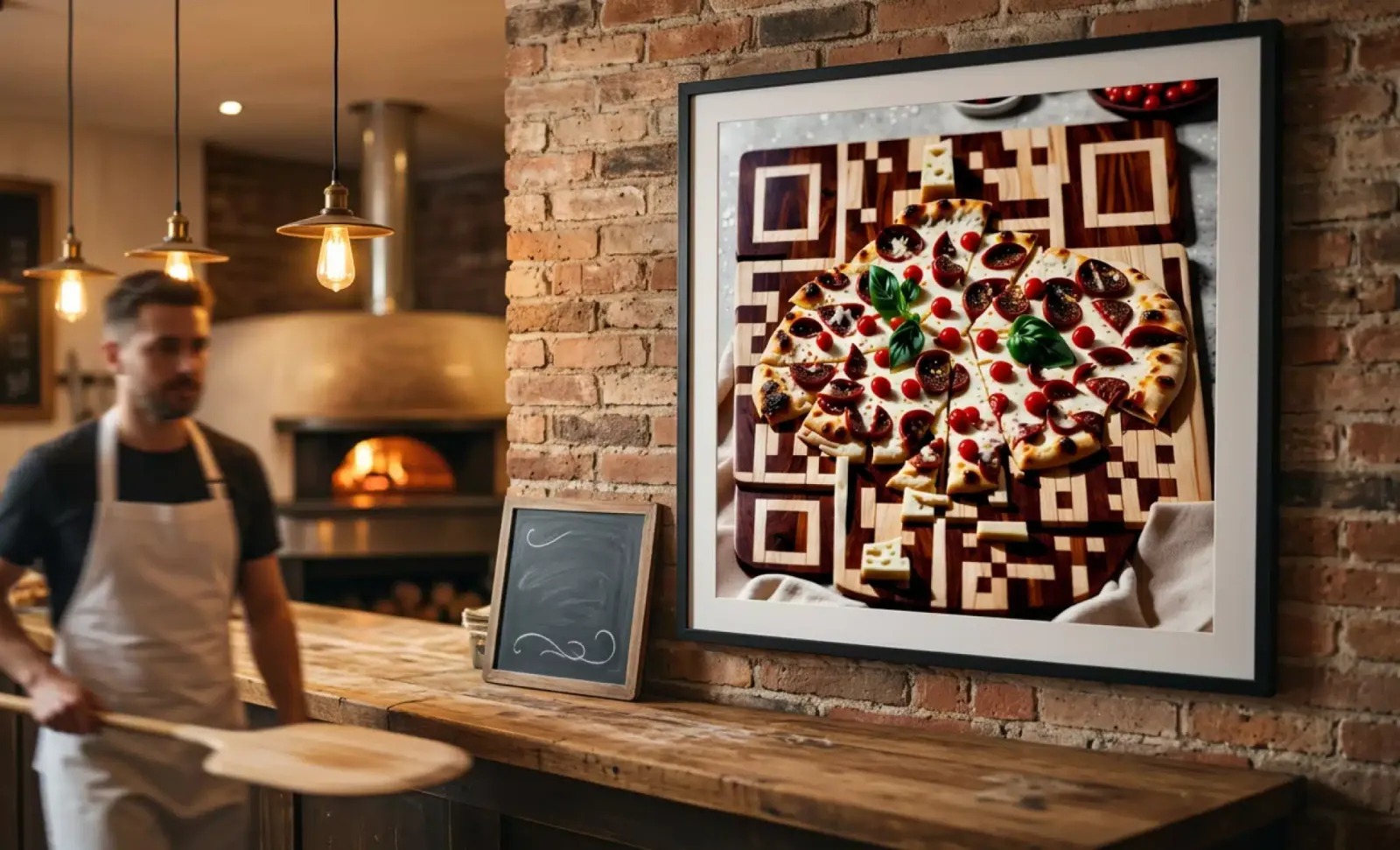
A QR code doesn’t have to be dull. In fact, the era of pixelated black-and-white squares is long gone. Today, aesthetic QR codes are redefining how brands…

QR codes in short term rentals
QR codes in short-term rentals have become one of the quietest upgrades a host can make. No new hardware. No extra staff. Just a printed code placed somewhere…
Two free dynamic QR codes. Yours forever.
No credit card. No expiry. The original dynamic QR platform since 2009.