June 4, 2026
How to add a QR code in your WhatsApp Business catalog
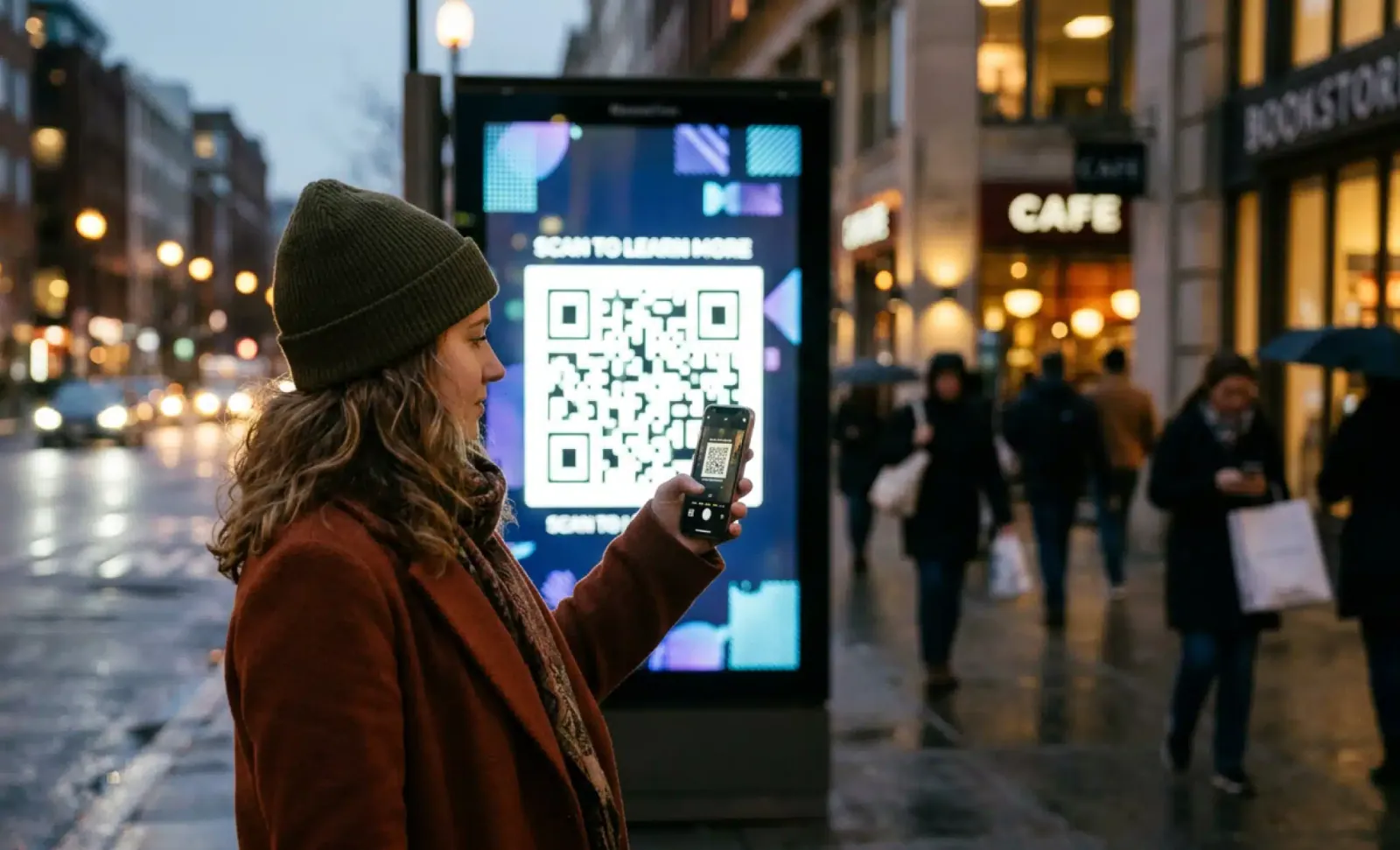
TL;DR: Knowing how to add a QR code in your WhatsApp Business setup turns any printed or physical touchpoint into a one scan path to a real conversation. This guide covers the native WhatsApp QR code feature step by step, how to set a pre-populated message so customers actually start chatting, and when a dynamic QR code from a platform like QRCodeKIT adds scan analytics and editable destinations the built-in version cannot offer.
Knowing how to add a QR code in your WhatsApp Business account is one of the simplest ways to remove friction between a customer and a conversation. Someone sees your business in the physical world, on packaging, a shop window, a flyer, or a business card, points their phone, and lands directly in a WhatsApp chat with you. No phone number to type, no contact to save, no app to download. WhatsApp Business includes this feature for free, and you can have a working QR code in a couple of minutes.
This guide walks through the native WhatsApp QR code first, then shows when a dynamic QR code from a dedicated platform is the better foundation.
Why does a QR code in WhatsApp Business matter?
A QR code in WhatsApp Business matters because it is the shortest route between physical attention and a live conversation. A customer who already has their phone in hand can reach you in one scan, skipping the usual friction of finding, typing, and saving a business phone number. That removed step is often the difference between a message sent and a customer lost.
Think of it as your digital front door. The code can live anywhere your customers already look, and every scan opens the same WhatsApp chat. For existing customers it becomes a fast support and reorder channel. For new customers it turns curiosity into a first message while interest is still warm.
How to add a QR code in your WhatsApp Business account
To add a QR code in your WhatsApp Business account, open the app, go into your business settings, and generate the code from the short link tools. The whole process happens inside the WhatsApp Business app and takes only a few minutes. Here is the step by step:
- Open WhatsApp Business on your phone and tap more options, usually the three dots in the top corner.
- Go to Settings, then Business tools.
- Select the short link or QR code option.
- Choose whether to add a pre-populated message that auto-fills when someone scans (optional, but recommended).
- Tap to download the QR code image, which saves to your device’s gallery.
- Print it, share it on social media, or embed it in an email signature.
That is the entire setup. The business account’s QR code now links directly to a chat with you. One useful detail: a WhatsApp Business QR code does not expire as long as the account stays active, so a printed QR code on packaging or signage keeps working for as long as you use the account.
How do you customize the pre-populated message?
You customize the pre-populated message inside the same QR code or short link settings, where WhatsApp lets you set the text that auto-fills in the chat field when a customer scans. A pre-populated message matters because it removes the small hesitation of figuring out what to say, and customers who open a chat with a message already drafted are far more likely to actually send it.
Tailor the message to the context where the code lives. A restaurant code can pre-fill “I would like to reserve a table for”, a retailer can pre-fill “I am interested in”, and a service business can pre-fill “I need help with”. The customer can edit it or send it as is, but the first move is already made for them.
What is a dynamic WhatsApp QR code, and when do you need one?
A dynamic WhatsApp QR code is a code created through a dedicated platform that still opens a WhatsApp chat, but adds capabilities the native version lacks: scan analytics, an editable destination, custom branding, and the ability to A/B test the pre-populated message. The native WhatsApp QR code is a static link to your chat. It works, but it cannot be tracked, edited to point somewhere else, or analyzed for scan patterns.
You need a dynamic QR code when those limits start to cost you information or flexibility. If you want to know which placements drive the most QR code scans, route the code to a different WhatsApp number when your team grows, keep a branded design across materials, or test two pre-populated messages against each other, a dynamic QR is the better base. Platforms like QRCodeKIT, which has built dynamic QR codes since 2009, let you point a single code at a WhatsApp chat and change or measure it later without reprinting anything.
How to create a dynamic QR code that opens a WhatsApp chat
To create a dynamic QR code that opens WhatsApp, set the destination as a wa.me link that includes your business phone number with its country code and, if you want, a pre-filled message. The platform then generates a dynamic QR around that link. Because the QR is dynamic, the printed code stays the same while you stay free to edit the destination, swap the number, or update the message whenever you need to.
Put it into practice
Try QRCodeKIT Pro free for 7 days and see it work. No credit card required.
Start free trialWhere should you place a WhatsApp Business QR code?
Place a WhatsApp Business QR code anywhere a customer might pause with a question, both in print and on screen. The strongest placements meet people at a moment of intent, when contacting you is the natural next step. Common options include:
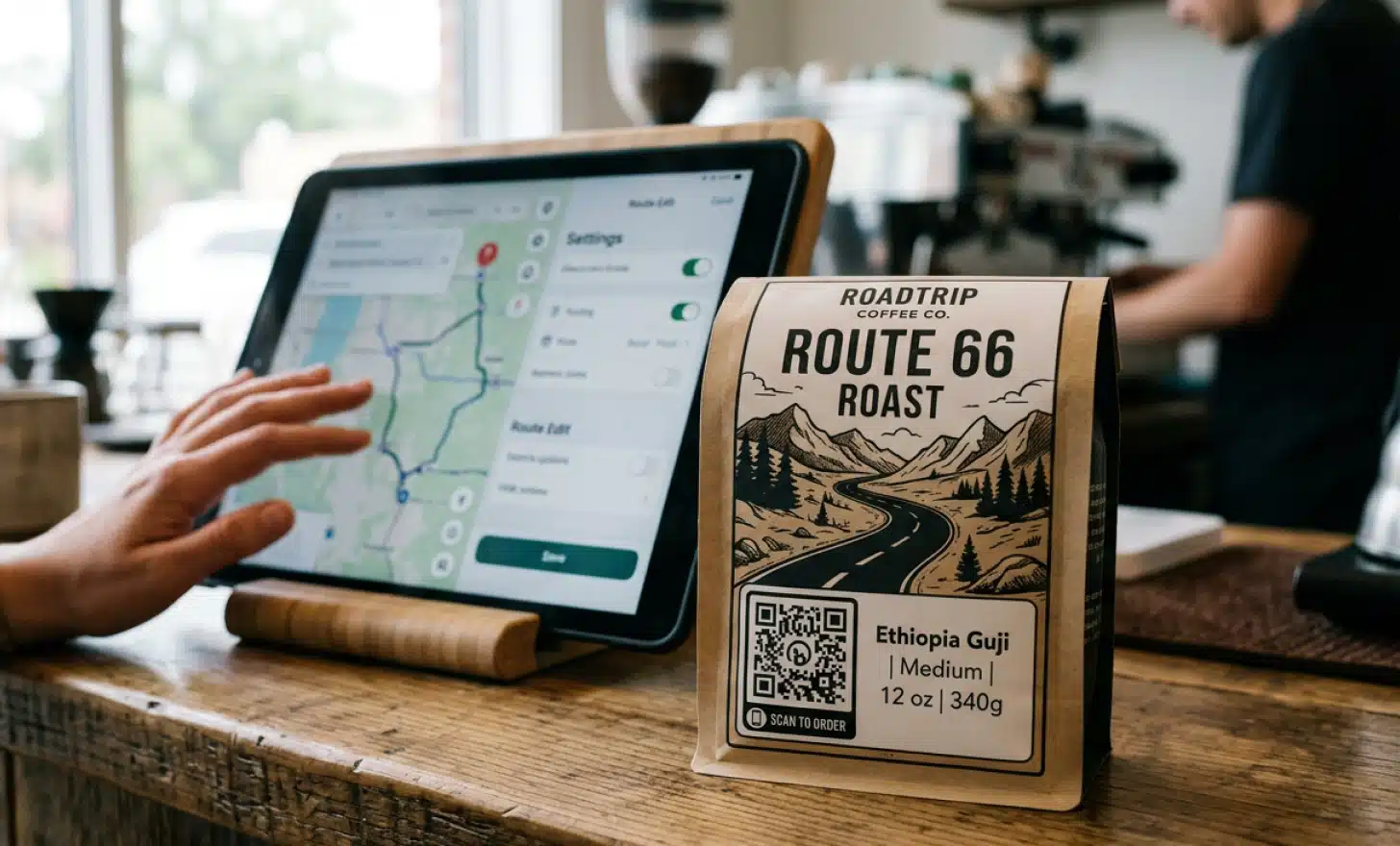
- Product packaging, so buyers can reach support or reorder directly.
- Storefronts and shop windows for instant contact, even after hours.
- Business cards and email signatures to make every handoff actionable.
- Direct mail and printed advertising that drive to a chat instead of a form.
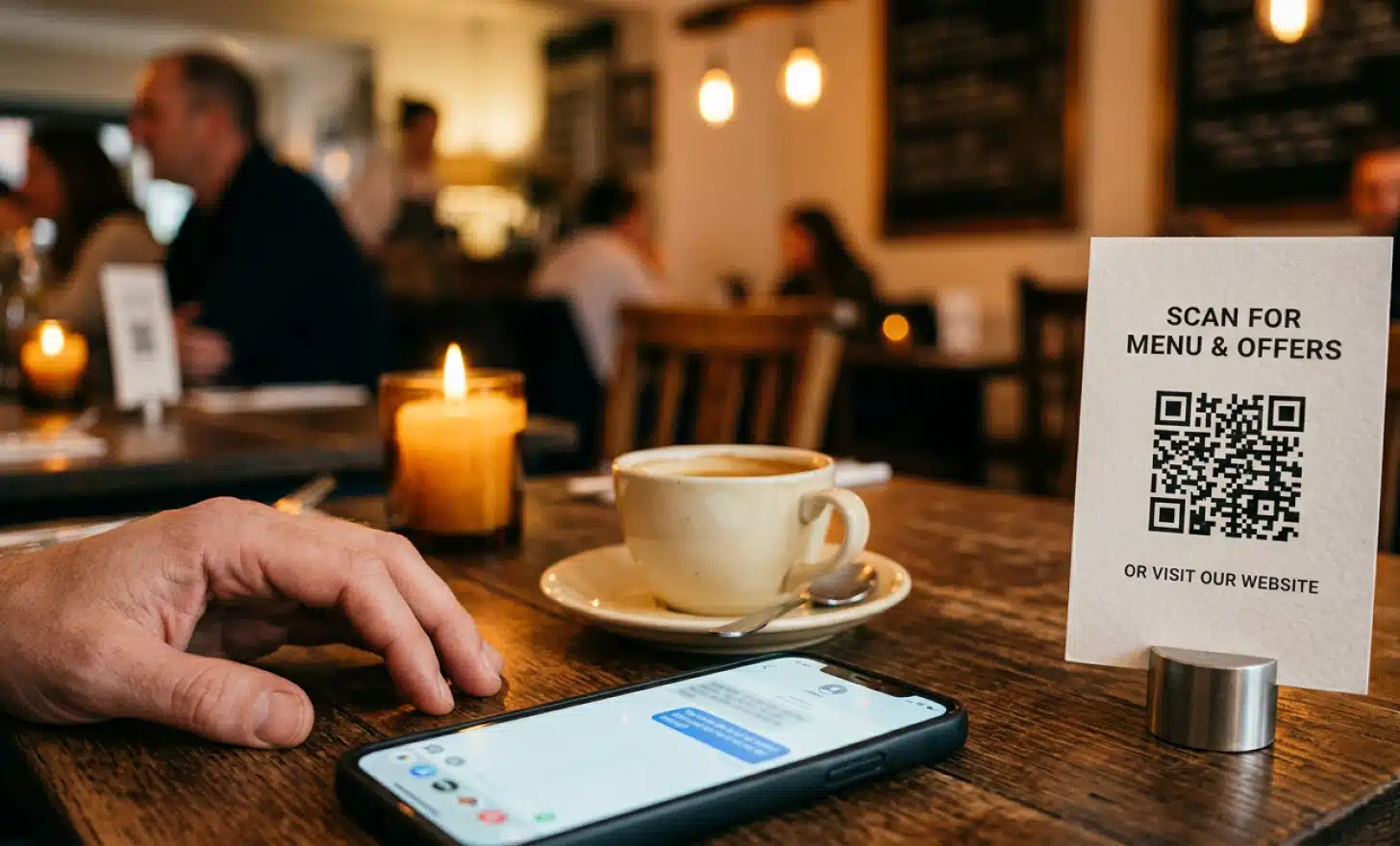
- Restaurant tables, hotel rooms, and retail shelves for in the moment questions.
- Digital ads on social media that open a WhatsApp chat rather than a landing page.
The same share code works across all of them, so you can test placements and see which physical and digital touchpoints actually start conversations.
What mistakes should you avoid with a WhatsApp QR code?
The most common mistakes with a WhatsApp QR code waste scans that you already earned. Each one is easy to fix before you print or publish. Watch for these:
- No pre-populated message, which forces the customer to think of what to say and often stops them from sending anything.
- A static native QR with no tracking, so you never learn which placements actually drive scans.
- Sharing the code with no clear call to action, when a simple “scan to chat” prompt next to it lifts response.
- Printing low resolution versions that fail to scan from a normal distance.
- Using a personal WhatsApp number instead of a WhatsApp Business account, which limits features and looks less professional.
What design choices make a QR code scan reliably?
A QR code scans reliably when it has strong contrast, enough size, and a clear prompt telling people what to do. These basics matter more than styling, because a beautiful code that fails to scan helps no one. Keep these design considerations in mind:
- Use high contrast between the code and its background, ideally dark on light.
- Keep the printed QR code at least two centimeters by two centimeters, and larger for posters meant to be scanned from a distance.
- Add a short text prompt next to the code, such as “scan to chat with us”.
- On larger formats, a branded version with your logo and colors builds trust, as long as the code still scans cleanly.
Mind the QR code’s aspect ratio too. A QR code is square, so avoid stretching it to fit a layout, since distortion can break the scan.
Do WhatsApp Business QR codes expire?
No, a WhatsApp Business QR code does not expire as long as the account remains active. The native code is a fixed link to your chat, so a printed QR code on packaging or a sign keeps working indefinitely. The trade off is that you also cannot change where it points, which is one reason businesses move to a dynamic QR code when they need flexibility.
Can I change where my WhatsApp QR code points after printing?
Not with the native version. The built-in WhatsApp QR code is a static link, so once it is printed, its destination is fixed. A dynamic QR code created with a platform like QRCodeKIT can be edited after printing, letting you reroute the same code to a new WhatsApp number or a different flow without reprinting anything.
Can I track how many people scan my WhatsApp QR code?
The native WhatsApp QR code does not offer scan analytics, so the app itself will not tell you how many people scanned or where. To track QR code scans by placement, time, or device, you need a dynamic QR code from a platform that records that data. This is one of the clearest reasons to choose a dynamic QR when you are running campaigns across more than one channel.
Is a personal WhatsApp number enough for a business QR code?
A personal WhatsApp number can technically generate a chat link, but it is not the right base for a business QR code. A WhatsApp Business account unlocks features like the built-in QR code, a business profile, and messaging tools, and it signals to customers that they are contacting a real business rather than a private number.
All images and visual content in this article were created using RealityMAX.
Related articles

QR code for a swimming pool
Learn how a QR code for a swimming pool turns loungers into ordering stations, why dynamic codes fit pool menus, and how to set up faster, smarter service.

AI QR code privacy
Understand AI QR code privacy and how platforms prevent AI hallucinations. Learn what data a scan collects, what to ask vendors, and how to stay GDPR aligned.
Accessible QR codes for visually impaired users
Accessible QR codes for visually impaired users work on two layers: a scannable code and a destination screen readers can navigate. Learn to build both.
Try QRCodeKIT Pro free for 7 days.
No credit card required. The original dynamic QR code platform since 2009.