
- April 25, 2025
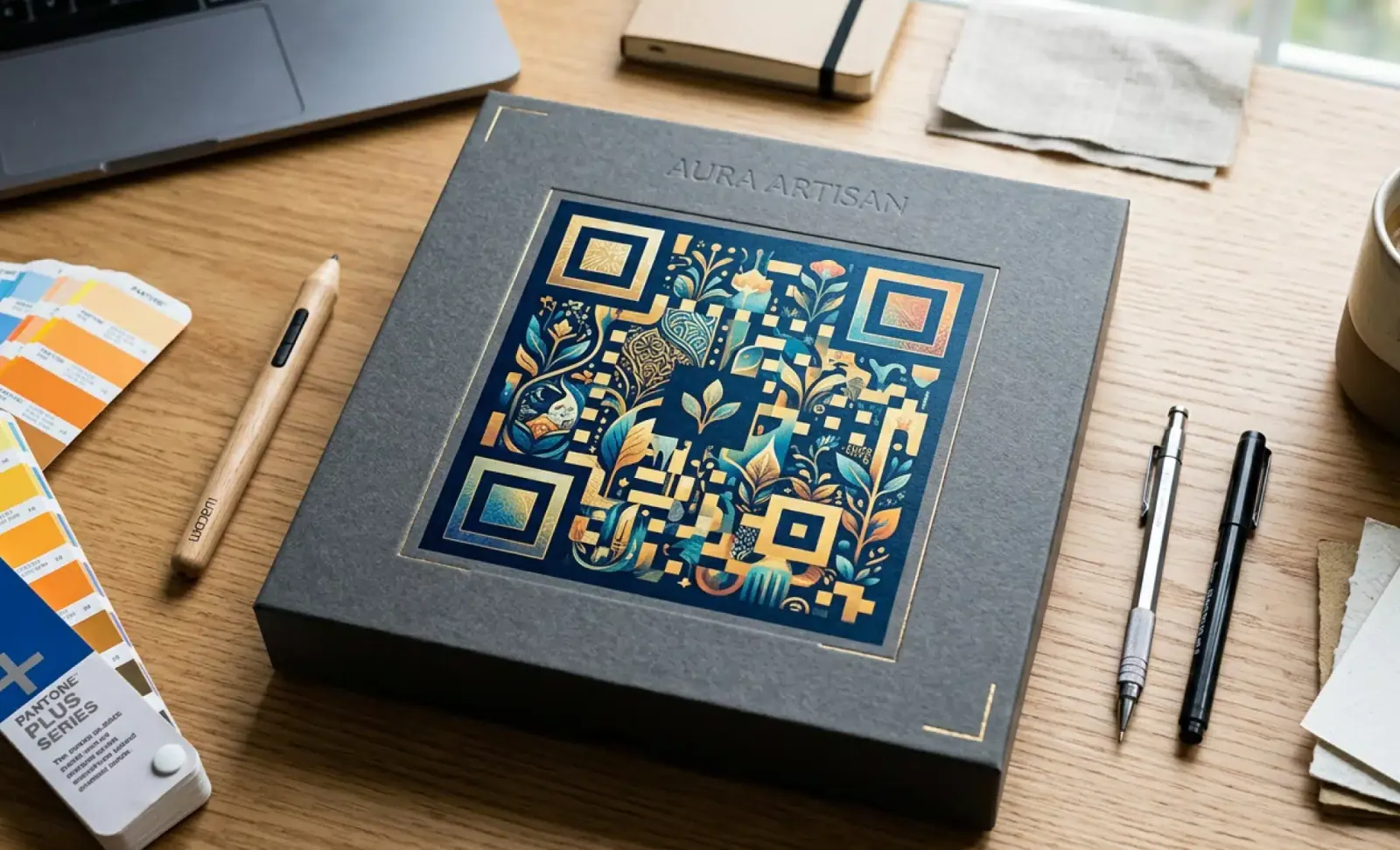
Photo of QR code: What can you do with a QR code in your photos
TL;DR
- A photo of QR code can be scanned straight from your camera roll, a screenshot, or a printed image on any iPhone or Android.
- Turning images into a photo of a QR code lets you share albums, galleries, and event photos with a single scan instead of long links.
- A dynamic QR code from QRCodeKIT lets you update the photos behind the code without reprinting it.
A photo of a QR code is more useful than it looks. You can scan it straight from your camera roll, turn your own images into a shareable code, or print it on event materials so guests reach a full gallery in one tap. Here is how to scan, create, and use a photo of a QR code on any device.
How do you scan a photo of a QR code?
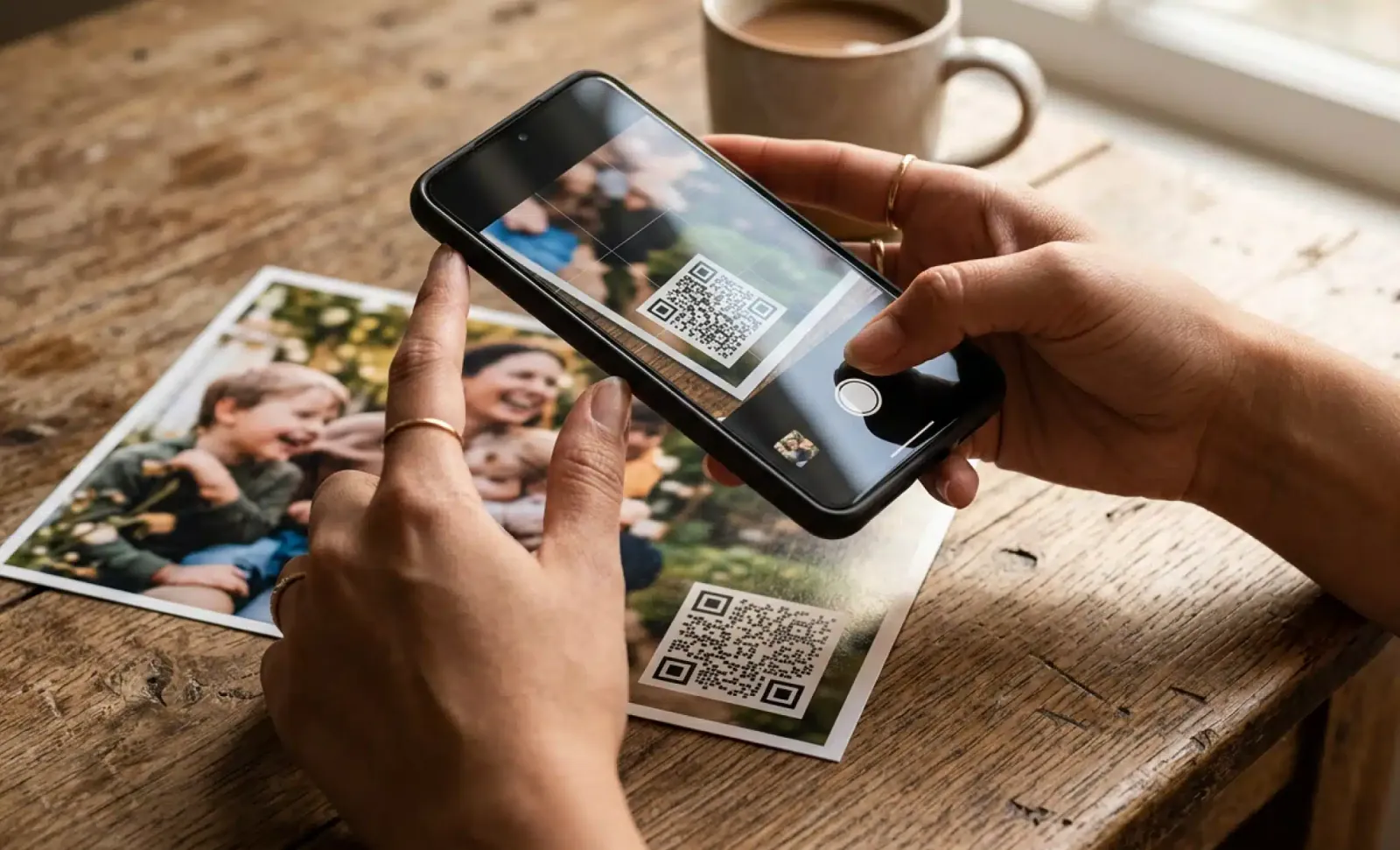
Yes, you can scan a QR code from a picture, screenshot, or printed image. Your smartphone reads the code the same way it reads one in the real world, as long as the image is clear and the code is fully visible. The method changes slightly between iPhone and Android, but both take only a few seconds.
How do you scan a QR code on iPhone?
Open the Photos app and tap the image that contains the QR code. If the code is readable, iPhone detects it and shows a link banner you can tap to open. Google Photos works too, with a built-in QR code scanner that handles saved pictures and screenshots well.
How do you scan a QR code on Android?
Android users can open the photo and rely on Google Lens or the default camera app, which scan most saved images automatically. If nothing appears, press and hold the QR code on screen to trigger a manual scan. The link then opens in your browser without any typing.
How do you scan a printed QR code?
For a code printed on a flyer, poster, or photo, point your camera app or a QR scanning app directly at it. Good lighting and a steady hand are all it takes. A clean, well-lit print scans instantly, while a blurry or partially covered code may need a second attempt.
How do you create a photo QR code?
Creating a photo QR code means linking a code to the images you want people to reach, so one scan opens the gallery, album, or campaign visuals. With a QR code generator you can set this up in minutes and place the code anywhere your audience already looks. Here is the process:
- Choose your content. Pick the image, photo gallery, or online album you want to share, whether it is event coverage, a portfolio, or campaign visuals.
- Use the QRCodeKIT QR code generator to create a dynamic QR code in a few minutes. The free plan lets you generate up to two dynamic QR codes at no cost.
- Download and distribute. Add the finished code to flyers, posters, brochures, or photo albums. Anyone who scans it lands directly on your images.
Because the code is dynamic, you can change the destination later. The printed code stays the same while the photos behind it stay current, which makes it ideal for seasonal campaigns or albums you keep adding to.
How can you use a QR code for photo sharing at events?
A photo of a QR code is one of the simplest ways to share images from an event. Link a code to a shared album, print it on a sign or table card, and every guest scans the same code to view and download the photos. It works like a virtual photo booth that stays open long after the event ends.
This removes the usual friction of email attachments, USB drives, or hunting for the right link. Weddings, company parties, and conferences all benefit from the same setup. Guests reach the gallery instantly, and you control what they see from one place.
How do QR codes help marketers and photographers share visuals?
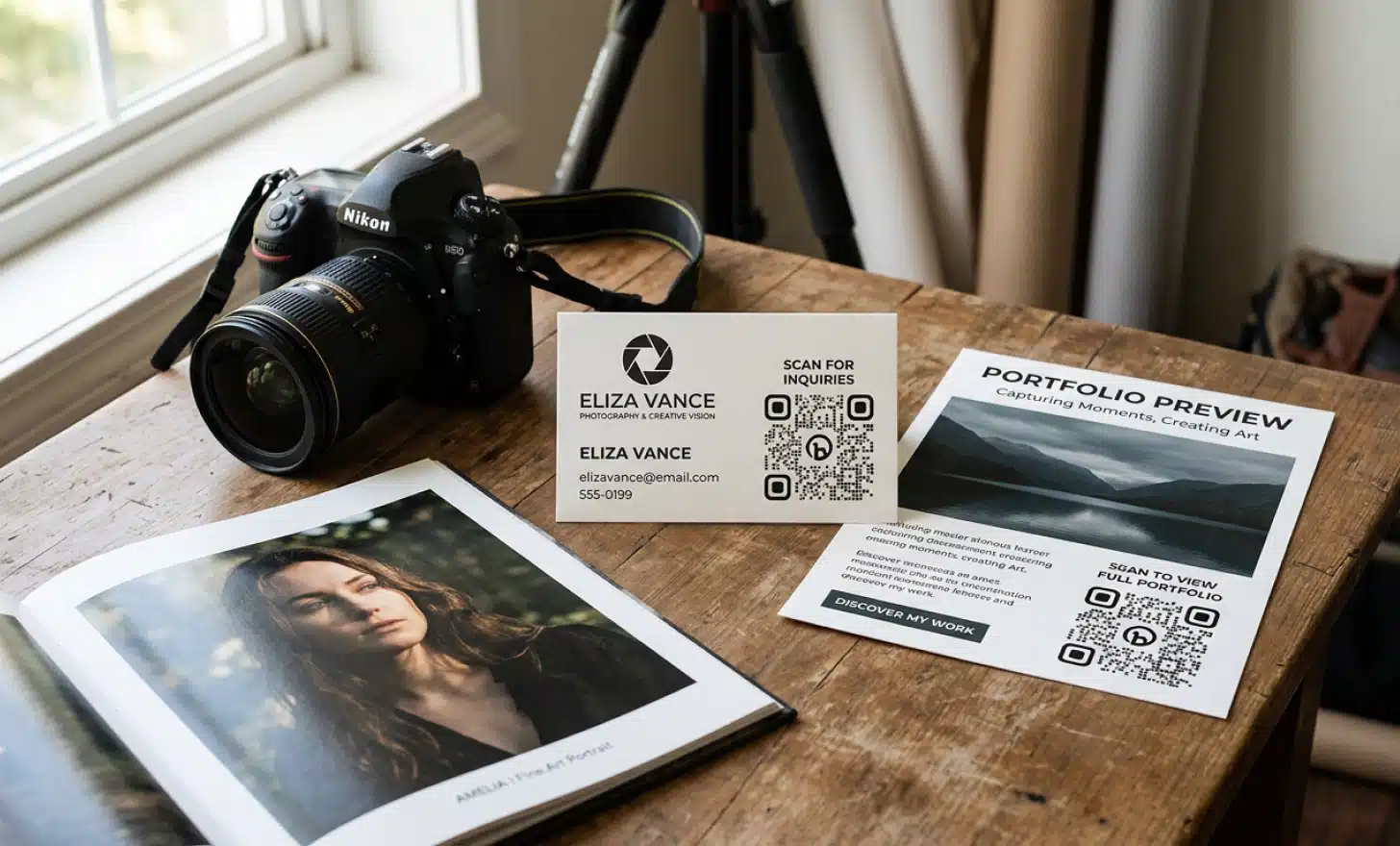
QR codes give marketers and photographers a fast bridge between physical materials and digital content. A code on a business card, flyer, or printed photo can open a portfolio, a promotional album, or a specific social media post, so people reach your work without typing a URL or searching for your profile.
For photographers, a single code can point to a client gallery, a booking page, or extra details about a shoot. For marketers, the same code can link a product photo to a landing page or a campaign album. Tying the code to visuals your audience already recognizes makes the scan feel natural rather than forced.
Can a photo QR code track how people view your images?
Yes. A dynamic photo QR code records each scan, so you can see how many people opened your gallery, when, and from where. That data turns a simple image into a measurable touchpoint, showing which posters, flyers, or albums actually drive views.
Over time these numbers help you decide where to place codes and which visuals connect. If one location or campaign outperforms the rest, the scan data tells you before you commit more budget to it.
What is the future of a photo of a QR code in photography?
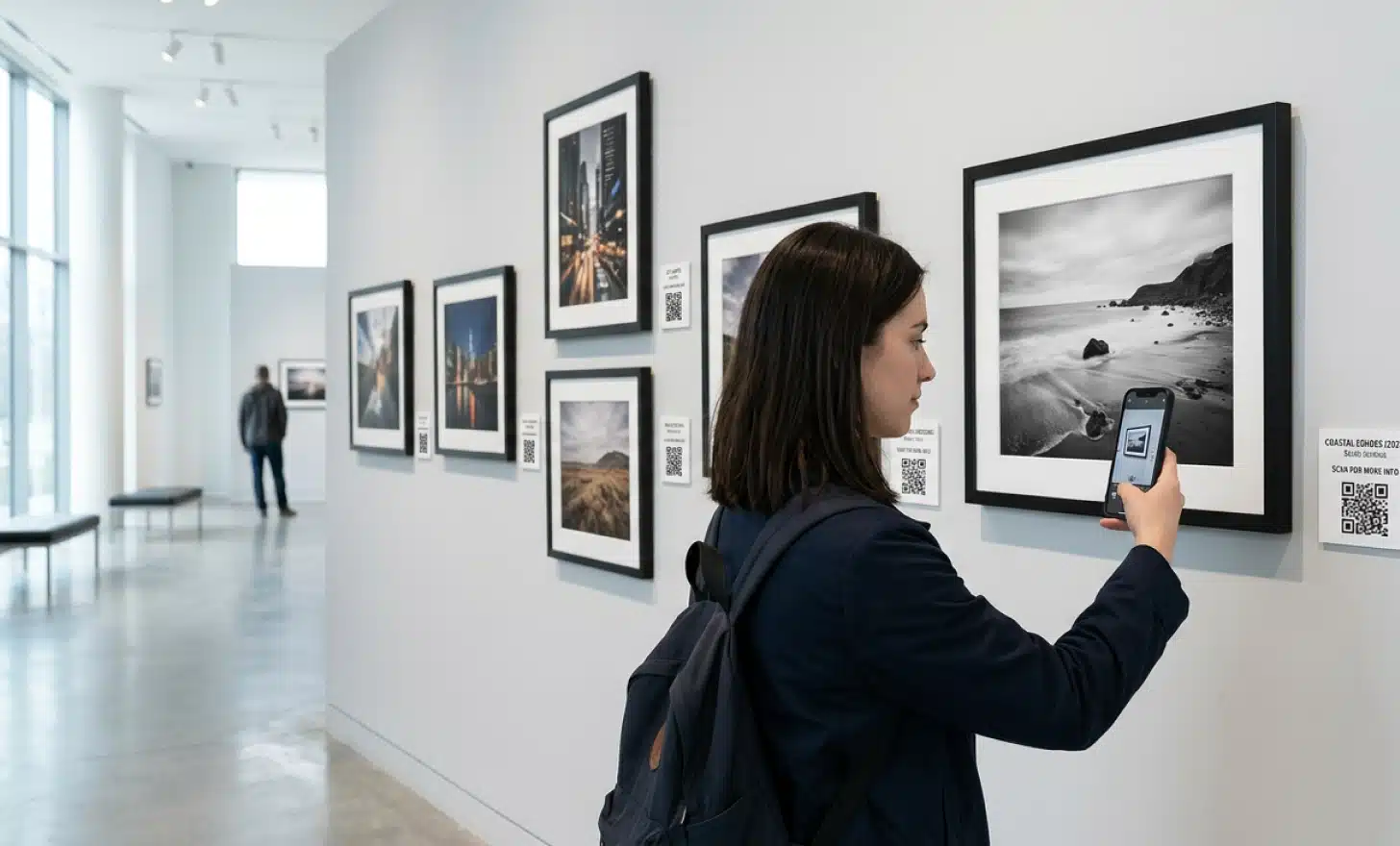
QR codes are becoming a standard part of how images are shared and discovered. As scanning from the camera roll and lock screen becomes second nature, more photographers and businesses will attach codes to prints, packaging, and exhibitions to link physical work with deeper digital content.
The direction is clear. A photo of a QR code is shifting from a novelty to a quiet utility, a small square that turns any printed image into a doorway to galleries, bookings, and updates that you can change at any time.
Frequently asked questions
Can you scan a QR code from a screenshot?
Yes. A screenshot saved to your camera roll scans the same way a photo does. On iPhone, open it in Photos and tap the detected link. On Android, use Google Lens inside the photo to read the code and open its destination.
Why use a dynamic QR code for photos instead of a static one?
A dynamic QR code lets you change the album or gallery behind the code without reprinting it. QRCodeKIT codes are all dynamic, so you can swap event photos, update a portfolio, or redirect a campaign while the printed code stays exactly the same.
Does a photo QR code work on both iPhone and Android?
Yes. A standard QR code is read natively by the camera and photo apps on both iPhone and Android. No separate app is required in most cases, which makes a photo of a QR code an easy way to reach a wide audience.
All images and visual content in this article were created using RealityMAX.
Related articles
QR codes on baggage tags
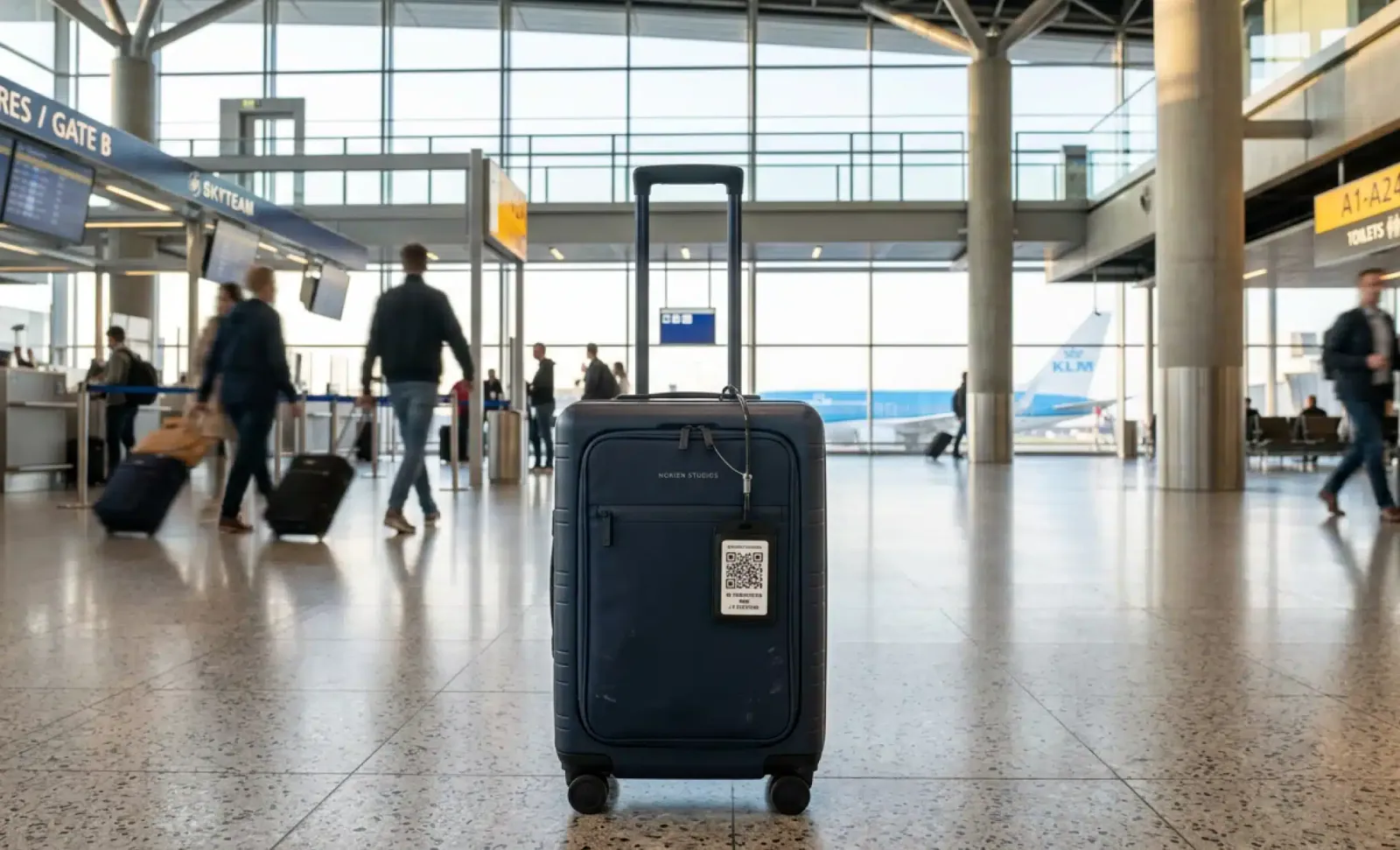
QR codes on baggage tags turn any suitcase into a digital point of contact. Learn how dynamic luggage tags cut lost bags and protect your personal info.
AI generated QR codes
Create AI-generated QR codes with QRCodeKIT. No credit card required, generate, customize, download, and print your QR codes.

ISO quality standards for QR codes
ISO quality standards for QR codes keep every scan accurate and reliable. Learn how QRCodeKIT meets ISO/IEC 18004:2024, 9001, 27001, and 14001 standards.

Your QRs now answer questions
Meet Cleo, the AI that lives inside your QR codes. She answers questions, recommends products, and guides your users, in any industry, any language.
Add Cleo to my QRs +1,200 businesses already use Cleo
Your all-in-one QR code solution
Create, manage, and track your dynamic QR codes like a pro.
Get started free