April 24, 2025
QR scanner: Everything you need to know about scanning QR codes
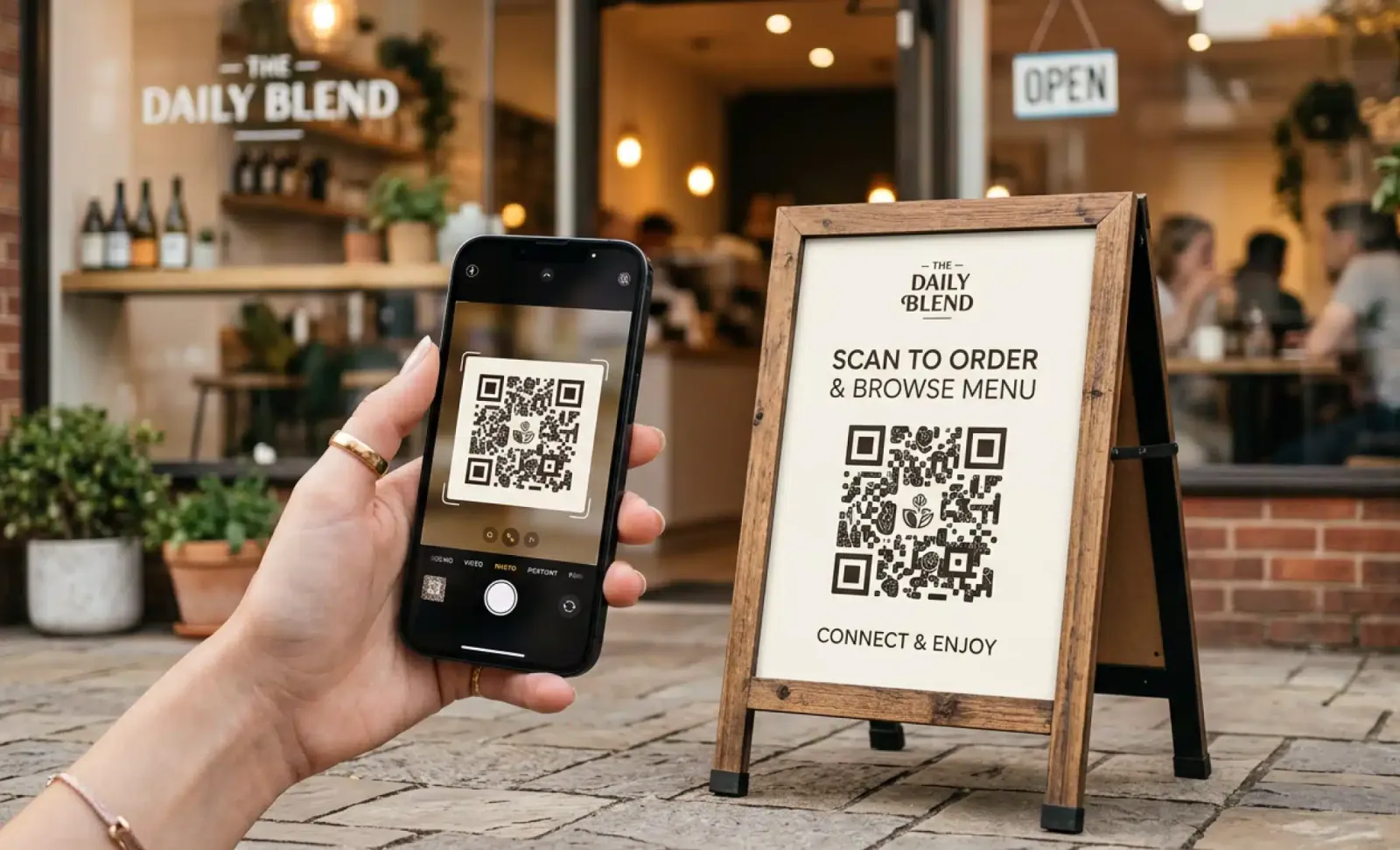
TL;DR: A QR scanner reads the square pattern of a code and turns it into something useful, such as a website, a contact card, or a Wi-Fi login. Most phones scan straight from the built-in camera app, with no download needed. This guide covers how to scan QR codes on iPhone and Android, how to scan one from a photo, and how to stay safe while you do it.
A QR scanner is the tool that reads a QR code and instantly turns it into useful information. On most modern phones that tool is already inside the camera app, so you point, wait a second, and tap the link that appears. Below we break down every way to scan, when a dedicated app actually helps, and how to keep each scan safe.
What is a QR scanner?
A QR scanner is software that reads a QR code and converts it into something you can act on, like a website link, contact details, a Wi-Fi password, or an app download. Most smartphones include one inside the camera app, so scanning takes a single tap with no extra software.
Some phones lack native scanning, and that is where a free QR code scanner app comes in. These apps go beyond reading codes. Many also read barcodes, generate new codes, and keep a log of past scans so you can return to a link later. Whichever route you use, the job is the same. The scanner decodes the pattern and hands you the content behind it.
How do you scan a QR code on any smartphone?
Scanning a QR code takes seconds on both iPhone and Android. Most newer phones detect codes straight from the default camera app, so you rarely need to install anything. Open the camera, point it at the code, and tap the notification that appears to open the link.
iPhone
If you are on iOS 11 or later:
- Open the camera app from your home screen
- Point it at the QR code, with no need to tap the shutter
- Tap the notification at the top to open the link
You can also add the Code Scanner shortcut to Control Center under Settings.
Android
On most Android phones:
- Open the camera app, since some models need a dedicated QR mode
- Point at the QR code and wait for the notification
- Tap it to open the link or content
If scanning does not work, try Google Lens or install a free QR code scanner from the Play Store.
Can you scan a QR code from a photo?
Yes. You can scan a QR code directly from a photo or screenshot, not just from a printed code in front of you. Many QR code scanner apps include an import option that reads a code inside an image saved on your device, then returns the link or data tied to it.
This helps when you save a code from a website or receive one in an email or a social post. Open your QR code scanner app, choose the import or scan from image option, and pick the photo from your gallery. The app decodes it and opens the content, with no second device required.
Do you need camera permission to scan QR codes?
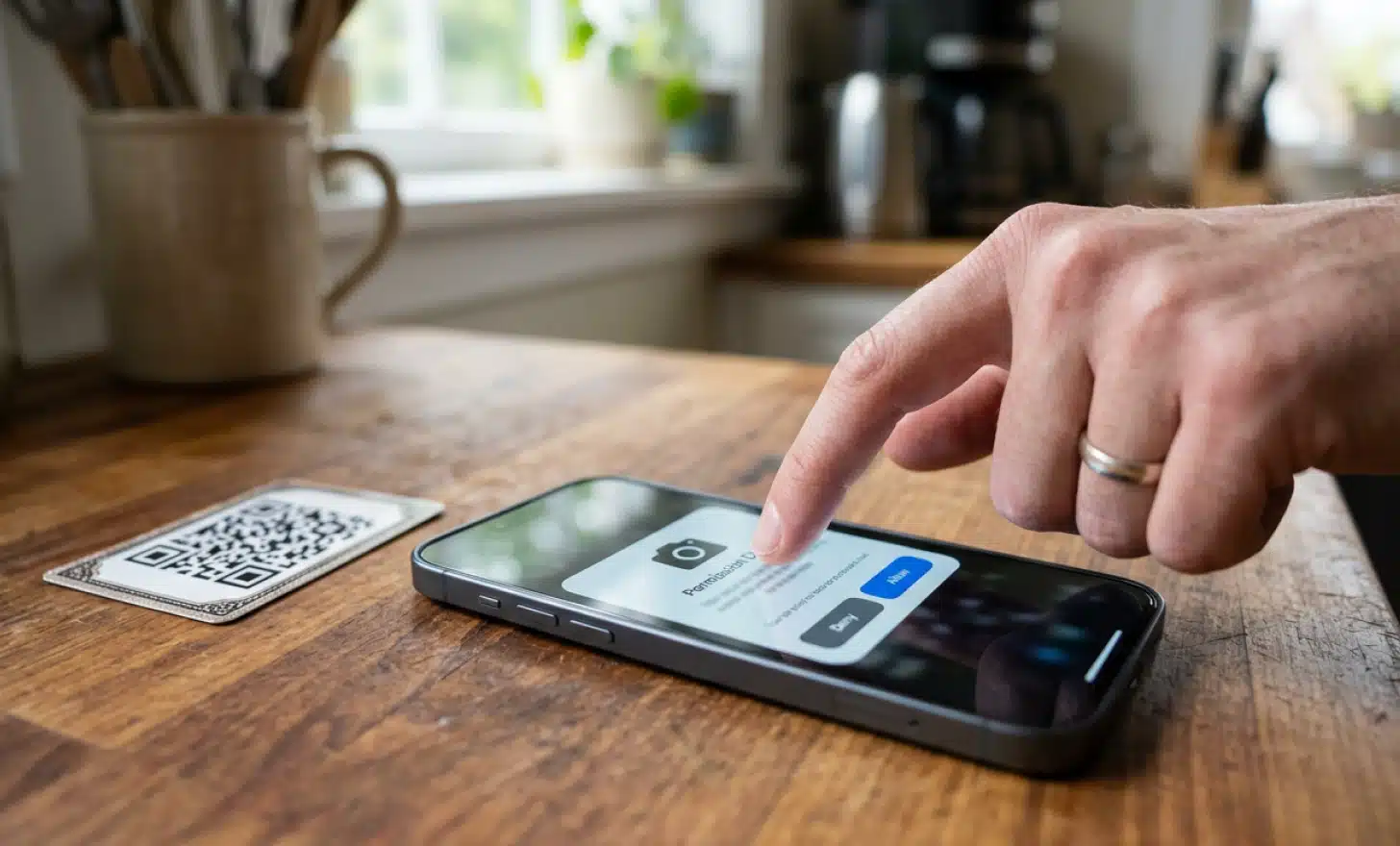
Yes. Camera access is required to scan QR codes with your phone, whether you use the default camera app or a dedicated QR code scanner app. The tool needs permission to see the code and decode it, so the first time you open it your phone asks you to allow camera access.
You can change this setting anytime on both iPhone and Android. One habit is worth keeping. Only grant camera access to trusted apps. It is a small step that helps protect your device and your data.
Put it into practice
Create a dynamic QR code free and see it work. No credit card required.
Get started freeAre QR codes safe to scan?
Most of the time, yes. QR codes are safe, but like any link the risk depends on where the code leads and whether you trust the source. A scanner can open a website, install an app, or join a Wi-Fi network in seconds, which is exactly why a quick check before you tap matters.
Malicious QR codes do exist, and they can point to phishing websites or unwanted app installs. The safest approach is to scan codes from trusted sources such as product packaging, official promotional materials, or known websites, and to stay cautious with random codes in public places, since stickers and posters can be tampered with or swapped out. A scanner app that previews the link before opening it adds another layer of safety. QR codes are not dangerous by design. They are only as safe as the link they hide, so a brief pause to check the source keeps your scanning smooth and secure.
When should you use a QR code scanner app?
Reach for a dedicated QR code scanner app when your phone camera fails to detect codes or when you want extra features. These apps add scan history so you can revisit old scans, the ability to scan QR codes from images, barcode scanning, and built-in QR generation tools.
Before you download one, check reviews and confirm the app does not request permissions it has no reason to need, such as microphone or location access. A reliable free QR code scanner should ask for the camera and little else.
What types of codes can a QR scanner read?
Most QR scanners read more than QR codes. They also handle barcodes, encrypted codes, and other formats found on product packaging or promotional materials. Some advanced QR code scanner apps support several code types at once, which makes them useful for far more than opening a single link.
Where are QR codes commonly used?
QR codes appear almost everywhere now. You will find them on product packaging, flyers, posters, business cards, inside emails, and on websites. They offer a fast, no-touch way to connect a physical object to digital content such as a website, an app, or secure login details.
Whether you scan to claim a deal or open a restaurant menu, a QR code makes the jump from the real world to online feel effortless. Many of these are dynamic QR codes, which means the destination behind the code can be updated at any time without reprinting it.
Does QR scanning require internet access?
Usually, yes. Many QR codes link to websites, apps, or online content, so you need an internet connection to view what is behind them. Not every code goes online, though. Some store data locally, such as Wi-Fi passwords or contact details, which your phone can read even when you are offline.
Can QR codes be scanned in low light?
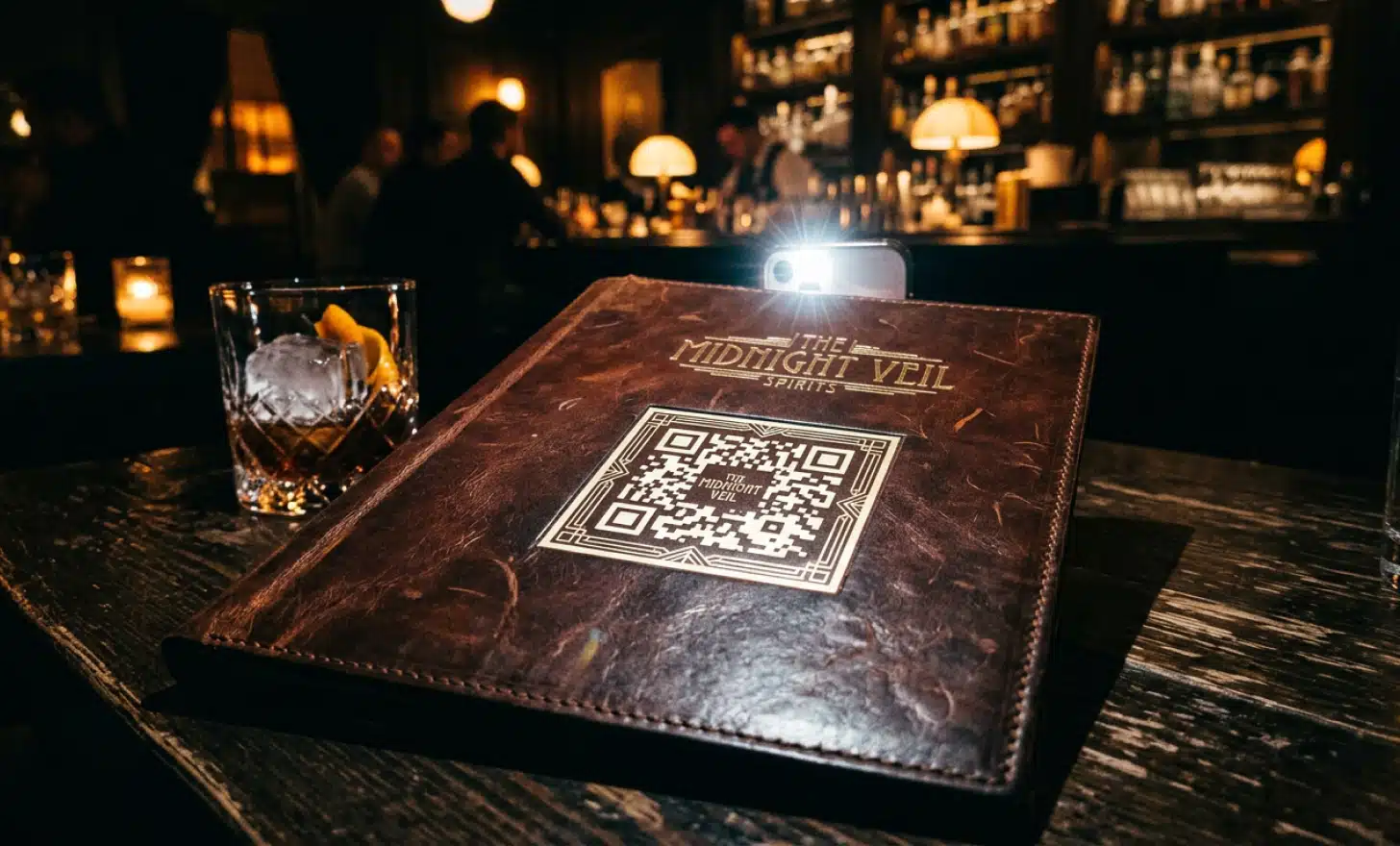
In most cases, yes. QR scanners and camera apps adjust exposure automatically and handle dim conditions well. If your device struggles to focus, turn on the flash or move somewhere brighter. Good lighting helps the camera lock onto the code faster and read it on the first try.
How can you manage and optimize your QR scanning experience?
A little upkeep keeps scanning fast and private. Clear your scan history when you want to, review app permissions regularly, and follow a few simple habits that help your camera catch the code on the first attempt. The result is quicker, cleaner, and safer scanning every time.
Managing scan history is straightforward. Most QR code scanner apps keep a log of past scans so you can revisit a link. If you prefer to keep things private, open the app, find the History, Scans, or Log section, and delete entries one by one or all at once. Some apps let you turn off scan logging entirely in settings, which is worth doing if you would rather save no data after scanning.
A few quick habits help your phone read a QR code on the first try:
- Clean your camera lens, since dust or smudges block focus
- Update your apps for bug fixes and better performance
- Use good lighting for sharper, faster scans
- Center the code and hold steady for a second or two
- Stick to trusted apps and avoid those asking for odd permissions
With your lens clean and your apps current, your next scan should be faster, safer, and stress-free.
All images and visual content in this article were created using RealityMAX.
Related articles
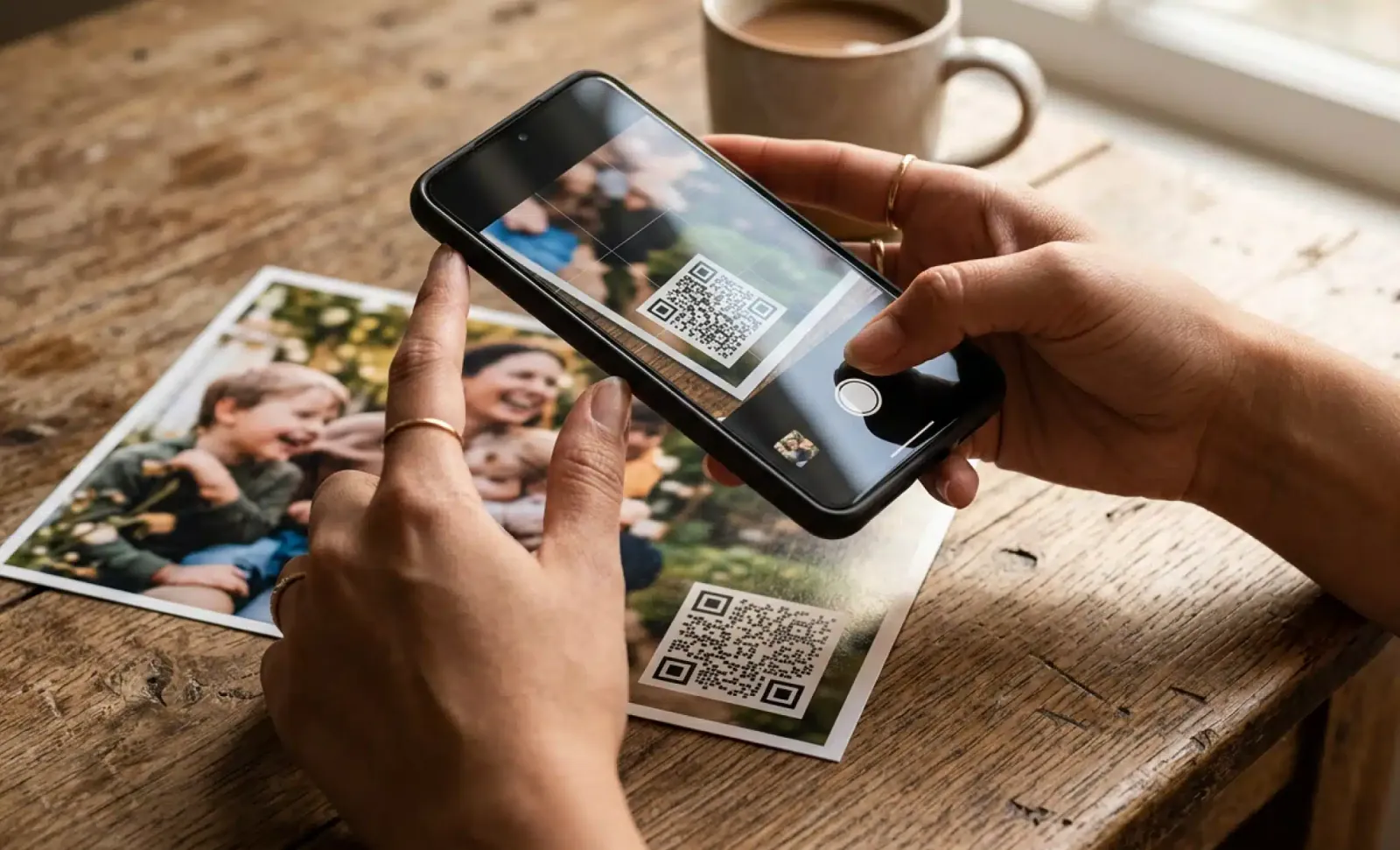
Photo of QR code
A photo of QR code lets you scan, create, and share albums or event photos in one tap. Learn how on iPhone and Android with dynamic QR codes.

QR codes on baggage tags
QR codes on baggage tags turn any suitcase into a digital point of contact. Learn how dynamic luggage tags cut lost bags and protect your personal info.

ISO quality standards for QR codes
ISO quality standards for QR codes keep every scan accurate and reliable. Learn how QRCodeKIT meets ISO/IEC 18004:2024, 9001, 27001, and 14001 standards.
Two free dynamic QR codes. Yours forever.
No credit card. No expiry. The original dynamic QR platform since 2009.