With Integrations & automations, QRCodeKIT sends an event to Zapier, Make, n8n or any URL the moment something happens: a scan, a form submission or a payment. Use it to update a CRM, send a Slack message or log scans in a spreadsheet.
Connect a QR code
- In your automation tool, create a webhook trigger and copy its URL. In Zapier, use Webhooks by Zapier with Catch Hook.
- In QRCodeKIT, create a QR code or edit one with the pencil icon in your dashboard.
- Under Integrations & automations, paste the URL in Destination URL (webhook) and click Add webhook.
- Choose the events to send. The options depend on the QR code type.
- Click Next: Design to save. The webhook is created when you save the QR code.
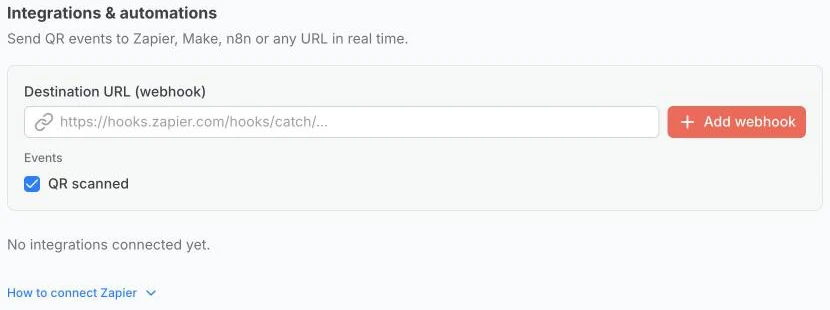
Events
- QR scanned: every time the QR code is scanned
- Form submitted: every new response to a form
- Payment succeeded: every completed payment
- Scan blocked: a scan that couldn’t open the content, for example because a limit was reached
Good to know
- On Pro and Enterprise, our Zapier app can also start your Zaps on new scans, leads and payments. It connects with an API key.
- Developers can manage webhooks with the API. See the webhook guide.