An API key lets other software, such as our Zapier app or your own code, work with your QRCodeKIT account. API keys are part of the Pro and Enterprise plans.
Steps
- Click your name at the bottom of the sidebar and click Account.
- Open the API keys tab and click Create API key.
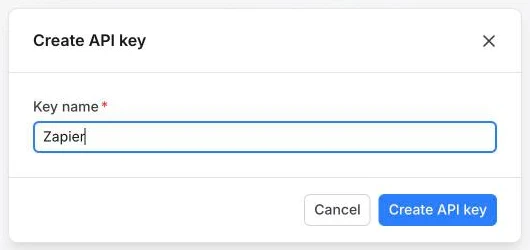
- Give the key a name that says where you’ll use it, such as Zapier, and click Create API key.
- Copy the key and store it somewhere safe.
Good to know
- The API keys tab lists every key with its status and when it was last used.
- Use one key per tool, so you can revoke one without affecting the others.
- Developers send the key in the X-API-KEY header. See the API documentation and the authentication guide.