How to create a Google Reviews QR Code
Get comments, ratings and reviews via Google
This article corresponds to QRCodeKIT's legacy app. For more information, click here.
Log in to your account, or register here if you do not have one, and follow these steps:
In the current QRCodeKIT app, the Google Reviews QR code works differently: your customer taps a star, answers three quick questions and AI writes the review for them to post on Google. See how it works on the Google Reviews QR code page.
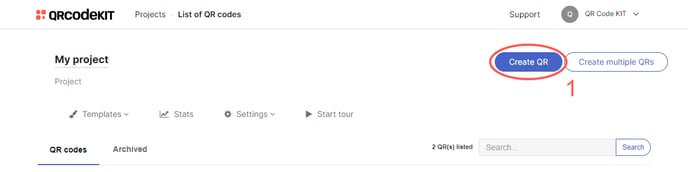
1) Click Create QR
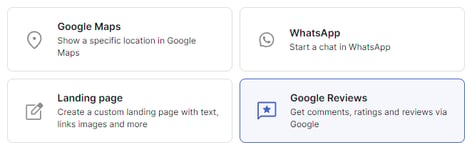
2) Select Google Reviews
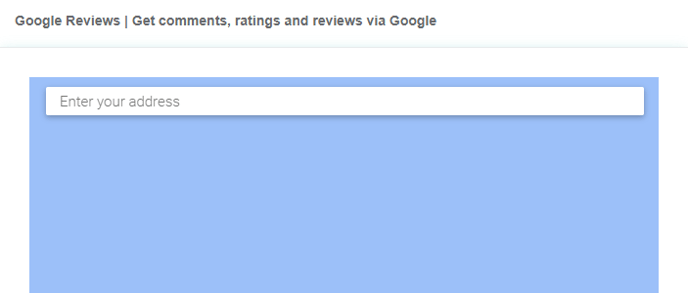
3) Enter the name and address of your business or store
4) Click Save to apply changes or Save and download to download the QR Code
Done! Here is an example of what the content would look like. Scan the QR Code to see it on your smartphone.
If you want to know how to customize the QR Code or how to download it, check the following articles:
- How to customize a QR Code
- How to download a QR Code