How to create a Digital business card QR Code
Share your electronic business card with all your contact information
This article corresponds to QRCodeKIT's legacy app. For more information, click here.
Log in to your account, or register here if you do not have one, and follow these steps:
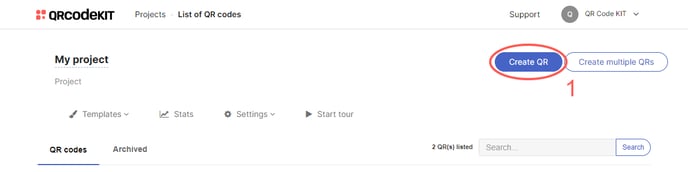
1) Click Create QR
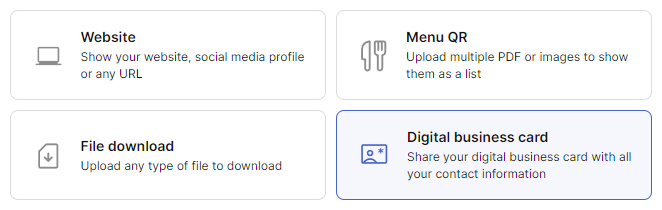
2) Select Digital business card
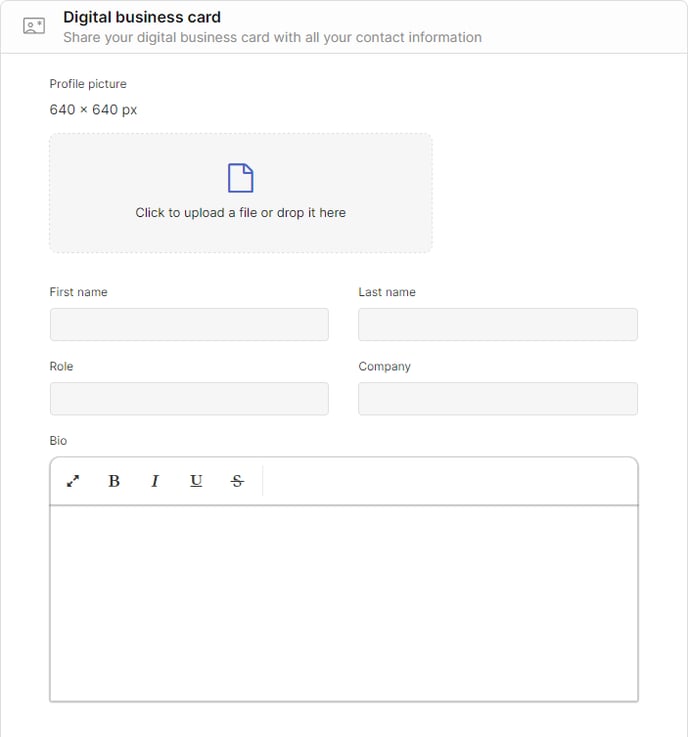
3) Enter your name, company name and role, and any other information that you would like to share. You can also upload a profile picture (JPG or PNG)
4) As for contact information, you can add as many links (website or social medias), phone numbers, email addresses and street addresses as you want. You can move them up or down depending on your needs
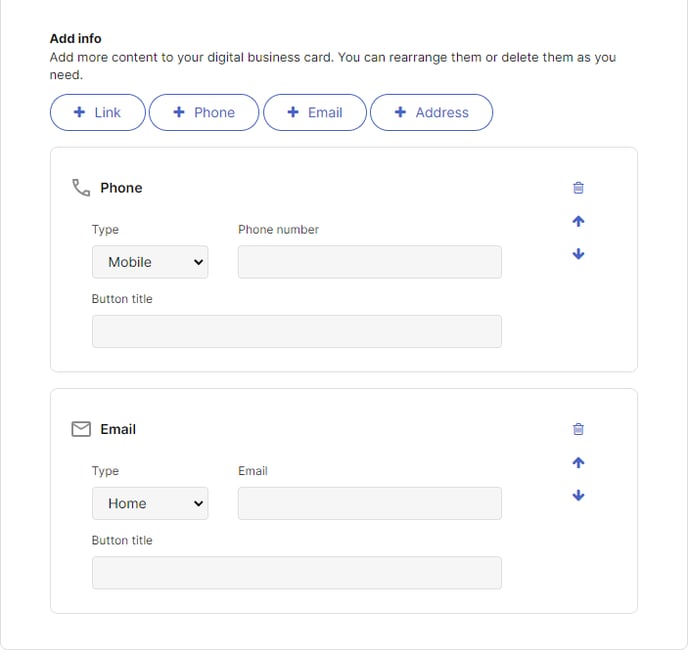
5) Click Save to apply changes or Save and download to download the QR Code
Done! Here is an example of what the content would look like. Scan the QR Code to see it on your smartphone.
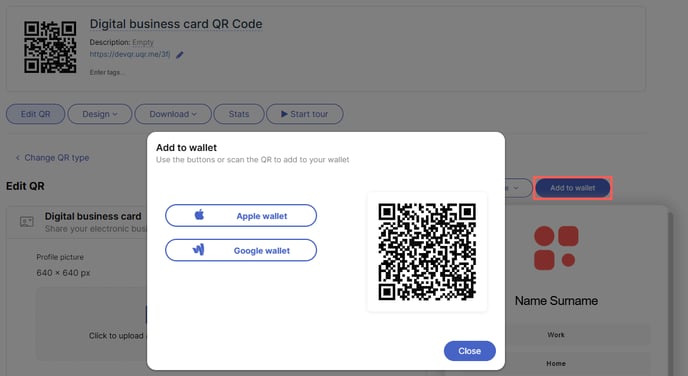
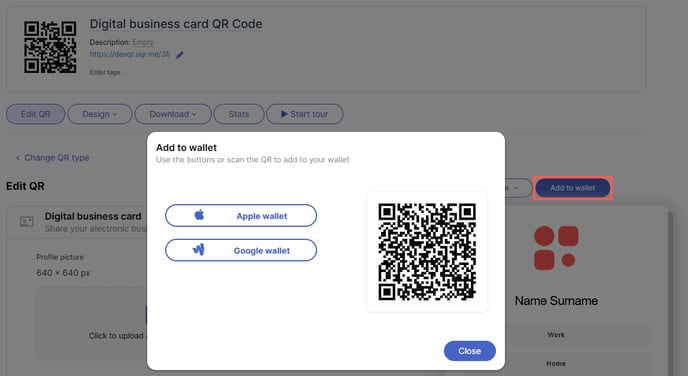
After saving your contact information, you will be able to add it to your Apple or Google Wallet by clicking Add to wallet above the preview.
If you want to know how to customize the QR Code, its page or how to download it, check the following articles:
- How to customize a QR Code
- How to customize the page template of a QR Code
- How to download a QR Code