How to create and assign a user to a project
Add team members to your account
This article corresponds to QRCodeKIT's legacy app. For more information, click here.
If you are subscribed to the PROFESSIONAL or ENTERPRISE plan, you can create users as project managers or account administrators. Project managers will be able to create and manage QR codes within assigned projects, while account administrators will have the same privileges as the account owner.
Log in to your account and follow these steps:
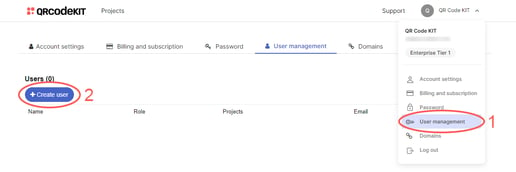
1) Click your user name in the top-right corner of your dashboard and click User management
2) Click Create user
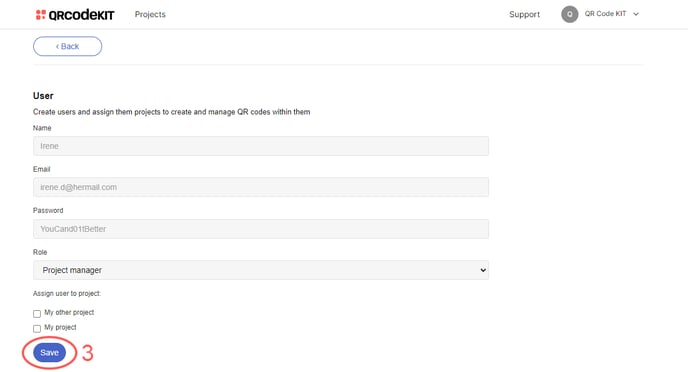
3) Enter the user's name, email, and password, click the Role dropdown menu to select Admin or Project manager, and click Save. If the user will have the Project Manager role, select their assigned projects
Notify the user to log in via https://app.qrcodekit.com/en/login using their email and password.