
How to password protect a QR Code

Allow access to the content of your QR Code with password

This article corresponds to QRCodeKIT's legacy app. For more information, click here.

Log in to your account and follow these steps:

1) Click Edit QR
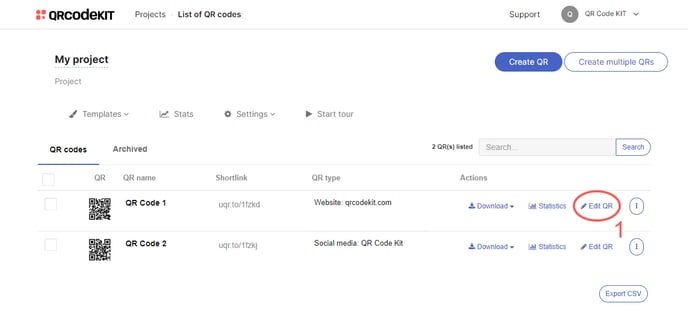
QRCK - Edit QR

2) Scroll down to find the "Advanced settings" section, click the Password protection button to enter a password, and click Save
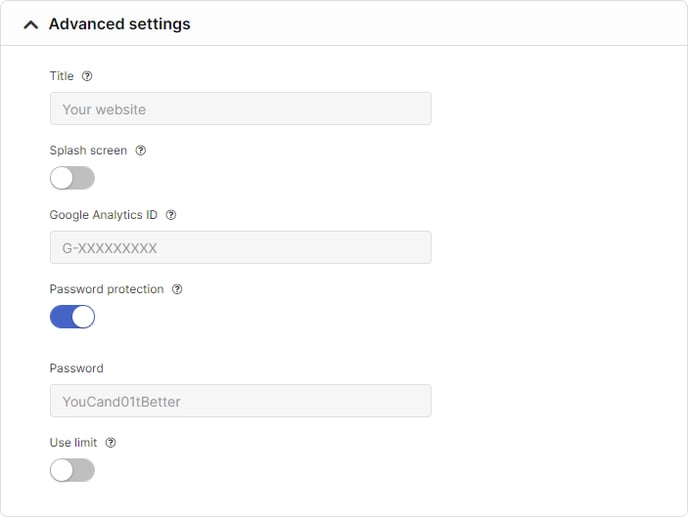
QRCK - Password protection

NOTE: The content of a QR Code is public by default.
✨ New: Free to get started

Your QRs now answer questions

Meet Cleo, the AI that lives inside your QR codes. She answers questions, recommends products, and guides your users, in any industry, any language.

Add Cleo to my QRs
Logos of brands that use Cleo+1,200 businesses already use Cleo
Do you have a vegan option?
Yes! Our falafel bowl and garden salad are 100% vegan. Want to see the full menu?

Your all-in-one QR code solution

Create, manage, and track your dynamic QR codes like a pro.

Get started free