How to perform batch actions
Apply different actions to multiple QR Codes
This article corresponds to QRCodeKIT's legacy app. For more information, click here.
If you have subscribed to the STANDARD, PROFESSIONAL or ENTERPRISE plan, you can apply different actions to multiple QR Codes.
Log in to your account and:
1) Select one, several or all QR Codes to enable "Batch actions"
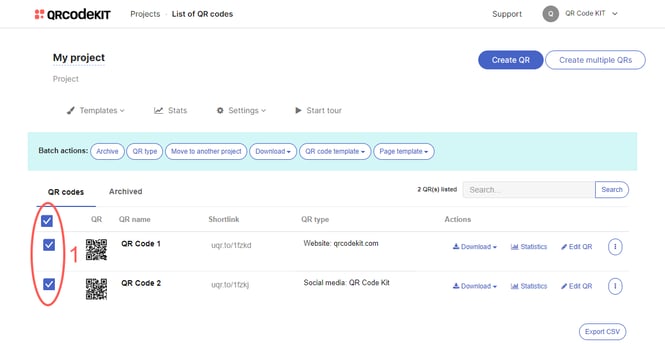
Batch actions include:
- Archive the QR Codes
- Choose their type of content
- Move them to another project
- Download them
- Apply them QR Code or page design templates