A saved design keeps the look of a QR code: its pattern, colors, frame and logo. You can apply one to many QR codes at once instead of customizing them one by one.
Only the image of each QR code changes. Its content, its short URL and its statistics stay the same, so QR codes that are already printed keep working.
Before you start
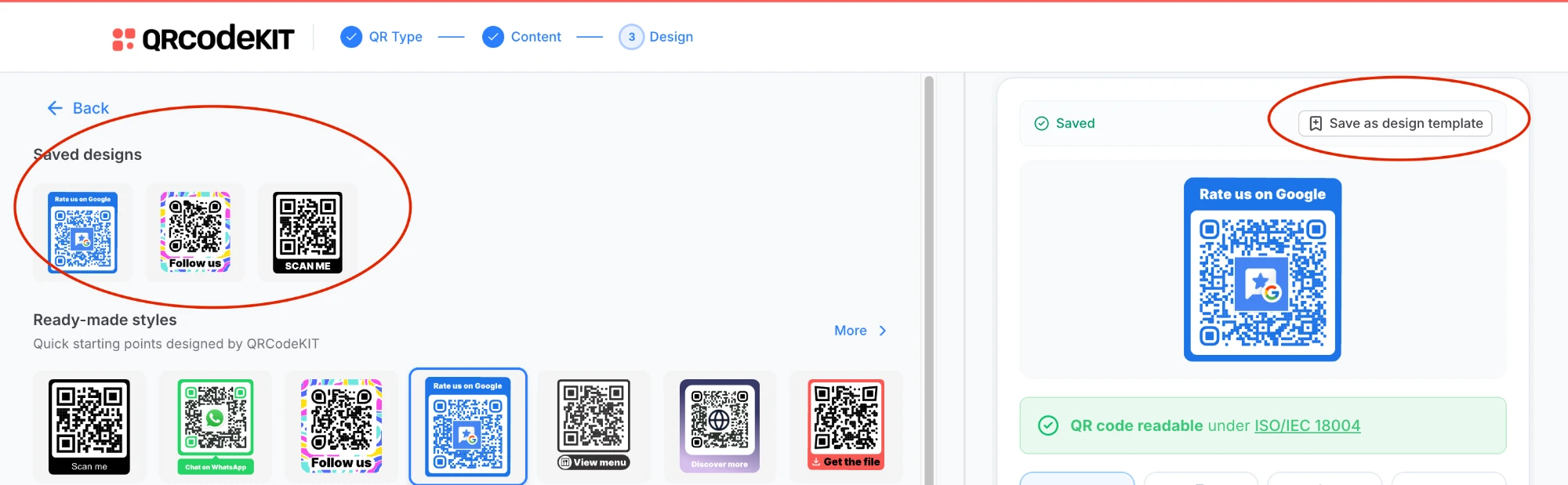
- You need at least one saved design. To create one, open a QR code, go to the Design step and click Save as design template.
- Your plan must include custom QR designs. If it does not, Apply design opens the upgrade screen.
Apply a design to the QR codes you choose
- Go to your dashboard.
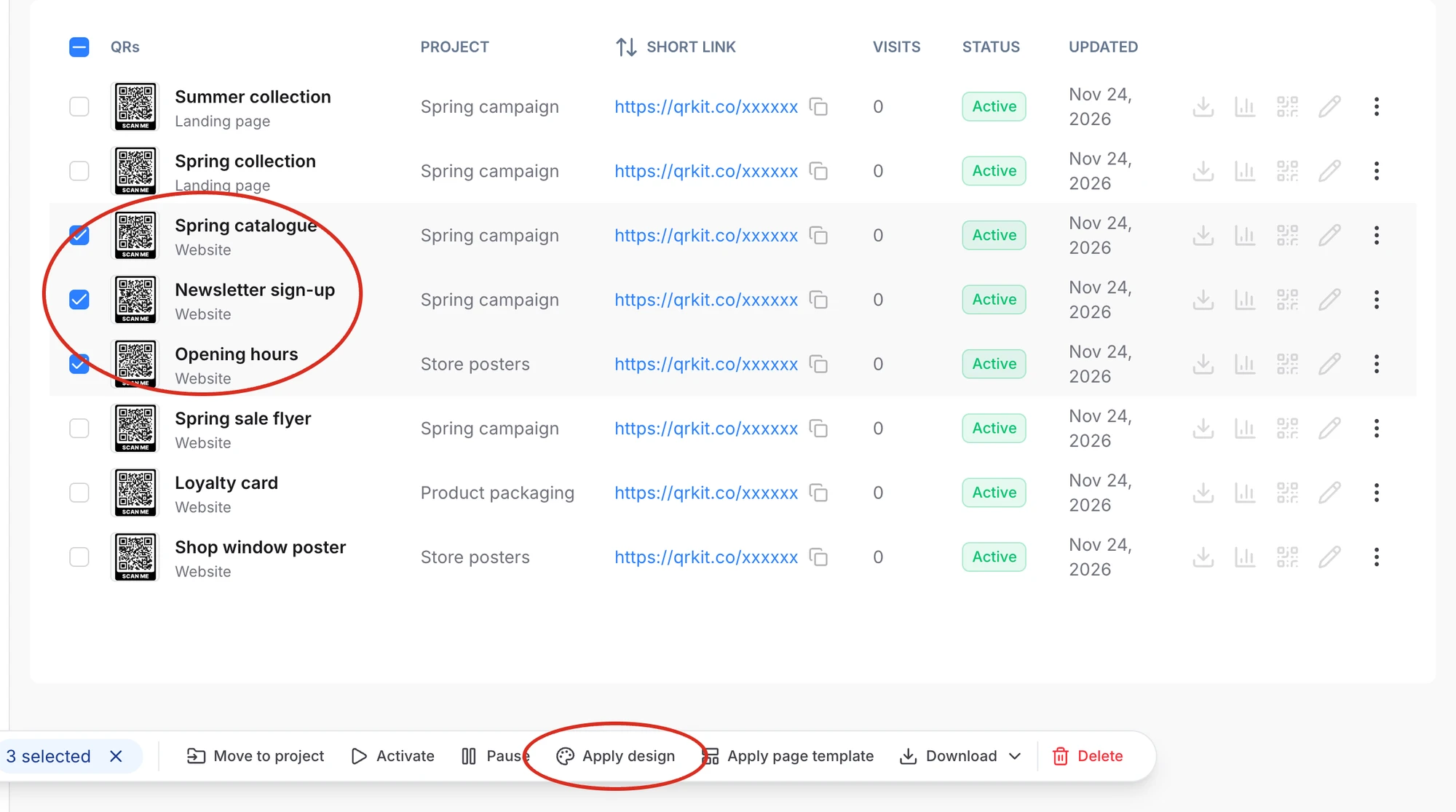
- Check the box of each QR code you want to change. The box at the top of the list selects every QR code shown on the page.
- In the actions bar that appears, click Apply design.
- Click the saved design you want to use.
- Leave Selected QR codes selected.
- Click Apply design.
Apply a design to every QR code in a project
- Go to your dashboard and check the box of any QR code. The actions bar only appears when at least one QR code is selected.
- Click Apply design.
- Click the saved design you want to use.
- Select All QR codes in a project and choose the project.
- Click Apply design.
Every active or paused QR code of the project gets the design, including the ones you did not select. QR codes in the trash are not changed.
Good to know
- Each QR code gets a new image, so a large batch takes a while. If it takes longer than two minutes, a message tells you it keeps running in the background and you can keep working.
- The design is copied to each QR code. Changing or deleting the saved design later does not change the QR codes that already got it.
- The logo is part of the design. A saved design without a logo removes the logo from the QR codes it is applied to.
- A saved design can be applied to QR codes of any type.
- If you need the new image for printing, download the QR codes again.