Some QR codes open a page, such as a landing page, a business card or a menu. A page template keeps the look of that page under a name, so you can give the same look to other QR codes without redoing it by hand.
A template keeps the theme, the background, the buttons, the fonts and the style of each element, such as the shape of a picture or the size of a title. It does not keep any content: texts, links, phone numbers and pictures stay as they are on each QR code.
Templates are available for these QR code types: Landing page, Digital business card, Menu, Social media, Lead Generation, Payment and Google Reviews. A template can only be applied to QR codes of the type it was saved from.
Save a template
A template is saved from the Content step of a QR code, in the Themes section of Page style.

- From your dashboard, open the QR code whose page looks the way you want.
- Make sure you are in the Content step. It is step 2 of the three steps shown at the top of the screen.
- Scroll down to Page style and find the Themes section.
- Below the themes you will see Your templates. Click Save as template.
- Type a name for the template and click Save.
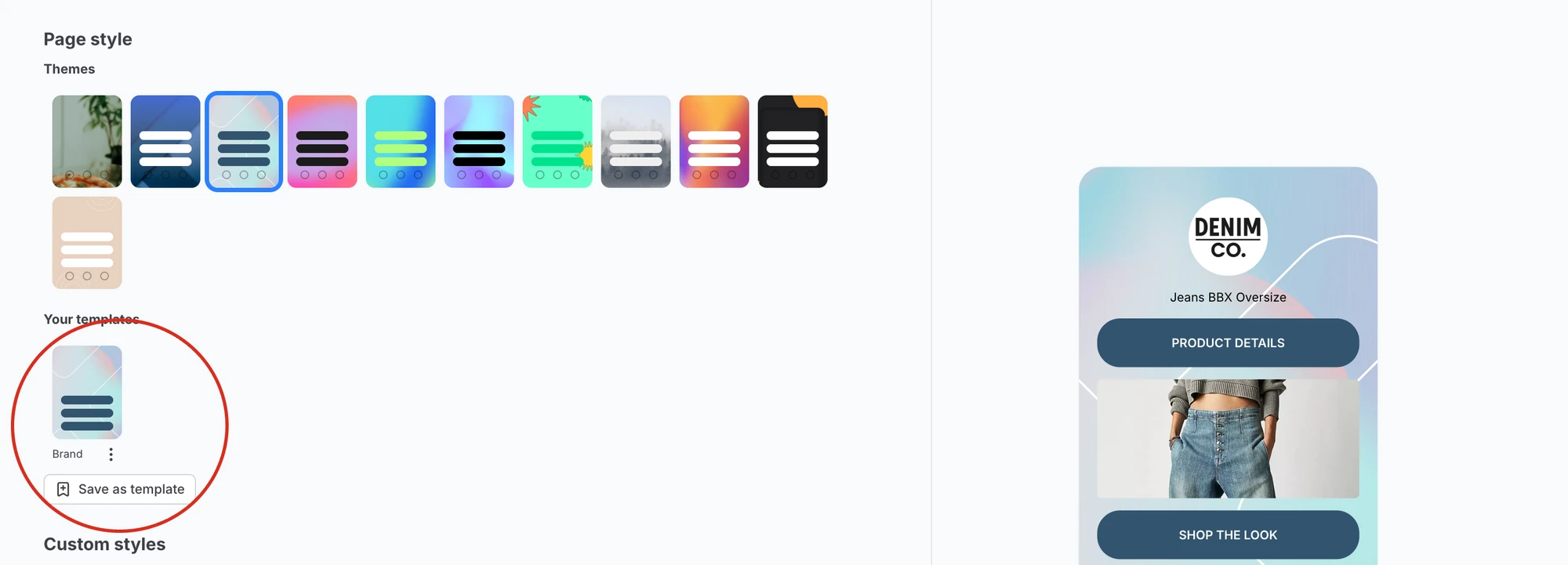
The template now appears under Your templates on every QR code of that type, for all the users of your account.
Use a template on the QR code you are editing
Under Your templates, click the template. The preview shows the new look. Save the QR code as usual to keep it.
Apply a template to several QR codes
Important: the QR codes must be of the same type as the template. A template saved from a landing page can only be applied to landing pages, and one saved from a business card only to business cards. The type of each QR code is shown under its name in the list.
- Go to your dashboard and check the box of each QR code you want to change.
- In the actions bar that appears, click Apply page template.
- Click the template you want to use. Under each template you can see its name and the QR code type it is for.
- Leave Selected QR codes selected. A line below tells you how many of the selected QR codes are of the type of the template and will get it.
- Click Apply template.
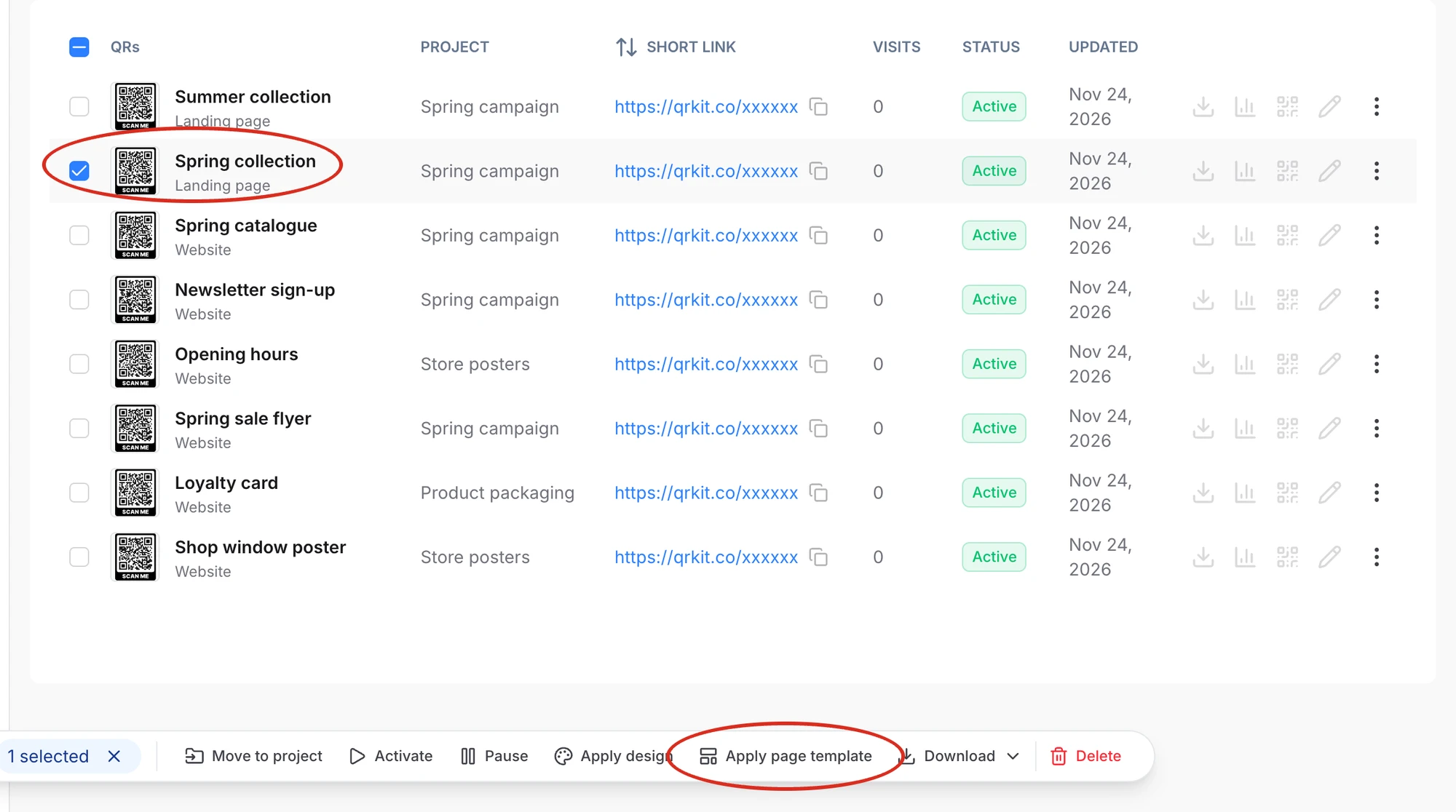
QR codes of another type are skipped. The final message tells you how many QR codes got the template and how many were skipped.
Apply a template to every QR code in a project
- Go to your dashboard and check the box of any QR code. The actions bar only appears when at least one QR code is selected.
- Click Apply page template.
- Click the template you want to use.
- Select All QR codes in a project and choose the project.
- Click Apply template.
Every active or paused QR code of the project that is of the type of the template gets it. The rest are not changed.
How the styles of the elements are matched
Two QR codes rarely have the same elements, so the template matches them by kind and by position:
- Elements are grouped by kind: picture, title, subtitle, phone, email, link, address, social media and so on.
- Within a kind, they are matched in the order they appear on the page: the first picture takes the style of the first picture of the template, the second takes the second.
- If a QR code has more elements of a kind than the template, the extra ones take the style of the last one. A template saved from a card with one phone gives that style to every phone.
- Elements of a kind the template does not have are not changed.
Rename, update or delete a template
Under Your templates, click the three-dot menu next to the template:
- Rename changes its name.
- Replace with current look overwrites the template with the look of the QR code you are editing.
- Delete removes it.
None of these change the QR codes that already got the template. To pass a change on to them, apply the template again.
Good to know
- The pages change as soon as the template is applied, and anyone who scans the QR codes sees the new look. Printed QR codes keep working.
- There is no undo: the previous look of each QR code is replaced.
- A template that uses your own background image needs a plan that includes page background images. The image that comes with a theme is always available.