A Payment QR code opens a mobile page where people can pay you by card or PayPal. Use it to sell a product at a fixed price, collect donations, or let the payer enter any amount.
Connect a payment provider
Payments go straight to your own account with the provider. In the sidebar, click Receive payments and then Connect a payment provider. You only do this once.
Steps
- In your dashboard, click Create QR code.
- Choose Payment.
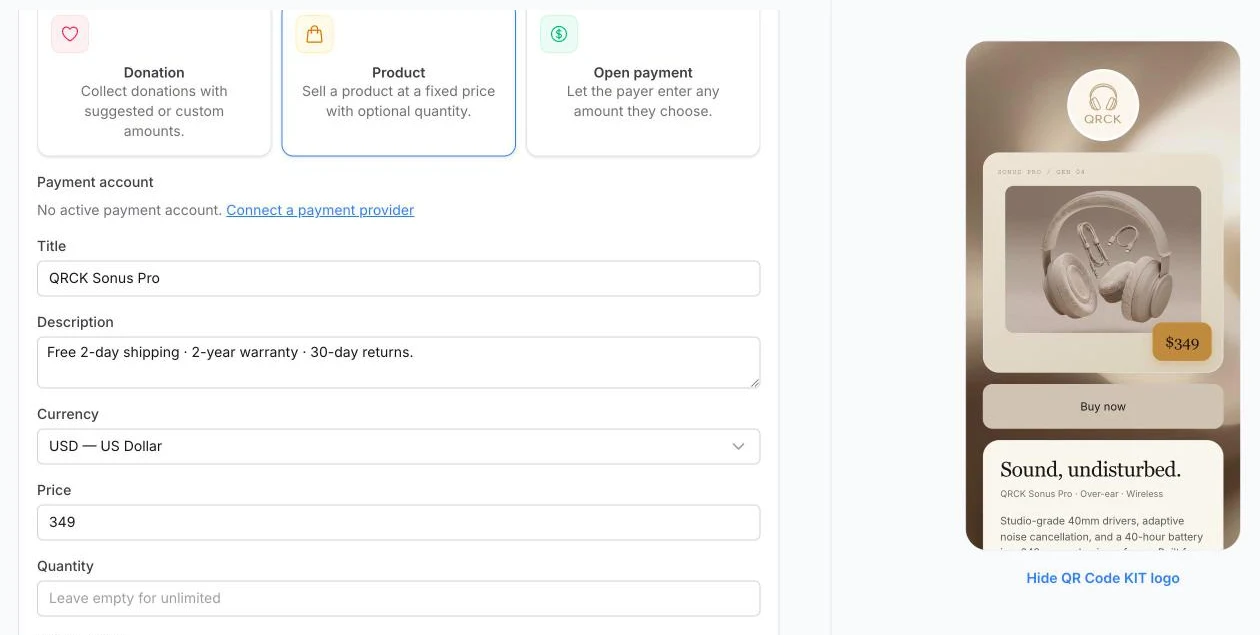
- In the Payment block, choose the payment type: Donation, Product or Open payment.
- Enter a title, description and currency. For a product, add the price and, optionally, the quantity available (leave it empty for unlimited).
- Write the button text under Call to action, such as Buy now.
- Add any other blocks you need, such as an image, a video or a link button, and arrange them.
- Under Page style, pick a theme or one of Your templates.
- Click Next: Design. Your QR code is created and saved at this point.
- Choose a style, and add a logo or frame if you like. Changes on this step save automatically.
- Click Download QR Code and pick PNG, PDF, SVG or EPS. To download it later, click Or finish without downloading.
Good to know
- You can also add a Payment block to other page types, such as a Landing page or a Menu.
- To be notified of each payment in your own tools, connect the QR code to Zapier, Make or n8n.
- You can change the content at any time with the pencil icon in your dashboard. The printed QR code keeps working.
- Not sure this is the right type? See all QR code types.