How to assign your domain to a project (set up white-label URL masking)
Mask your QR Codes' short URL with your brand
This article corresponds to QRCodeKIT's legacy app. For more information, click here.
If you have subscribed to the PROFESSIONAL or ENTERPRISE plan, you can mask the domain of the QR Codes' short URL (uqr.to/...) with your subdomain (qrs.my-domain.com/...).
DNS provider setup
First, you need to create a subdomain in your DNS provider. Log in to it and follow these steps:
1) Go to the DNS Management page and add a new record type "CNAME"
2) In the "Host", "Name" or "Subdomain" field, enter your subdomain. For example, if you want to create the subdomain "qrs.my-domain.com", your CNAME host would be "qrs". Root domains (my-domain.com) or "www" prefixes are not allowed
3) In the "Target", "Points to" or "Value" field, enter "whitelabel.qrbridge.me"
4) Leave the TTL field as is
QRCodeKIT setup
After that, log in to your QRCodeKIT account and follow these steps in order to assign your domain to a project:
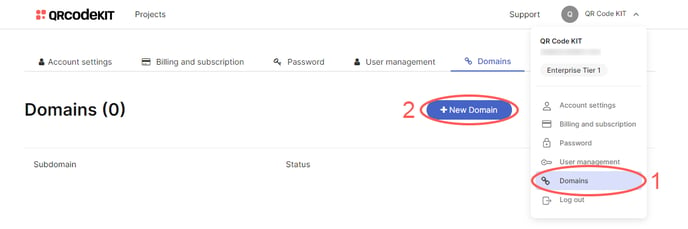
1) Click your user name in the top-right corner of your dashboard and click Domains
2) Click New Domain
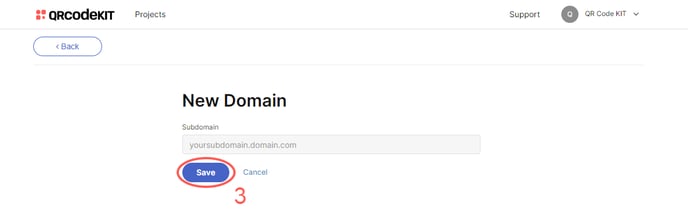
3) Enter your subdomain and click Save
4) Click Test in order to verify that the subdomain has been propagated. If it has not, wait a few minutes and try again
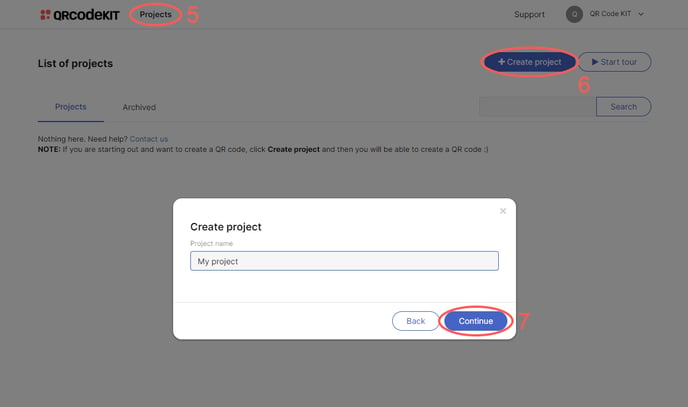
5) Click Projects in the top
6) Click Create project
7) Name your project and click Continue
8) Click Custom URL, select the created subdomain from the dropdown menu and click Continue
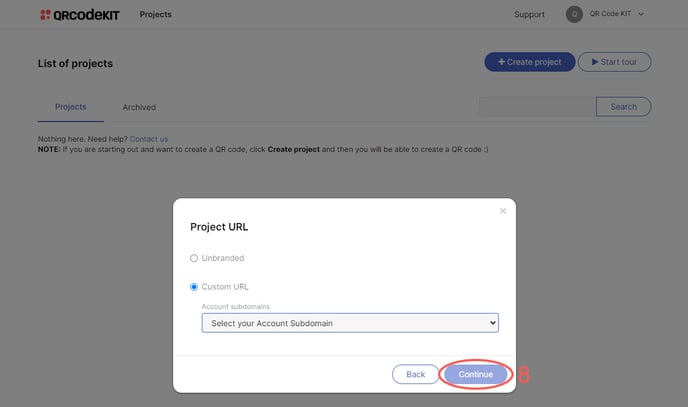
NOTE: You can assign the same subdomain to one or more projects. If you have subscribed to the ENTERPRISE plan, you can assign multiple subdomains to your projects. Once a subdomain is assigned to a project, it cannot be changed.
You can also edit the last part of your QR Codes' short URL (qrs.my-domain.com/THIS-PART). If you want to know how, click here.
Further information
DNS propagation can take up to 24 hours. However, if the DNS entries were set up correctly, they should be available within an hour. To check the status of the propagation, you can go to the website https://dnschecker.org, enter your subdomain under "DNS CHECK", select "CNAME" from the dropdown menu and click Search.
If you are not sure how to set up your CNAME, please consult your domain name registrar or web hosting provider. It is impossible for us to provide further instructions due to the fact that the setup varies greatly from provider to provider.
Here is a list of the most common domain name registrars and web hosting providers, and their respective instructions on how to configure DNS:
GoDaddy:
- Instructions on how to configure DNS on GoDaddy
Enom:
- Instructions on how to configure DNS on Enom
Tucows:
- Instructions on how to configure DNS on Tucows
OVH:
- Instructions on how to configure DNS on OVH
Bluehost:
- Instructions on how to configure DNS on Bluehost
Any changes you make to the DNS entries can immediately affect your client's ability to access your resources. We cannot take any responsibility for said changes so please be very careful. If you have any questions, contact us via chat or email.
All information in this document complies with the DNS standards, but some domain name registrars and web hosting providers handle things differently.