How to create a Google Maps QR Code
Show a specific location in Google Maps
This article corresponds to QRCodeKIT's legacy app. For more information, click here.
Log in to your account, or register here if you do not have one, and follow these steps:
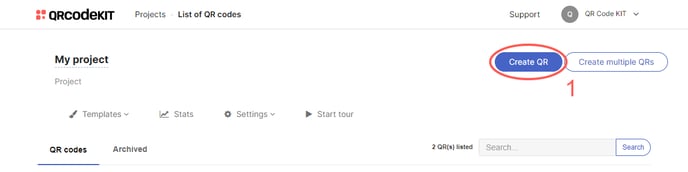
1) Click Create QR
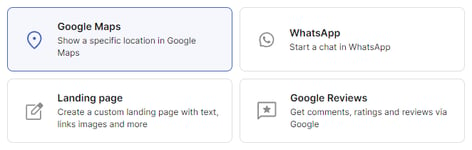
2) Select Google Maps
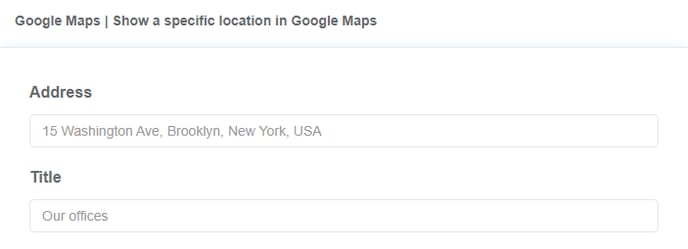
3) Enter the address of your home, office or event
4) Click Save to apply changes or Save and download to download the QR Code
Done! Here is an example of what the content would look like. Scan the QR Code to see it on your smartphone.
If you want to know how to customize the QR Code, its page or how to download it, check the following articles:
- How to customize a QR Code
- How to customize the page template of a QR Code
- How to download a QR Code