How to create a Landing page QR Code
Create a custom page with text, links images and more
This article corresponds to QRCodeKIT's legacy app. For more information, click here.
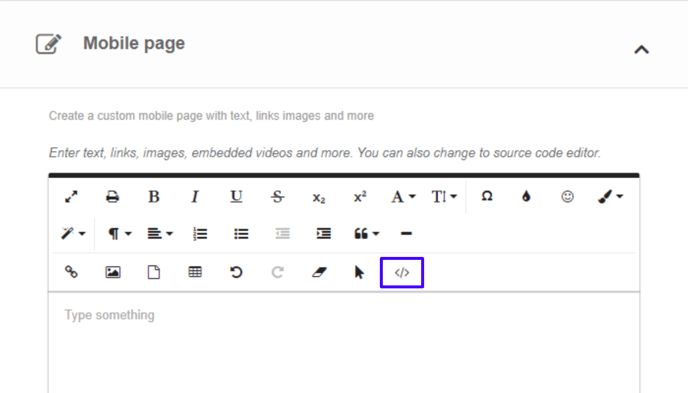
Log in to your account, or register here if you do not have one, and follow these steps:
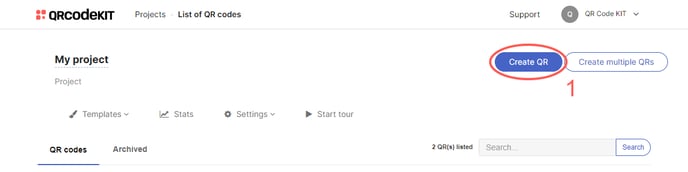
1) Click Create QR
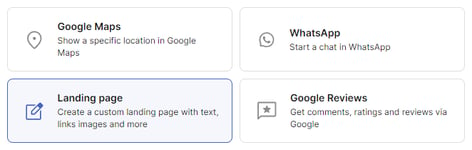
2) Select Landing page
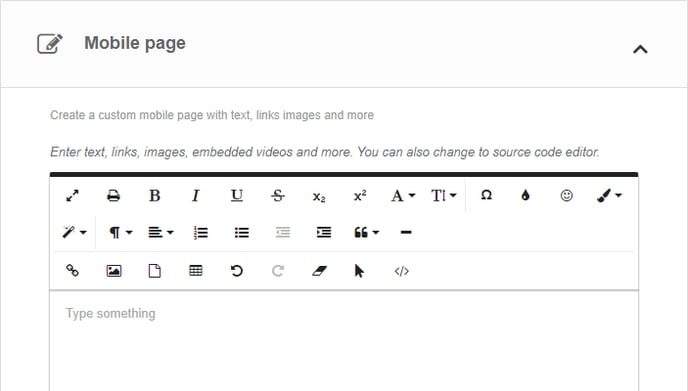
3) Enter your text, links, images, embedded videos, edit the HTML source code, etc.
4) Click Save to apply changes or Save and download to download the QR Code
Done! Here is an example of what the content would look like. Scan the QR Code to see it on your smartphone.
If you want to know how to customize the QR Code, its page or how to download it, check the following articles:
- How to customize a QR Code
- How to customize the page template of a QR Code
- How to download a QR Code
Landing page QR Code best practices
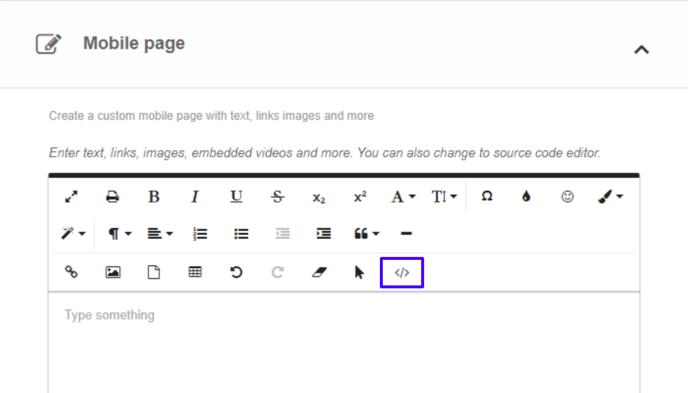
You can fully customize your page by switching to HTML or source code view. After making changes, switch back to normal view to preview and save. Here are some uses with HTML:
How to add a Call phone number link to a Landing page
You can create a link to allow users to initiate a phone call directly from their devices.
1) Click the </> icon to switch to HTML view
2) Add a "href" attribute with the target phone number to the prompt (Call us) that will open the phone app. For example:
<a href="tel:+1234567890">Call us</a>
Replace "+1234567890" with the corresponding phone number. The "+" sign indicates the international dialing code
3) Click the </> icon again to switch back to normal view and click Save
How to add a Send email link to a Landing page
You can create a link to allow users to send an email to a specific address directly from their devices.
1) Click the </> icon to switch to HTML view
2) Add a "href" attribute with the target address to the prompt (Send Email) that will open the email app. For example:
<a href="mailto:[email protected]">Send Email</a>
Replace "[email protected]" with the corresponding email address
3) Click the </> icon again to switch back to normal view and click Save
How to add a Send message to WhatsApp link to a Landing page
You can create a link to allow users to send a message to a specific WhatsApp number directly from their devices.
1) Click the </> icon to switch to HTML view
2) Add a "href" attribute with the target WhatsApp number to the prompt (Contact us on WhatsApp) that will open the WhatsApp app. Optionally, you can add a message to send (This is a message) after "?text=". For example:
<a href="https://wa.me/+1234567890?text=This is a message">Contact us on WhatsApp</a>
Replace "+1234567890" with the corresponding WhatsApp number
3) Click the </> icon again to switch back to normal view and click Save
How to link to a specific part of a Landing page
You can create a link to allow users to jump directly to a specific section on your page.
1) Click the </> icon to switch to HTML view
2) Add an "id" attribute to the target element (Section 1). We recommend that the name of the element is the same as the id (section1). For example:
<a id="section1">Section 1</a>
3) Add a "href" attribute using the id created in step 1 (#section1) to the prompt that will go to the target element (Go to Section 1). For example:
<a href="#section1">Go to Section 1</a>
4) Click the </> icon again to switch back to normal view and click Save
How to embed a video on a Landing page
You can display videos from YouTube, Vimeo and other online video platforms on your page provided they have an embed option ("iframe" tag). After copying it, go to your Landing page QR Code in QRCodeKIT and follow these steps:
1) Click the </> icon to switch to HTML view
2) Paste the "iframe" tag. For example:
<iframe width="560" height="315" src="https://www.youtube.com/embed/Ec1JJT4Oqyw" title="YouTube video player" frameborder="0" allow="accelerometer; autoplay; clipboard-write; encrypted-media; gyroscope; picture-in-picture; web-share" allowfullscreen></iframe>
3) Click the </> icon again to switch back to normal view and click Save
How to embed a Google map on a Landing page
You can display multiple Google maps by searching the addresses in Google Maps, clicking Share > Embed a map and copying the "iframe" tag. After that, go to your Landing page QR Code in QRCodeKIT and follow these steps:
1) Click the </> icon to switch to HTML view
2) Paste the "iframe" tag. For example:
<iframe src="https://www.google.com/maps/embed?pb=!1m18!1m12!1m3!1d1589980.4936041927!2d-79.46503024375001!3d38.89126619999998!2m3!1f0!2f0!3f0!3m2!1i1024!2i768!4f13.1!3m3!1m2!1s0x89b7b798ecb5b2c7%3A0xc7edf0c4a86f75af!2sSmithsonian%20National%20Museum%20of%20Natural%20History!5e0!3m2!1sen!2sar!4v1719328865609!5m2!1sen!2sar" width="600" height="450" style="border:0;" allowfullscreen="" loading="lazy" referrerpolicy="no-referrer-when-downgrade"></iframe>
3) Replace the default width value of 600 with 400
3) Click the </> icon again to switch back to normal view and click Save