QR code not scanning? Causes and fixes
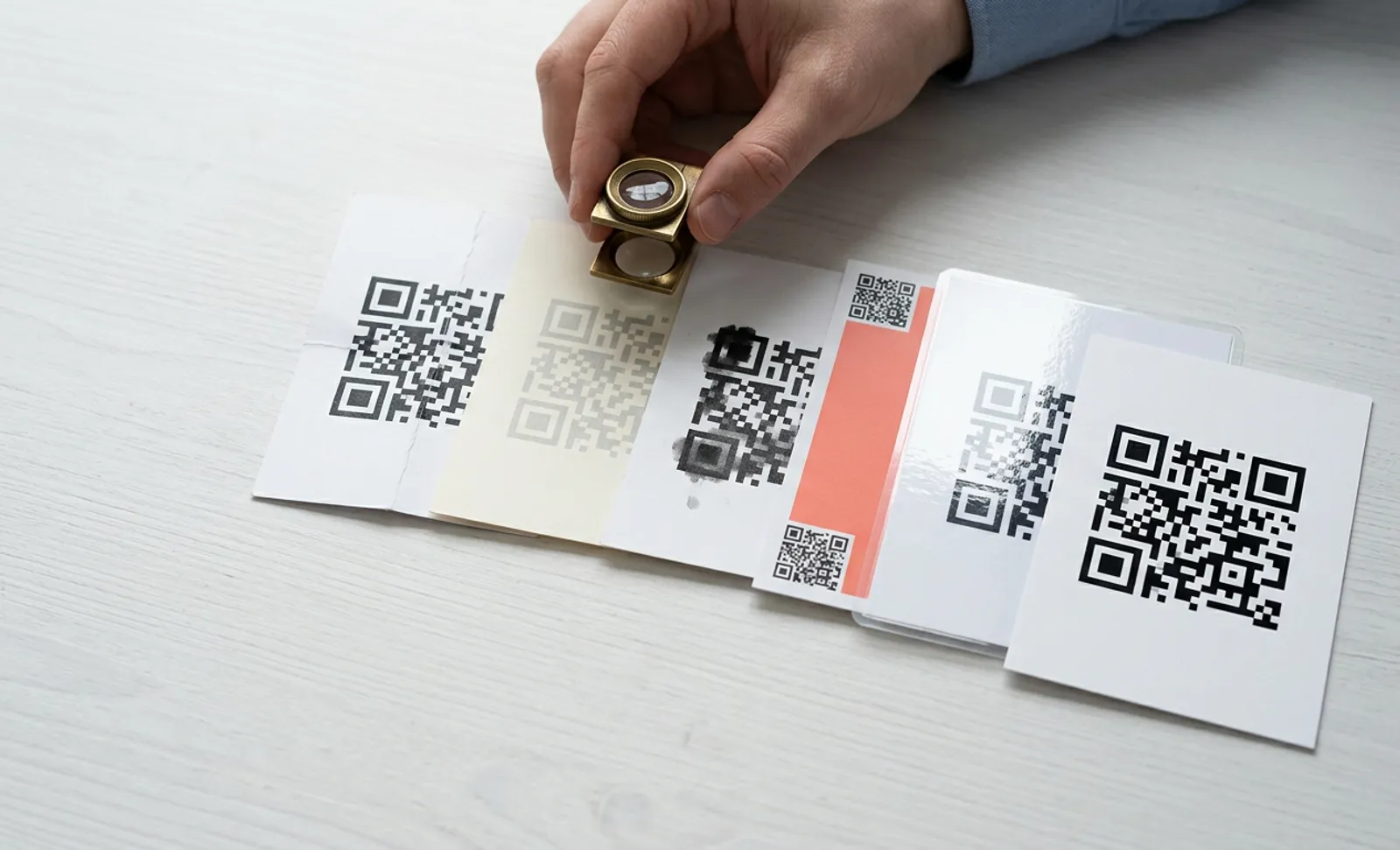
A QR code that won't scan usually fails for an ordinary reason: it's too small, the contrast is too low, the phone isn't set up to read it, or the link behind it no longer works. This guide shows how to find which one it is in under a minute, and how to fix each cause, including the ones you can fix without reprinting.
Why won't my QR code scan, and how do I fix it?
Most codes fail for one of four reasons: printed too small or blurry, too little contrast between the code and its background, an older phone with no built-in scanner, or a broken link behind the code. Reprint larger with dark modules on a light background, and ask people on older phones to use a scanner app. With QRCodeKIT every code is dynamic, so a broken link is fixed in the dashboard without reprinting, and the short link keeps the pattern simple and easier to read.
Is it the code, the phone or the link?
Before changing anything, run a 30-second test. It tells you which of the three sections below you need.
- Scan the code with a second phone, ideally one iPhone and one Android phone.
- If the second phone reads it, the code is fine and the first phone is the problem. Go to "Why won't my phone scan QR codes?"
- If no phone reads it, the problem is the code itself: its size, contrast, margin, image quality or design. Go to "Why can't phones read my QR code?"
- If the phone reads it but the page doesn't open, or opens an error, the code is fine and the problem is the link. Go to "The code scans, but the page doesn't open".
Why can't phones read my QR code?
When no phone can read a code, the cause is almost always in how it was made or printed. These are the usual suspects, in the order they turn up most often.
It's too small for the scanning distance
A phone needs enough pixels on each module, the small squares that make up the code. The rule of thumb is 10:1: the code should be at least one tenth of the distance it's scanned from. From 20 cm away, that means at least 2 cm wide; from 2 metres, at least 20 cm. Don't go below 2 × 2 cm, even on a business card. The print size guide has the full table.
Fix: reprint at the right size. If the code is dynamic, the reprint can use the same code, so nothing else changes.
The contrast is too low
Scanners look for dark modules on a light background. Light-on-light colours, busy photo backgrounds and pale brand colours all reduce the difference the camera relies on. Inverted codes, light modules on a dark background, are read by many recent phones but not by all of them.
Fix: use a dark colour for the code and a light one for the background. The colour combinations guide lists pairings that keep brand colours and still scan.
There's no quiet zone
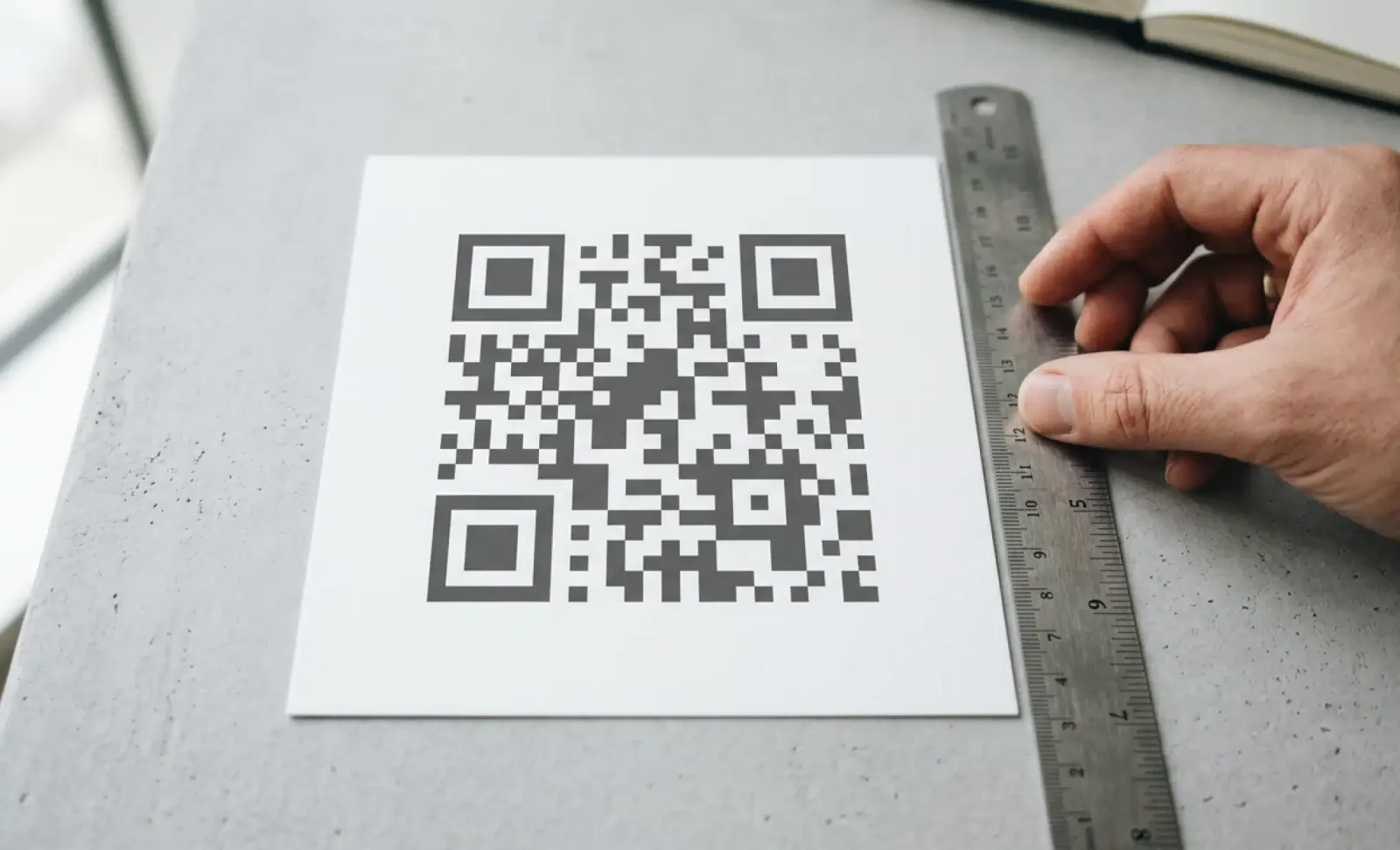
A QR code needs a clear margin on all four sides, at least four modules wide under ISO/IEC 18004. Text, borders or artwork that run up to the edge of the code stop the scanner from finding it. This is one of the most common faults in finished designs, because the margin looks like wasted space and gets cropped.
Fix: restore a clear margin of at least four modules. The quiet zone guide explains how to measure it.
The image is blurry, pixelated or stretched
A low-resolution PNG enlarged for print, a code compressed for the web, or one stretched out of square all blur the edges of the modules. Older cameras are the first to fail.
Fix: export the code as SVG or PDF, which stay sharp at any size, and never stretch it. See why SVG works best for print and the printing guide. If the code doesn't appear on paper at all, the QR code not printing guide covers driver and layout problems.
The pattern is too dense
A static QR code stores its whole destination inside the pattern, so a long URL with tracking parameters makes a dense grid of tiny modules. Dense codes need more size and more camera precision to read.
Fix: use a dynamic code. A QRCodeKIT code stores only a short link, so the pattern stays simple however long the destination URL is, and the destination can change later without a new code.
A logo or artwork covers too much
QR codes carry error correction, which lets a scanner rebuild missing data: up to 7% of the code at level L, 15% at M, 25% at Q and 30% at H. A logo in the centre uses up part of that margin. If it's too big, or covers one of the three large position squares in the corners, the code stops scanning. The error correction guide explains the levels.
Fix: shrink the logo, keep the corner squares clear and in a contrasting colour, and use a higher correction level. The artistic QR code guide and the help article on designs that don't scan cover the details.
The surface works against it
Glossy lamination and metal reflect light into the camera, curved bottles and cans bend the pattern, and outdoor codes fade and get scratched.
Fix: use a matte finish, place the code on the flattest part of the surface, and print it larger where it may get damaged. The guide to printing QR codes on metal covers engraving, etching and glare.
Put it into practice
Create a dynamic QR code free and see it work. No credit card required.
Get started freeWhy won't my phone scan QR codes?
When other phones read the code and one doesn't, the problem is that phone.
- QR scanning is switched off. On an iPhone, open Settings, then Camera, and turn on Scan QR Codes. On Android, the option sits in the camera settings, often as a QR or Google Lens setting, depending on the manufacturer. The iPhone scanning guide walks through every method.
- The phone is too old to scan with the camera. iPhones need iOS 11 or later. Many Android phones from before 2017 need a scanner app from the Play Store. The article on QR codes not scanning on older phones covers the details.
- The lens or the light is the problem. A smudged lens, low light or holding the phone too close accounts for a surprising share of failed scans. Clean the lens, find even light, and step back until the whole code fits in the frame.
- A reader app can help. If the camera still won't read it, a dedicated app usually will. See the best QR code reader apps.
The code scans, but the page doesn't open: what's wrong?
When the phone recognises the code and then shows an error, a blank page or the wrong page, the code is fine. The link behind it is not.
- The link was wrong or has moved. In a static code the URL is part of the pattern, so a typo or a page that has since moved can only be fixed with a new code.
- The destination was deleted. The code still works, but the page it points to doesn't exist any more.
- The code was paused or has expired. Dynamic codes depend on the platform that hosts them. They stop when a trial ends, a subscription lapses or a provider shuts down. What to do if your dynamic QR code expired covers each case.
- The monthly scan limit was reached. On QRCodeKIT's free plan, each code can be scanned 100 times per calendar month. When a code reaches the limit, it stops resolving until the counter resets on the first day of the next month, and you get a notice in your dashboard and by email. Starter allows 10,000 scans per code per month, and Pro and Enterprise have no limit. See what the free plan includes and the plans.
- A network or security filter blocked it. Company networks and some security apps block links they don't recognise, and generic shortened links are the first to be flagged. A short link on your own domain shows people, and filters, whose code it is.
Fix: with a dynamic code, every cause in this section is fixed in the dashboard without touching the printed code. On QRCodeKIT you change the destination after printing, restore a deleted page, or upgrade the plan, and the same printed code works again.
How do I test a QR code before printing?
Scan the code from the actual proof on at least one iPhone and one Android phone, with the camera and with a reader app, at the distance and in the light where it will be displayed. Then print one test copy on the final material before the full run. A dynamic code lets you fix a wrong destination after printing, but not a code that can't be read, so size, contrast and margin are worth checking before anything goes to the printer. The printing guide has more.
A checklist before the next print run
- The code is at least one tenth of the scanning distance, and never below 2 × 2 cm.
- Dark modules on a light background, with strong contrast.
- A clear margin of at least four modules on every side.
- Exported as SVG or PDF, not stretched.
- A dynamic code, so the pattern stays simple and the link can change.
- The logo is small, and the three corner squares are clear.
- A matte, flat surface where possible.
- The destination page works on mobile.
- Tested on an iPhone and an Android phone, from the real distance, on the final material.
Frequently asked questions
Why does my QR code work on iPhone but not on Android?
Usually because QR scanning is switched off in that Android phone's camera, or the phone is old enough to need a scanner app. Check the camera settings for a QR or Google Lens option, or try a reader app. If no Android phone reads it, look at contrast and size, since some cameras are less forgiving than others.
Can a QR code stop working after it's printed?
The printed pattern itself doesn't wear out, unless it's damaged or faded. What stops working is usually the link: a static code pointing to a page that has moved, or a dynamic code whose platform paused it, because the plan expired or the monthly scan limit was reached. A dynamic code on an active account keeps working for as long as the account does.
Can I fix a printed QR code without reprinting it?
Yes, if it's dynamic and the problem is the link. With QRCodeKIT you change the destination in the dashboard and the same printed code sends people to the new page. If the problem is the code itself, such as size, contrast or margin, the print has to change, but a dynamic code lets you reprint the same code rather than make a new one.
How small can a QR code be?
About 2 × 2 cm for something scanned from close up, such as a business card or a menu. Beyond that, divide the scanning distance by ten: a code scanned from 2 metres should be at least 20 cm wide.
Related articles

QR code scan to conversation
Learn what the QR code scan-to-conversation rate measures, why it matters more than scan count for AI QR codes, and how to track and improve it in 2026.
Quiet zone requirements for QR codes
Quiet zone requirements for QR codes explained: the ISO/IEC 18004 four module rule, how to calculate margin size, material edge cases, and testing steps.
Bulk QR code creation
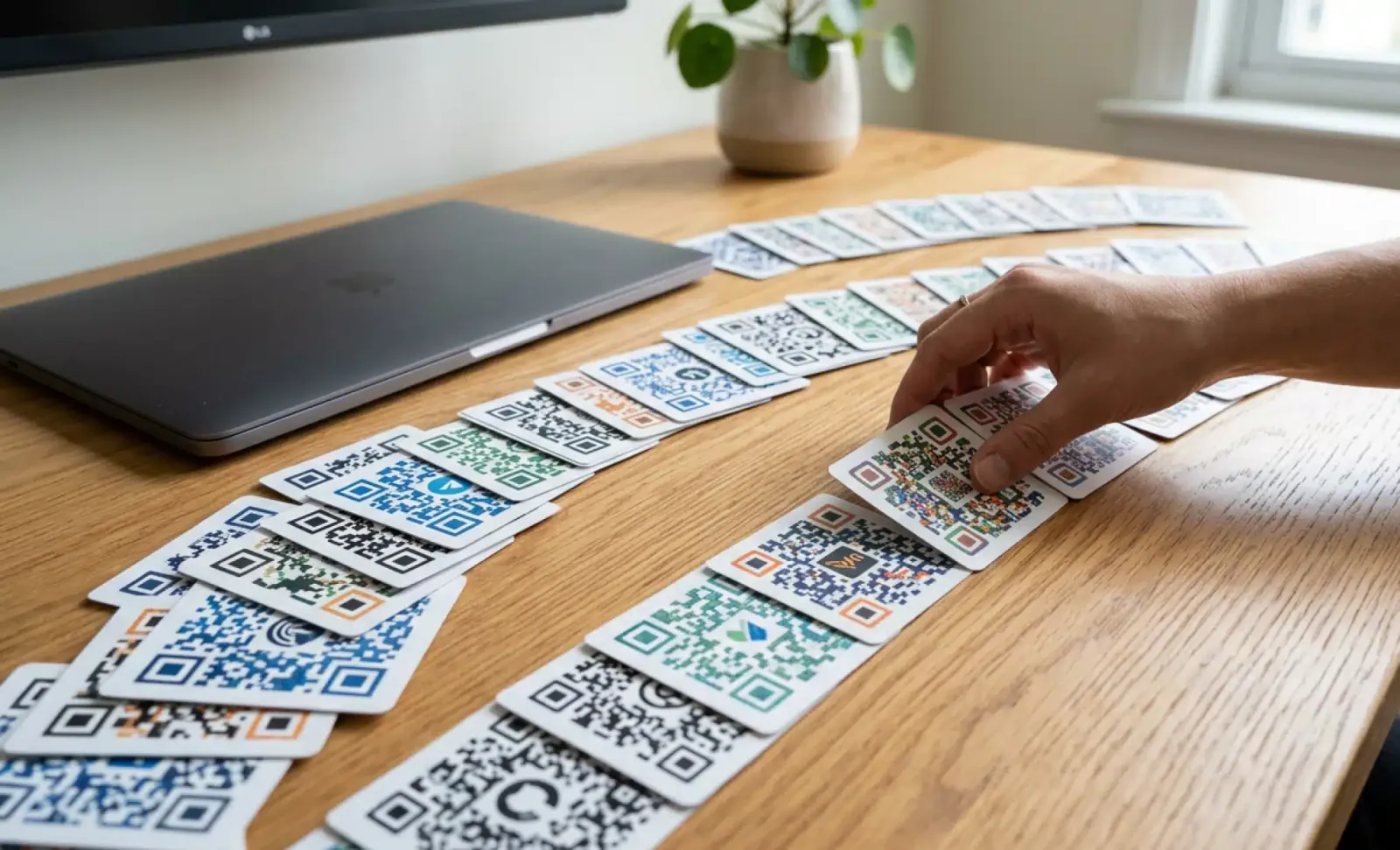
Learn how to automate bulk QR code creation using CSV upload or an API. Compare both methods, see real use cases, and pick the right workflow for your team.
Two free dynamic QR codes. Yours forever.
No credit card. No expiry. The original dynamic QR platform since 2009.